> ## Documentation Index
> Fetch the complete documentation index at: https://docs.controller360.com.br/llms.txt
> Use this file to discover all available pages before exploring further.

# Real-Time

> Real-Time tracks the day's results against the strategic planning targets, providing a real-time view for faster analysis and decision-making. 

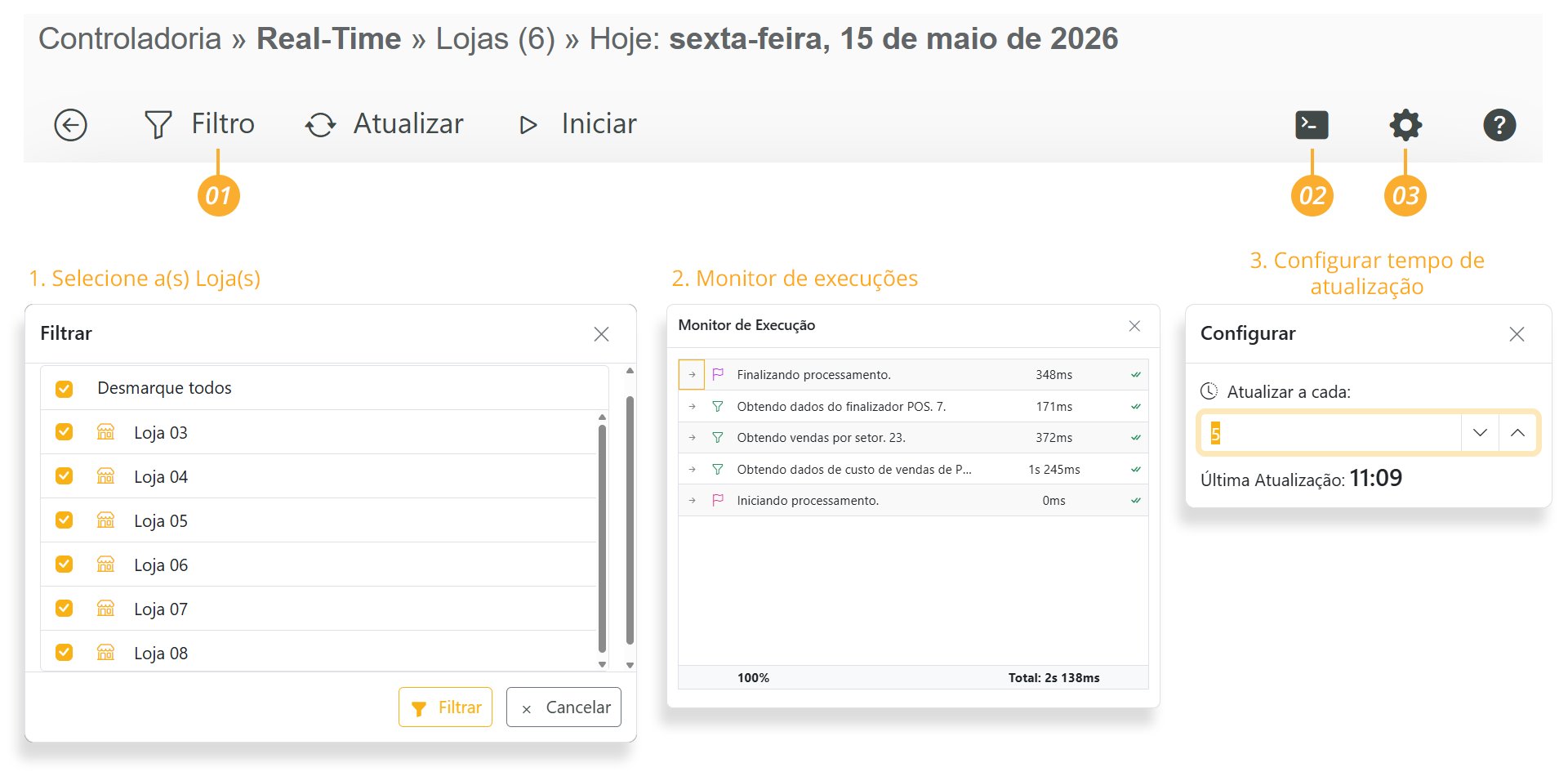
> To update actual data automatically, click <Icon icon="gear" /> in the right corner of the screen. Then select the desired update interval and click <Icon icon="caret-large-right" />.

<Warning>
  If the alerts “*Check your TARGETS at: CONTROLLERSHIP → BUDGET*” and “*Sales Target not found*” are displayed when accessing the Real-Time screen, follow these steps: [How to Create a Budget](/content/docs/pt-br/controladoria/orcamento).
</Warning>

[**Click here**](https://youtu.be/Vi8tkBjSKug) to watch the **Complete Real-Time Video** with details;

<Tabs>
  <Tab title="Portal">
    # **Real-Time**

    Follow the steps below to understand how REAL-TIME works

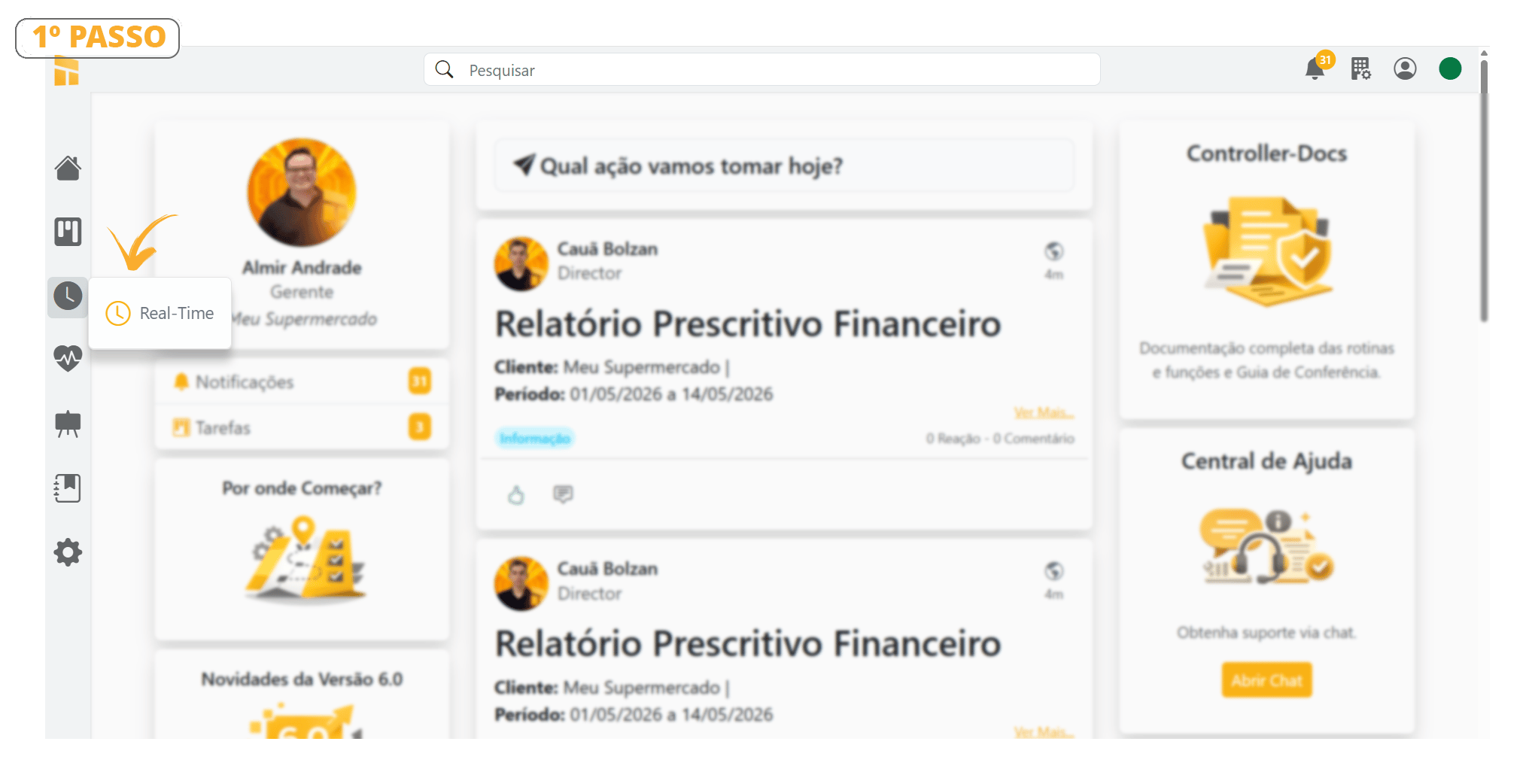
    1. After creating a Budget, click where indicated in the image below to open REAL-TIME.

           <img src="https://mintcdn.com/controller-tech/Z0FGyBIrV5HL1gGI/images/M%C3%A9tricas_01.png?fit=max&auto=format&n=Z0FGyBIrV5HL1gGI&q=85&s=acb41e5f7d921ebf84511fd001bfe9e4" alt="Metrics 01" width="2040" height="1042" data-path="images/Métricas_01.png" />

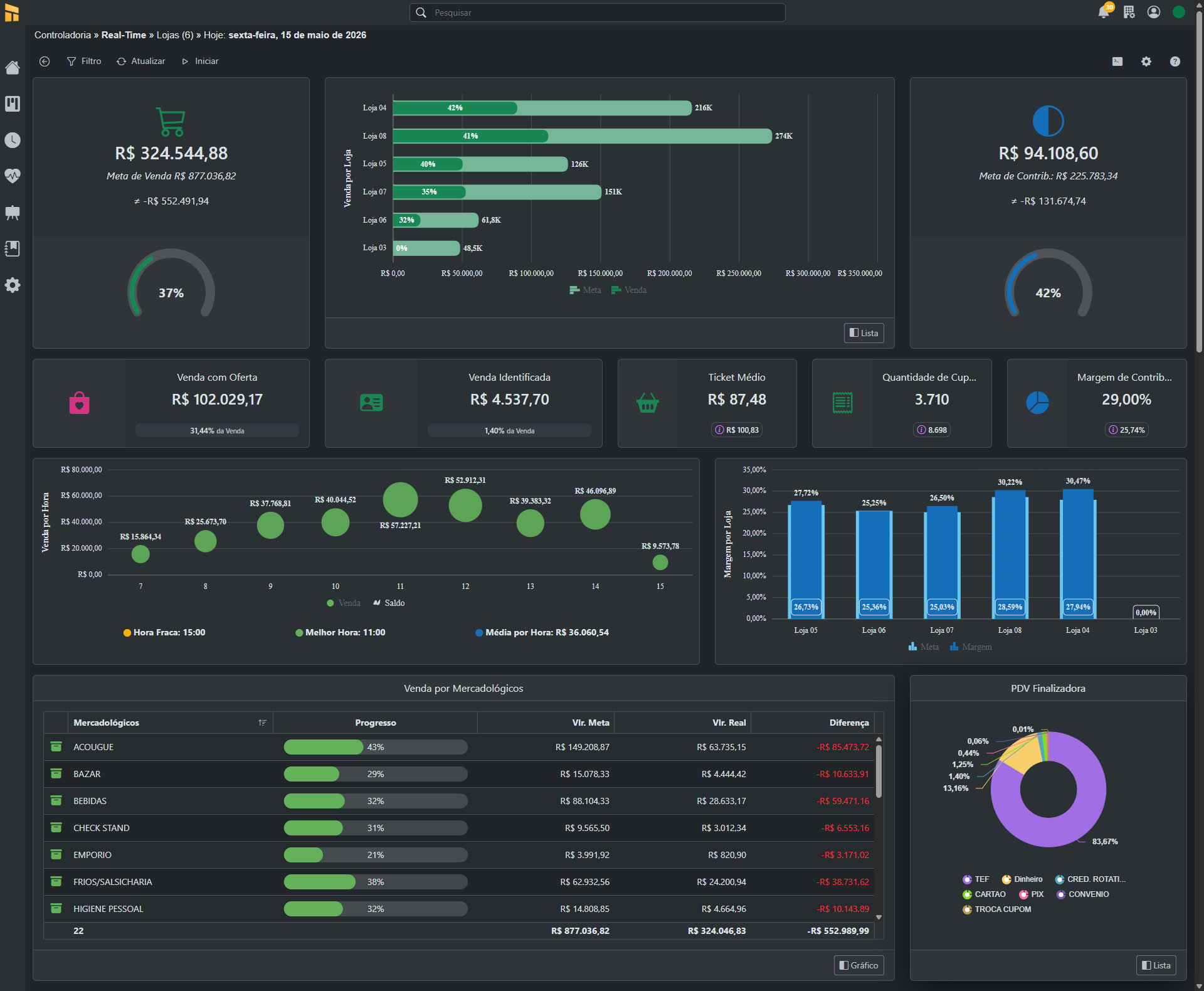
    2. See the REAL-TIME home screen in the image below

    <Info>
      #### *You can only view data in Real-Time after a BUDGET has been created.*<br /> *To learn how to create a Budget, [click HERE](/content/docs/pt-br/controladoria/orcamento)*
    </Info>

    <img src="https://mintcdn.com/controller-tech/Z0FGyBIrV5HL1gGI/images/Real-Time---Full-Screen.png?fit=max&auto=format&n=Z0FGyBIrV5HL1gGI&q=85&s=be0ddae847a96b5014443a8875390daf" alt="Real-Time Full Screen" width="1920" height="1580" data-path="images/Real-Time---Full-Screen.png" />

    # **Configuring Real-Time**

    1. Click \[Filter] to choose which store you would like to view in Real-Time.
    2. You can select one or more stores at the same time.
           <img src="https://mintcdn.com/controller-tech/Z0FGyBIrV5HL1gGI/images/RT_01_Edit-1.png?fit=max&auto=format&n=Z0FGyBIrV5HL1gGI&q=85&s=fea9c036efde9a7715f1cc20f4304192" alt="RT 01 Edit 1" width="1920" height="945" data-path="images/RT_01_Edit-1.png" />

    # **Dashboard Details**

    1. Sales Dashboard Details – Real-Time
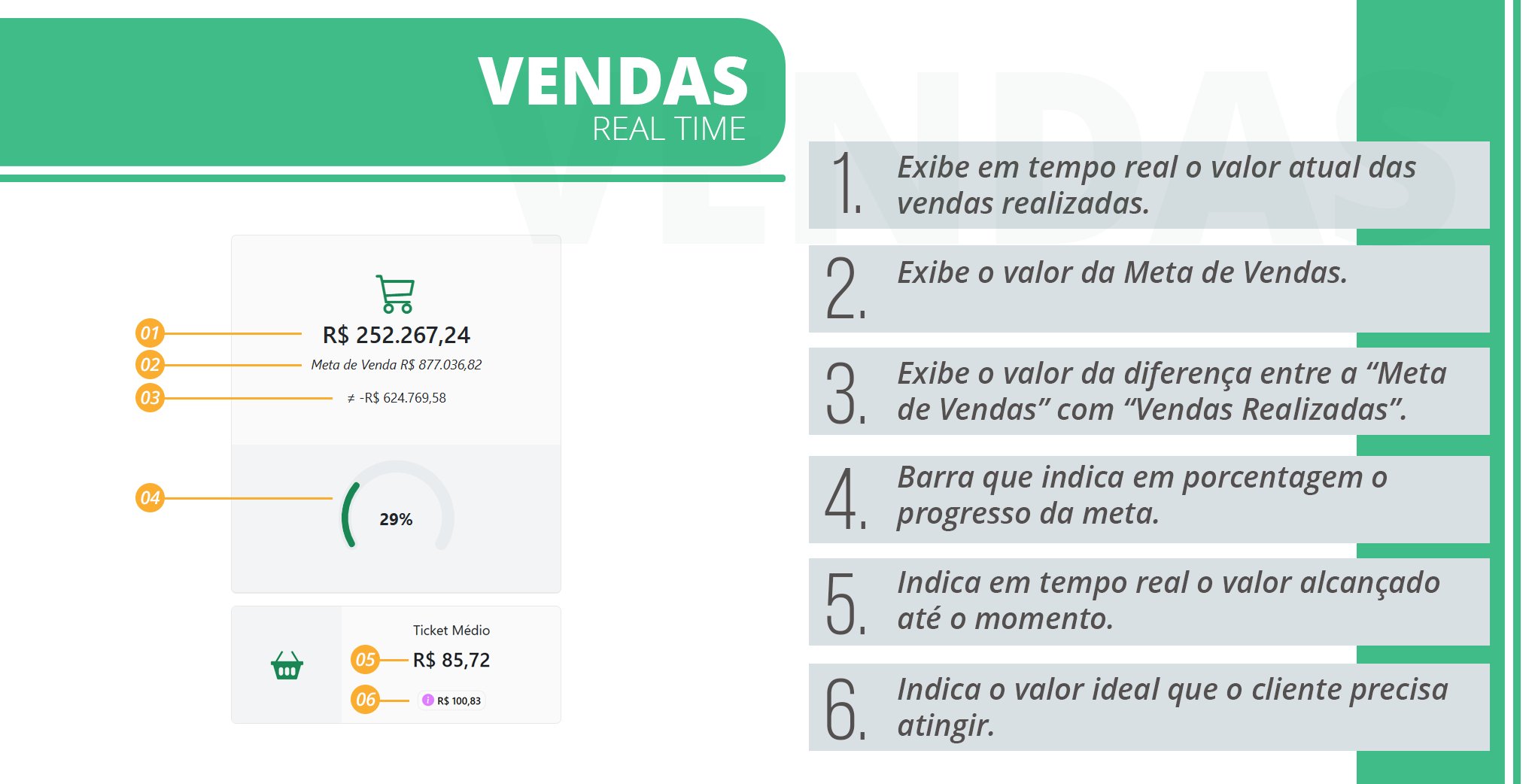
           <img src="https://mintcdn.com/controller-tech/3gbWTYn6j5twcOfP/images/Det_Dashboard_Real-Time_01-1.png?fit=max&auto=format&n=3gbWTYn6j5twcOfP&q=85&s=32d5d3cb366e84e867d2bc481c4e7132" alt="Real-Time Dashboard Details 01 1" width="2040" height="1042" data-path="images/Det_Dashboard_Real-Time_01-1.png" />

    2. Contribution Dashboard Details – Real-Time
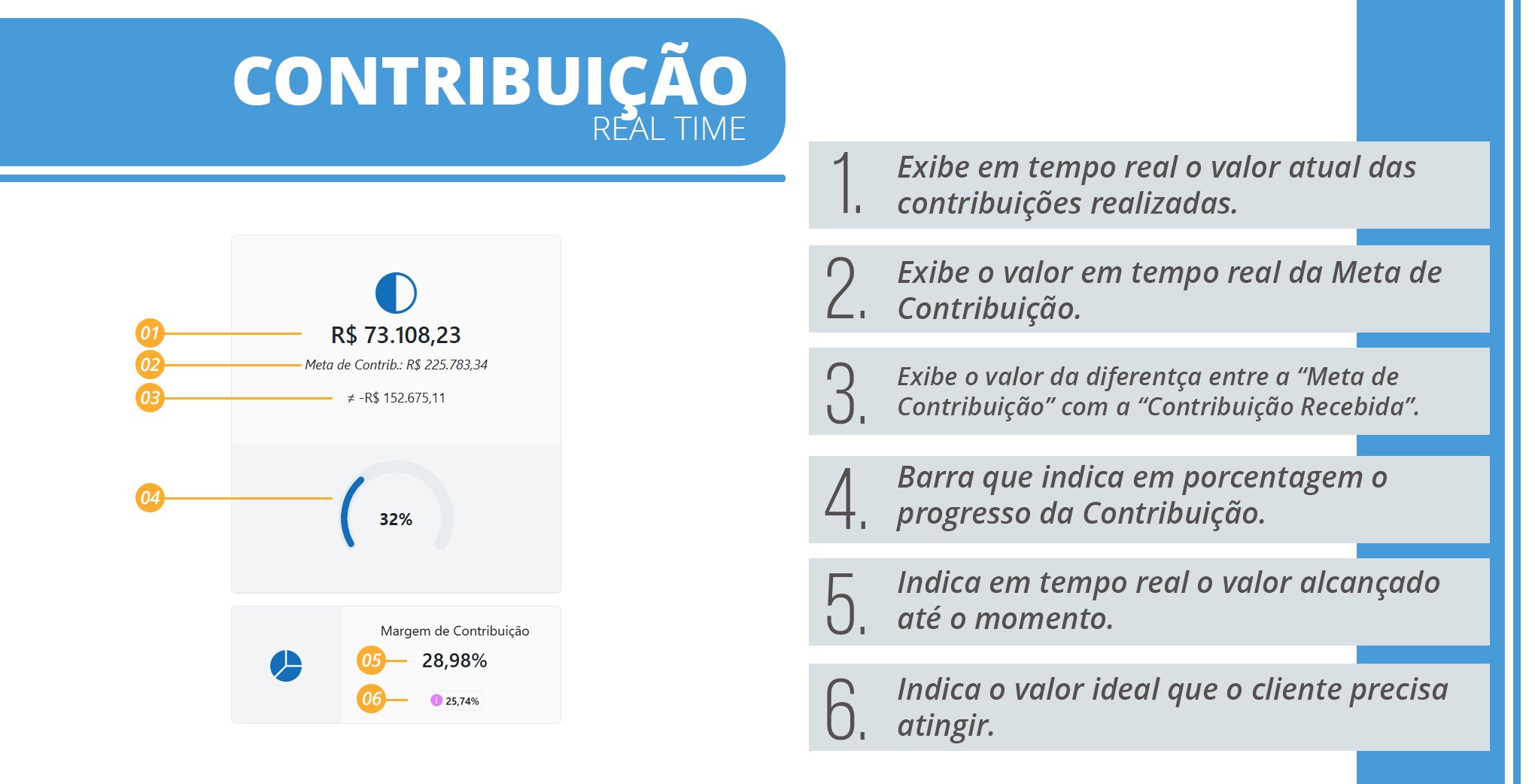
           <img src="https://mintcdn.com/controller-tech/3gbWTYn6j5twcOfP/images/Det_Dashboard_Real-Time_02-1.png?fit=max&auto=format&n=3gbWTYn6j5twcOfP&q=85&s=c38da50d28b7b02594f5d5289bf2fd21" alt="Real-Time Dashboard Details 02 1" width="2040" height="1042" data-path="images/Det_Dashboard_Real-Time_02-1.png" />

    3. Sales by Store Dashboard Details – Real-Time
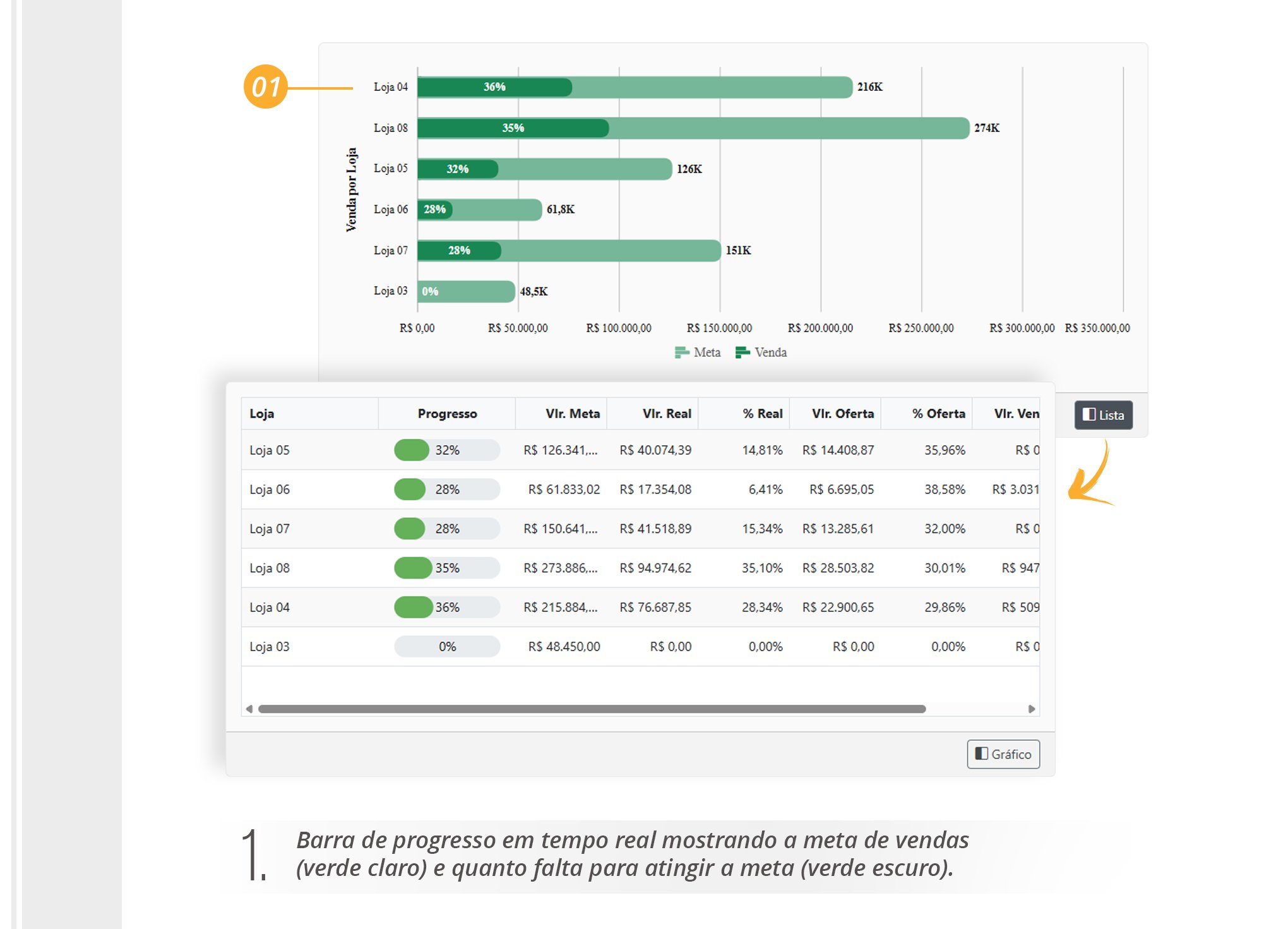
           <img src="https://mintcdn.com/controller-tech/3gbWTYn6j5twcOfP/images/Det_Dashboard_Real-Time_03-1.png?fit=max&auto=format&n=3gbWTYn6j5twcOfP&q=85&s=dba825244cfe6f840b097f5450079d72" alt="Real-Time Dashboard Details 03 1" width="2040" height="1471" data-path="images/Det_Dashboard_Real-Time_03-1.png" />

    4. Coupon Quantity, Identified Sales, and Coupon Quantity Dashboard Details – Real-Time
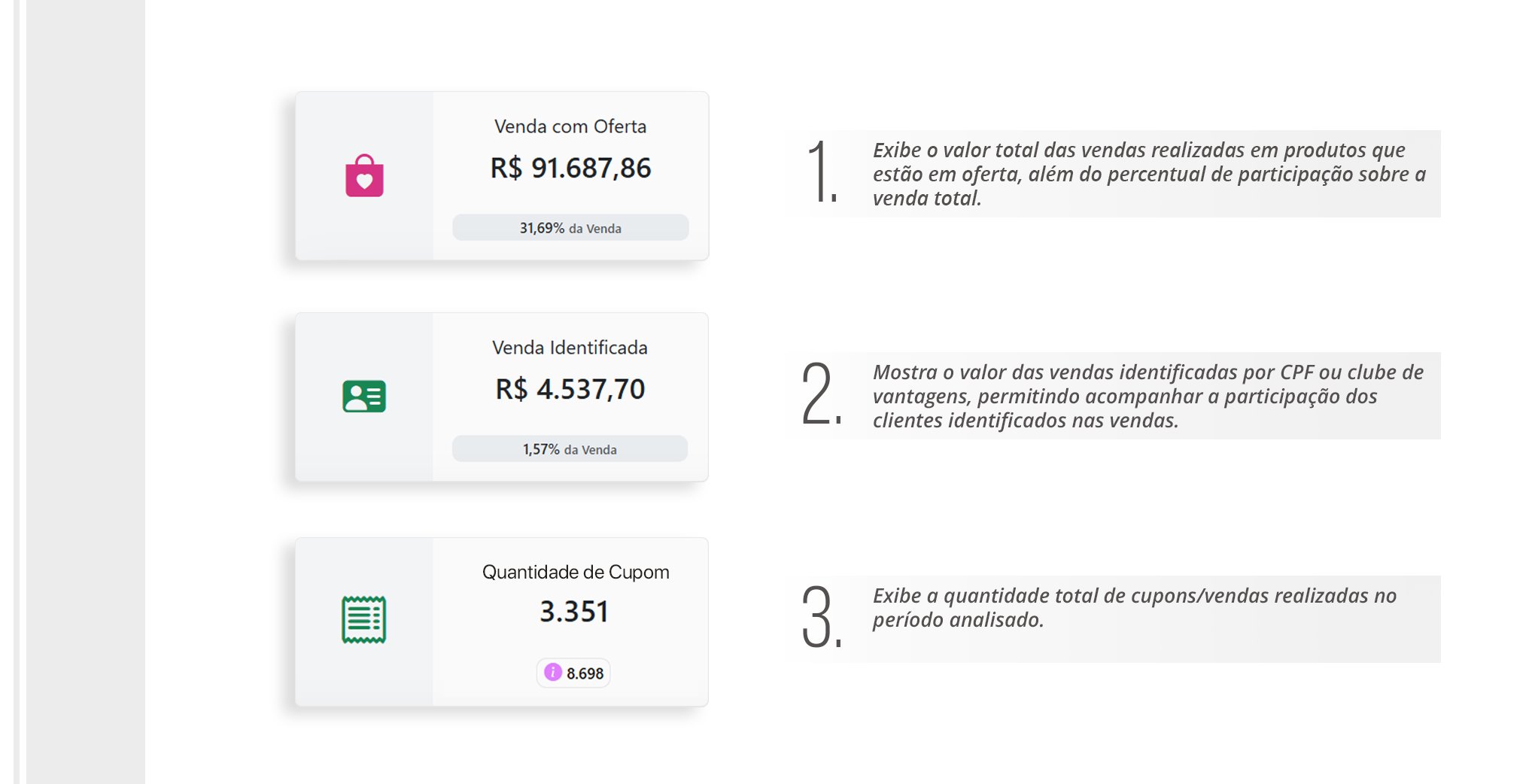
           <img src="https://mintcdn.com/controller-tech/3gbWTYn6j5twcOfP/images/Det_Dashboard_Real-Time_04-1.png?fit=max&auto=format&n=3gbWTYn6j5twcOfP&q=85&s=97d90cffd53aff5b9816510ec120c68f" alt="Real-Time Dashboard Details 04 1" width="2040" height="1042" data-path="images/Det_Dashboard_Real-Time_04-1.png" />

    5. Average Ticket and Contribution Margin Dashboard Details – Real-Time
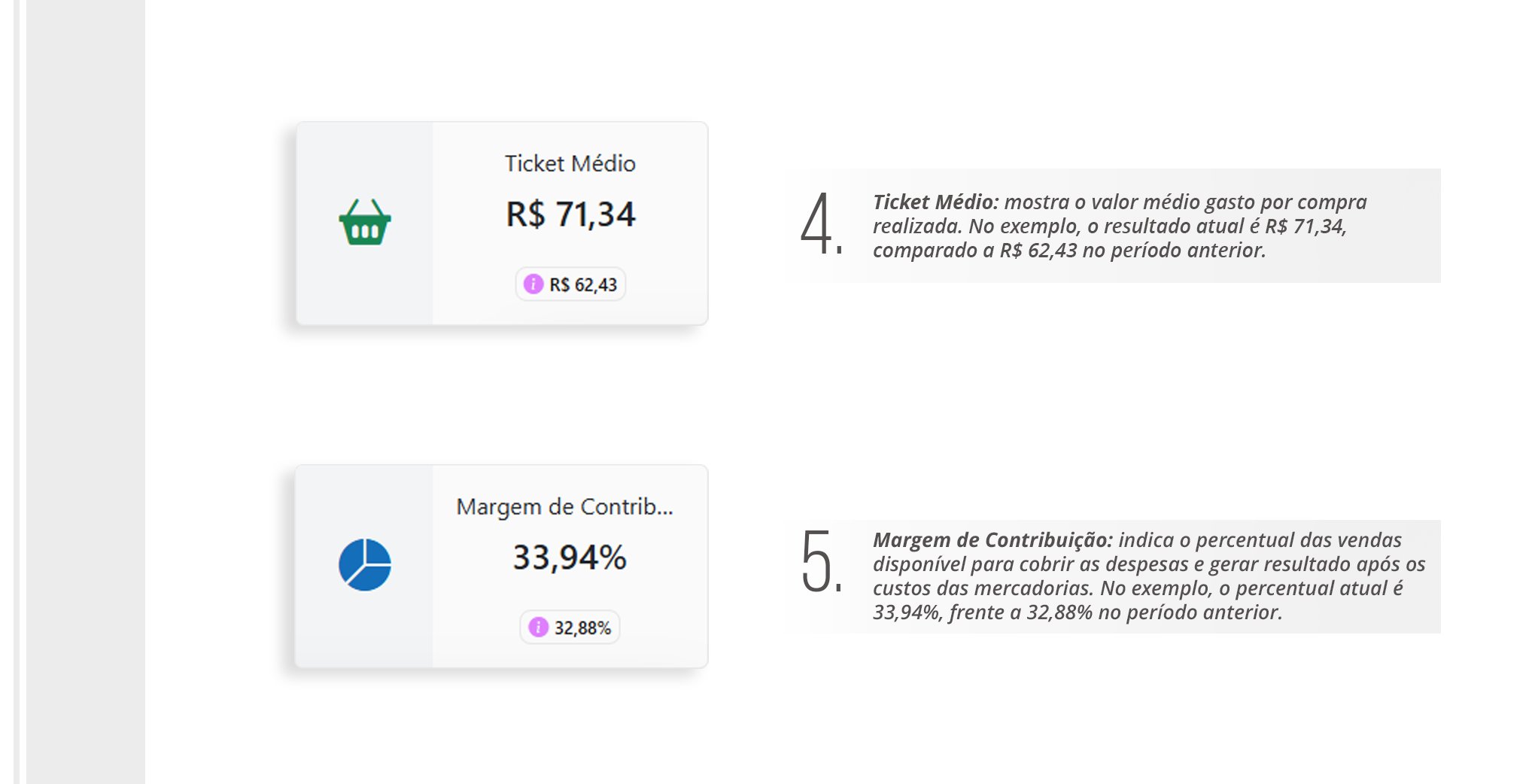
           <img src="https://mintcdn.com/controller-tech/3gbWTYn6j5twcOfP/images/Det_Dashboard_Real-Time_04_01-1.png?fit=max&auto=format&n=3gbWTYn6j5twcOfP&q=85&s=9eaa3484e15ba3279e04c3473d31dca6" alt="Real-Time Dashboard Details 04 01 1" width="2040" height="1042" data-path="images/Det_Dashboard_Real-Time_04_01-1.png" />

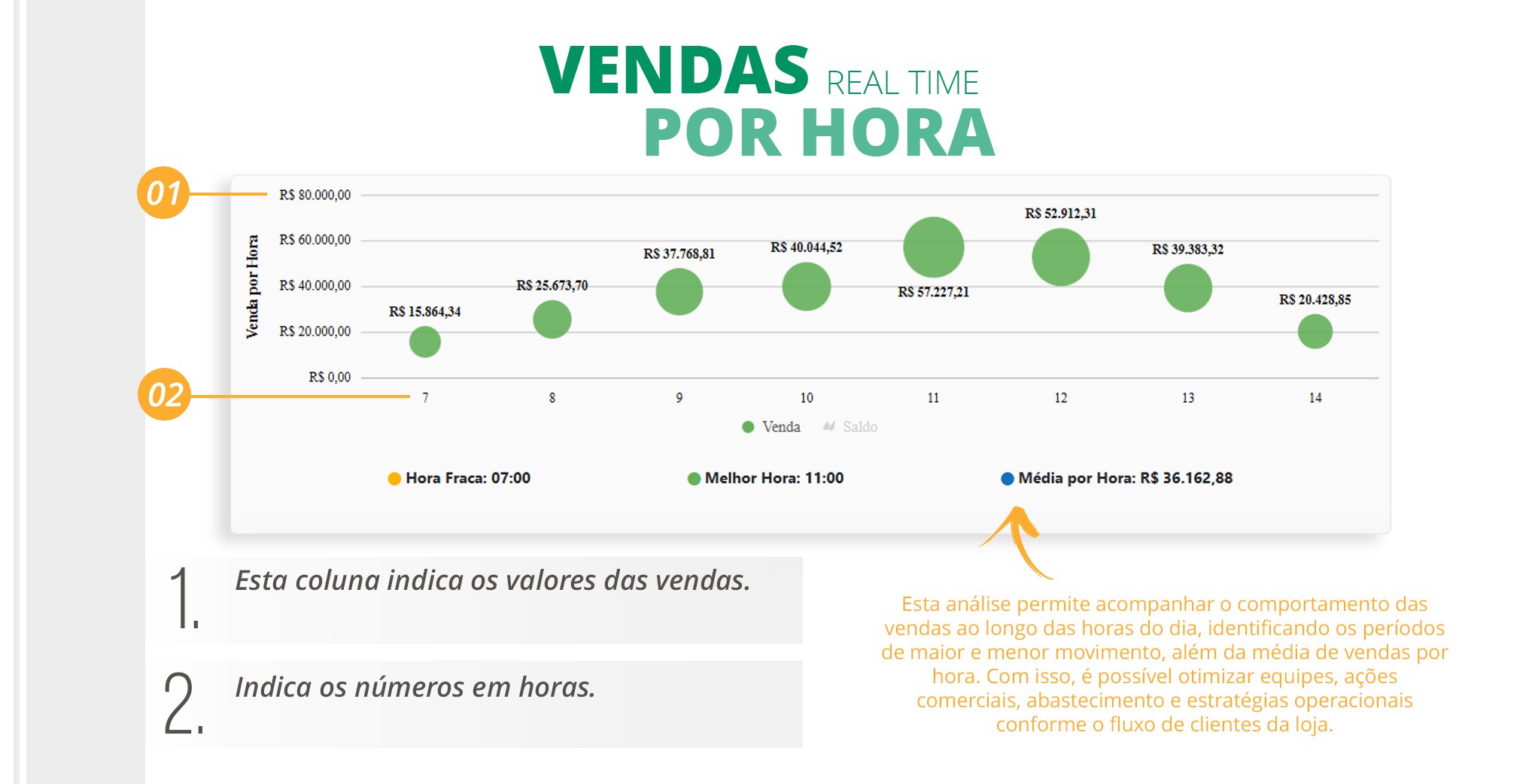
    6. “Sales by Hour” Dashboard Details. Track your sales hour by hour.
           <img src="https://mintcdn.com/controller-tech/3gbWTYn6j5twcOfP/images/Det_Dashboard_Real-Time_05-1.png?fit=max&auto=format&n=3gbWTYn6j5twcOfP&q=85&s=93798ac7a6593c80ec85845f159f9e6b" alt="Real-Time Dashboard Details 05 1" width="2040" height="1042" data-path="images/Det_Dashboard_Real-Time_05-1.png" />

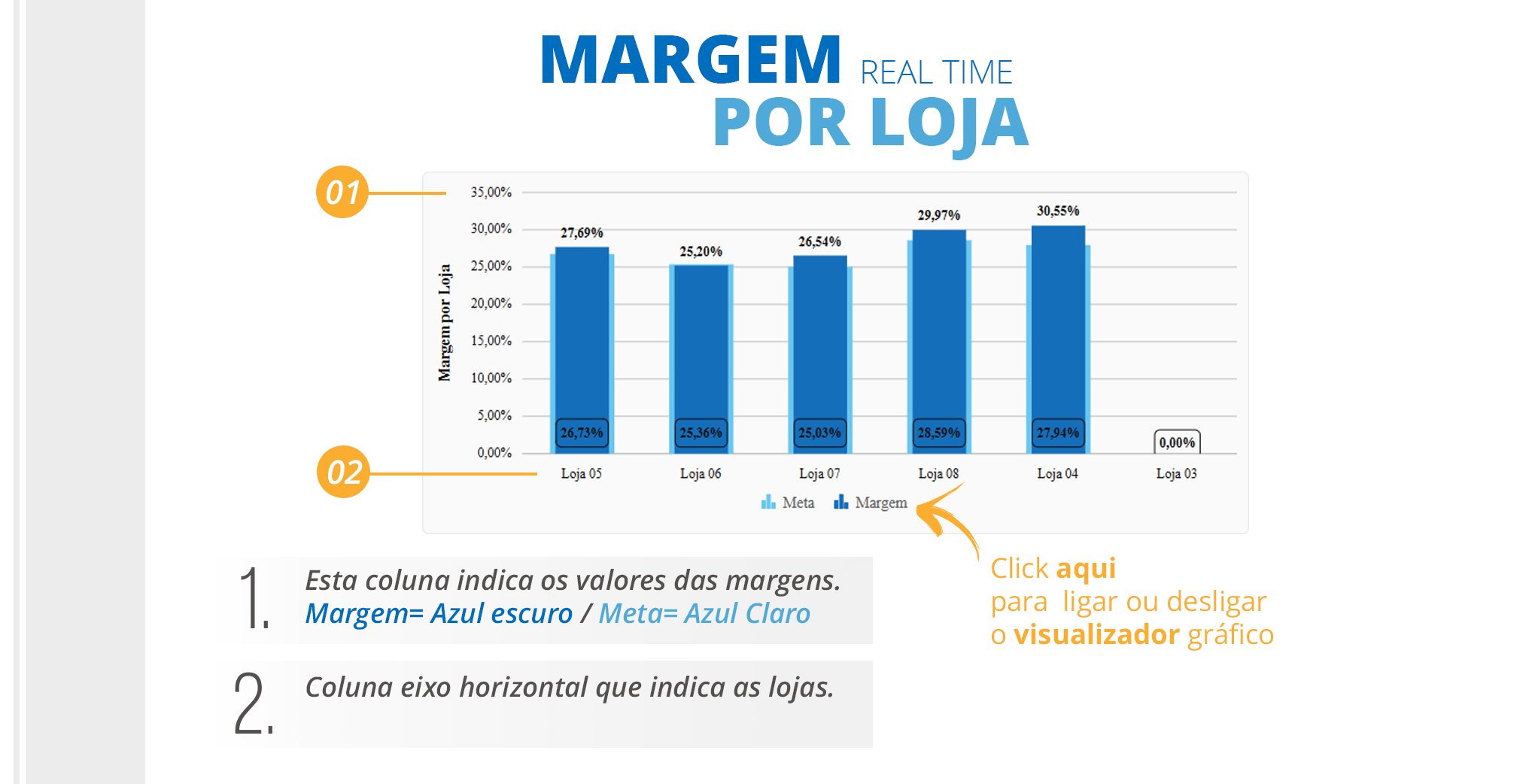
    7. “Margin by Store” Dashboard Details.
           <img src="https://mintcdn.com/controller-tech/3gbWTYn6j5twcOfP/images/Det_Dashboard_Real-Time_06.png?fit=max&auto=format&n=3gbWTYn6j5twcOfP&q=85&s=791ca93c370ae46e8f083e97782cecc2" alt="Real-Time Dashboard Details 06" width="2040" height="1042" data-path="images/Det_Dashboard_Real-Time_06.png" />

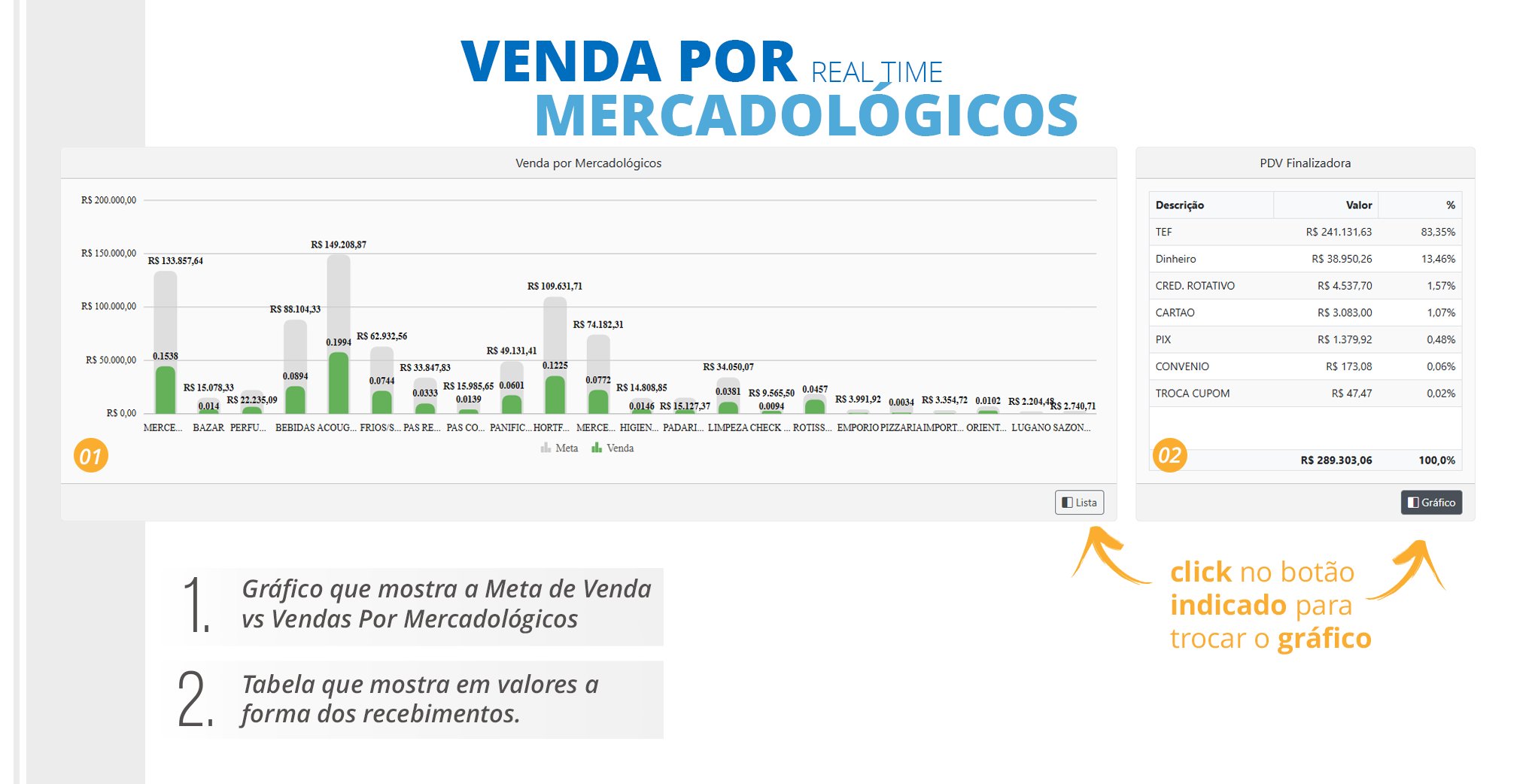
    8. There are 2 options for viewing the Sales by Commercial Category charts. See the details of the first option below
           <img src="https://mintcdn.com/controller-tech/3gbWTYn6j5twcOfP/images/Det_Dashboard_Real-Time_08-1.png?fit=max&auto=format&n=3gbWTYn6j5twcOfP&q=85&s=e5db7bb7fc73da3abd8347c5ec49c7ae" alt="Real-Time Dashboard Details 08 1" width="2040" height="1042" data-path="images/Det_Dashboard_Real-Time_08-1.png" />

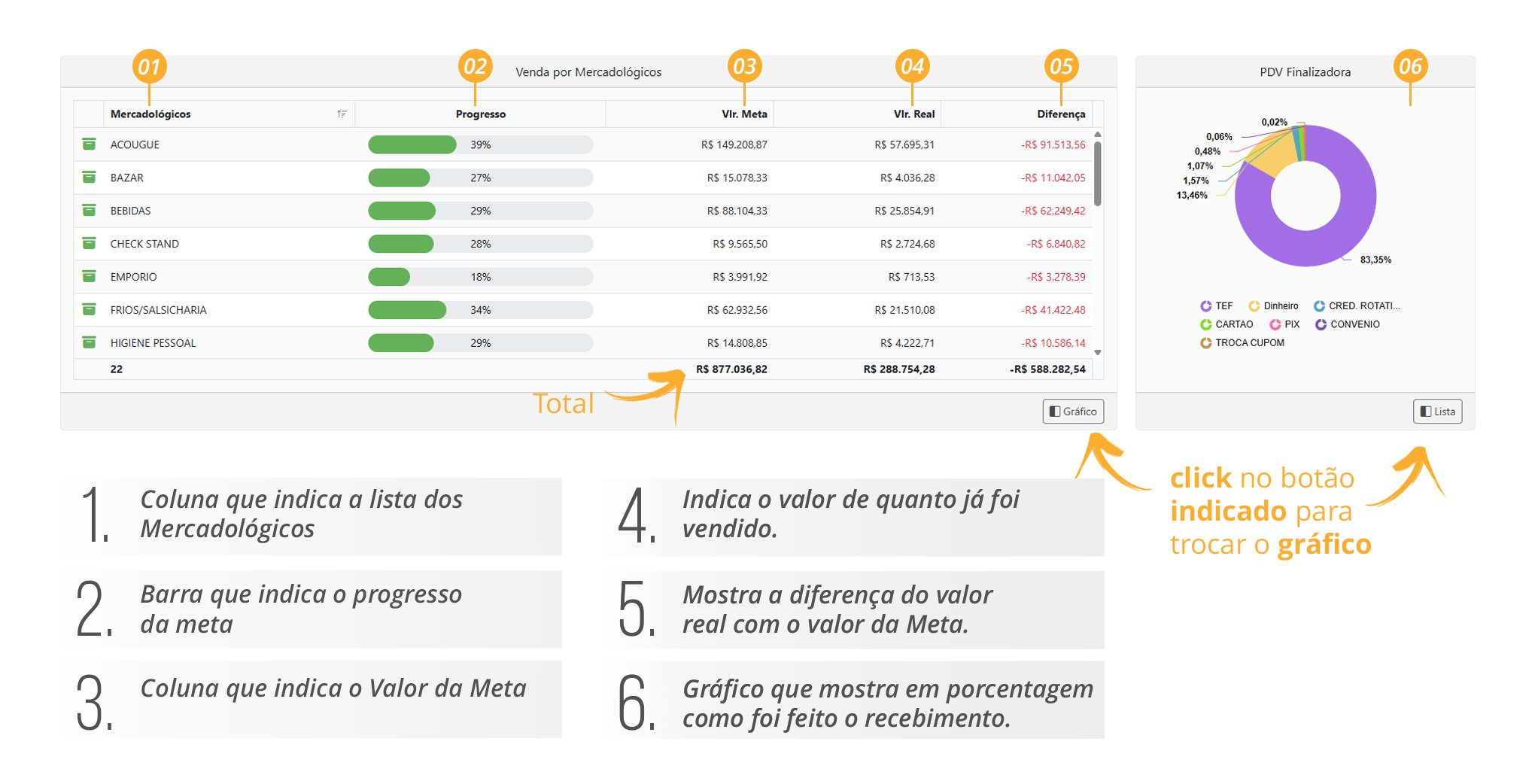
    9. Second option for viewing the Sales by Commercial Category charts. See the details of the second option below.
           <img src="https://mintcdn.com/controller-tech/3gbWTYn6j5twcOfP/images/Det_Dashboard_Real-Time_07-1.png?fit=max&auto=format&n=3gbWTYn6j5twcOfP&q=85&s=3e40f746ee5f345bed0f3580d883ce8e" alt="Real-Time Dashboard Details 07 1" width="2040" height="1042" data-path="images/Det_Dashboard_Real-Time_07-1.png" />
  </Tab>

  <Tab title="Mobile">
    <Info>
      Coming Soon
    </Info>
  </Tab>
</Tabs>
