
Check Commercial Monitoring Data
Click here to access the Verification Guide;Follow the Steps for Commercial Monitoring
Click here to watch the complete and detailed Mobile Commercial Monitoring Video- Portal
- Mobile
Commercial Monitoring
Follow the steps below as shown in the images.1- Controllership> Commercial Monitoring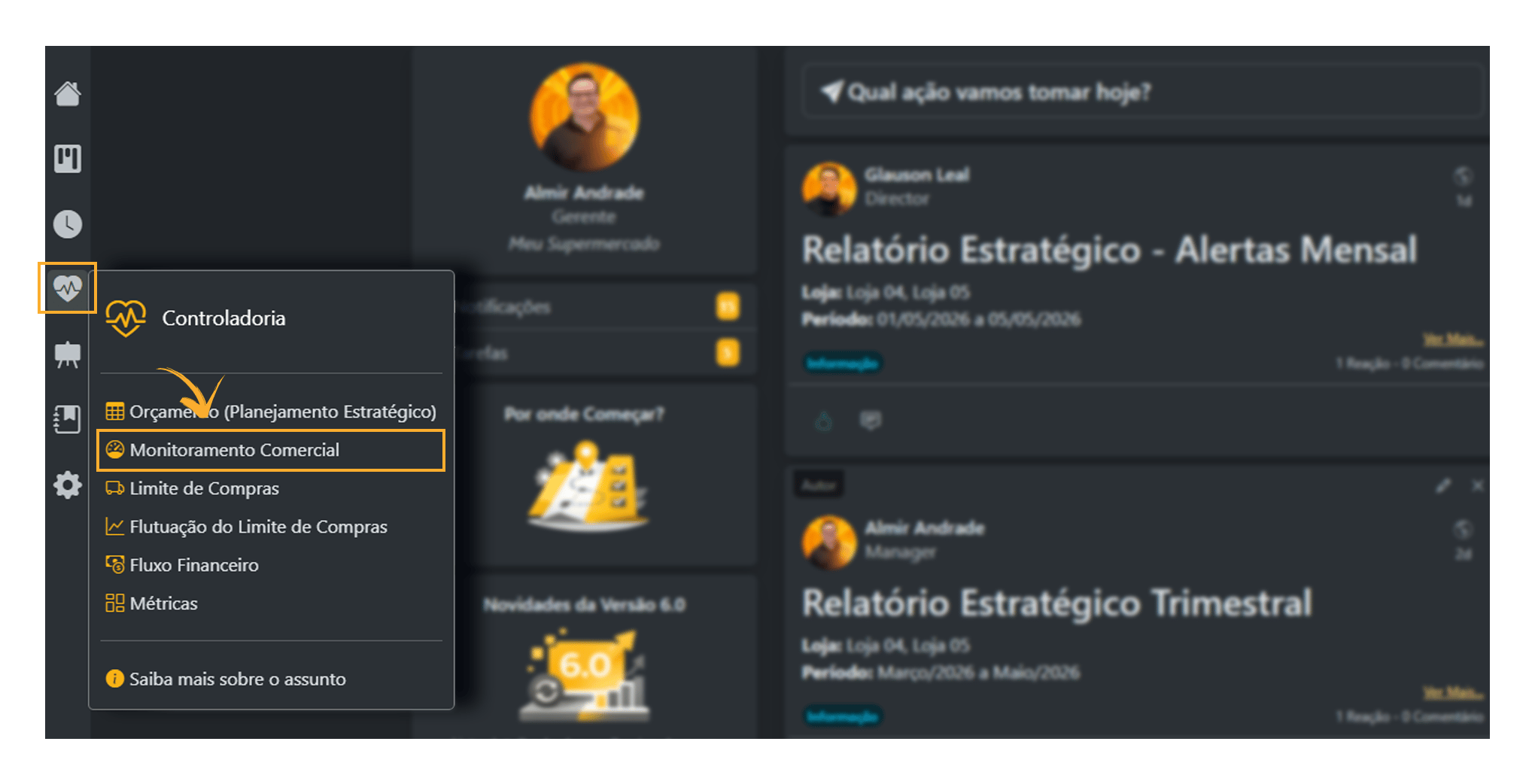
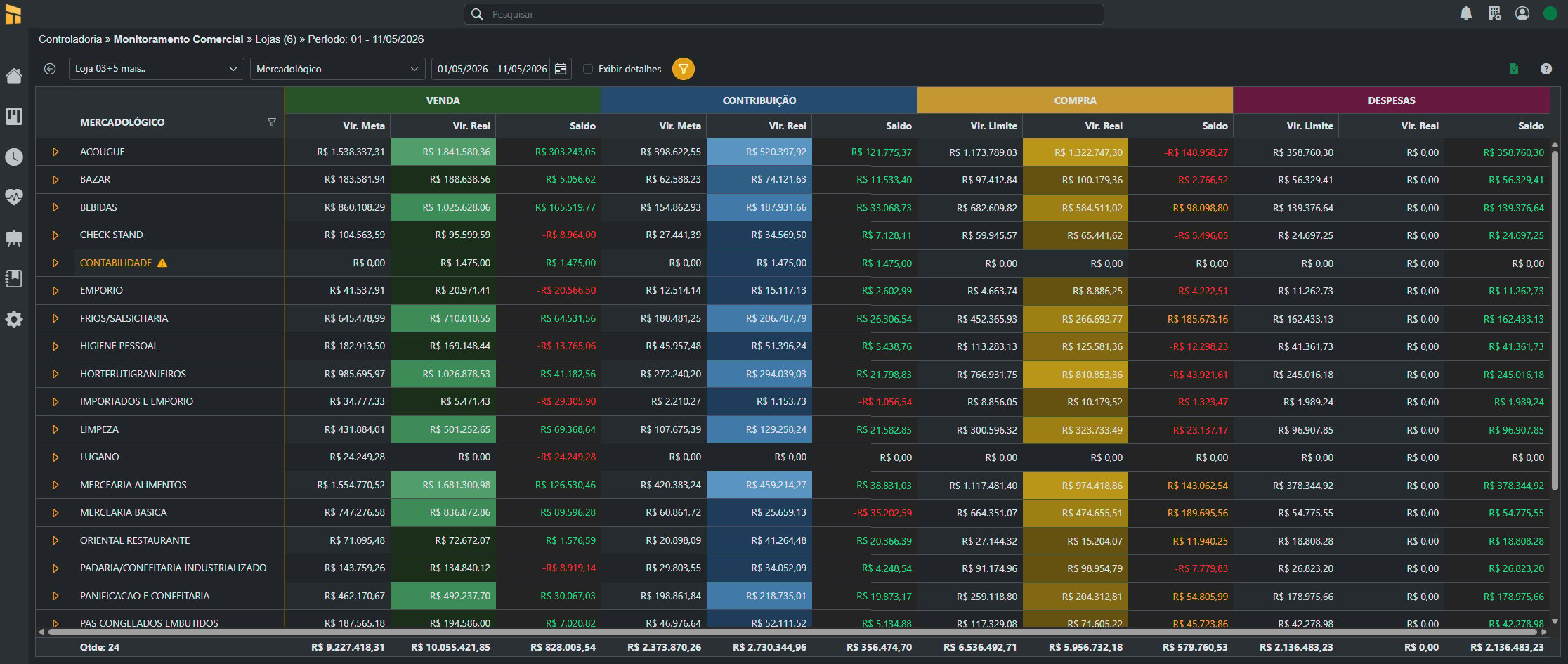
– It is divided into 4 Monitoring Groups: SALES, CONTRIBUTION, PURCHASES, and EXPENSES.
– In this example, we will use Filter>Type>Merchandising
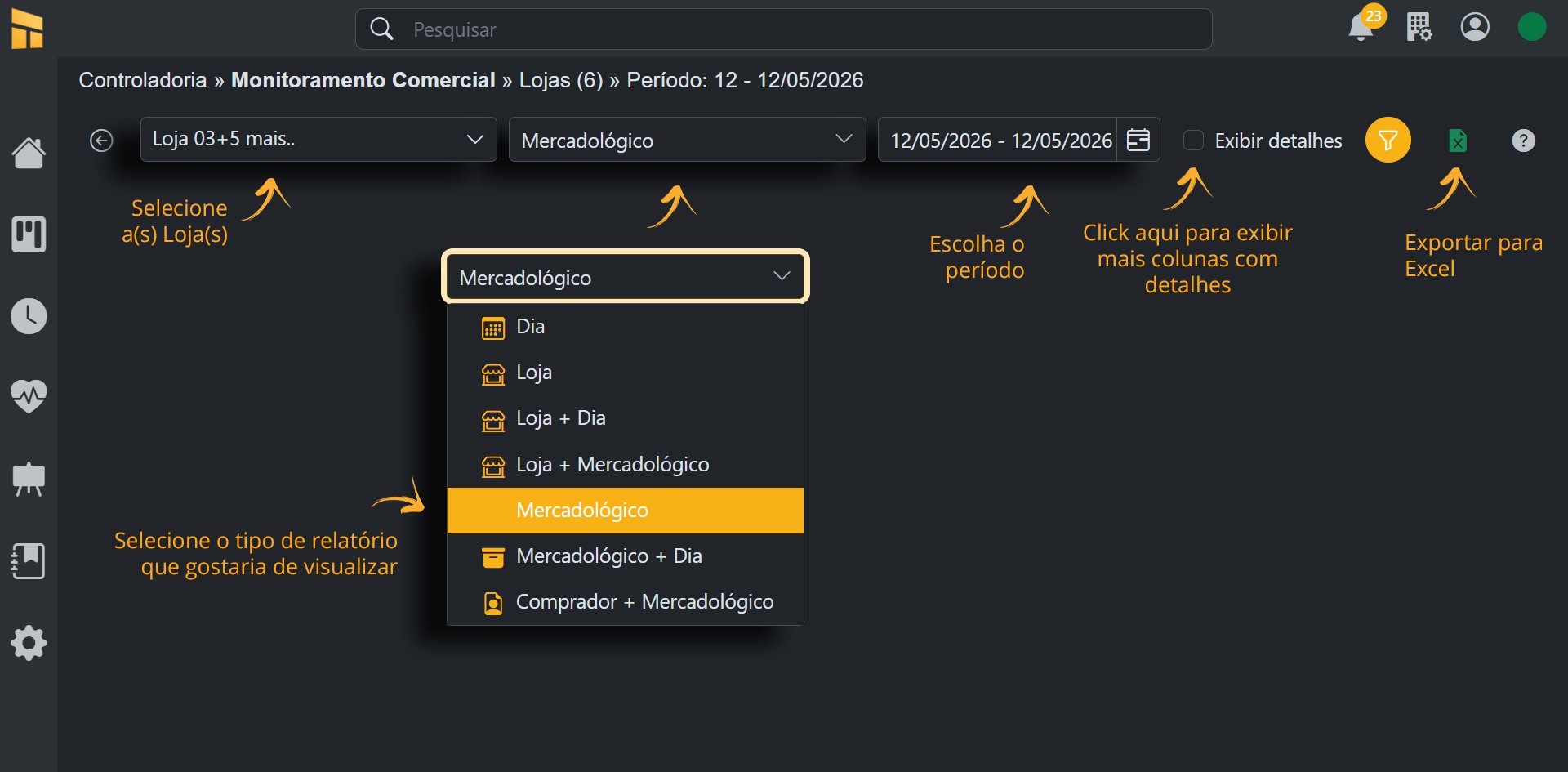
- See how to access the lower levels in the image below.
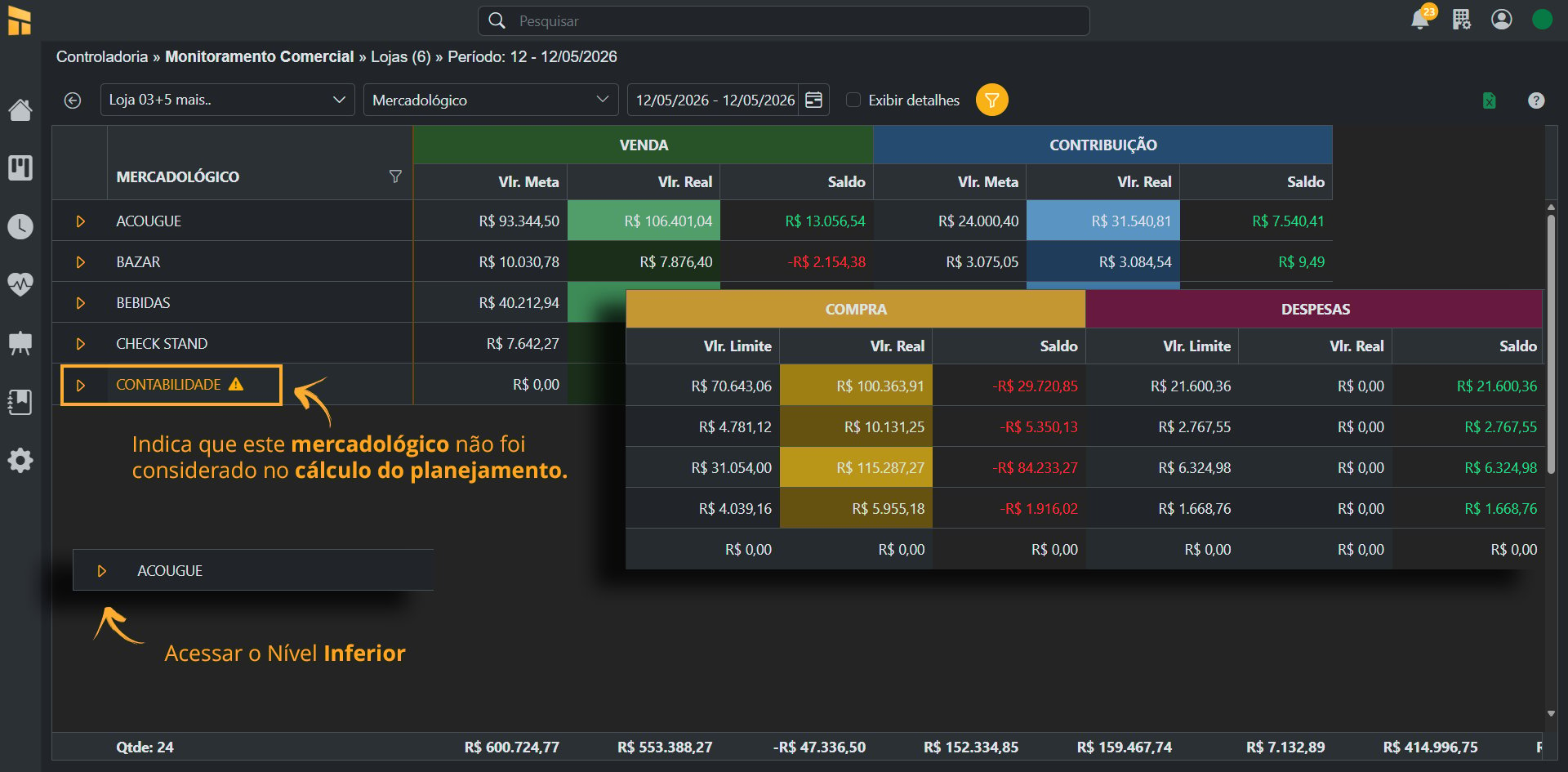
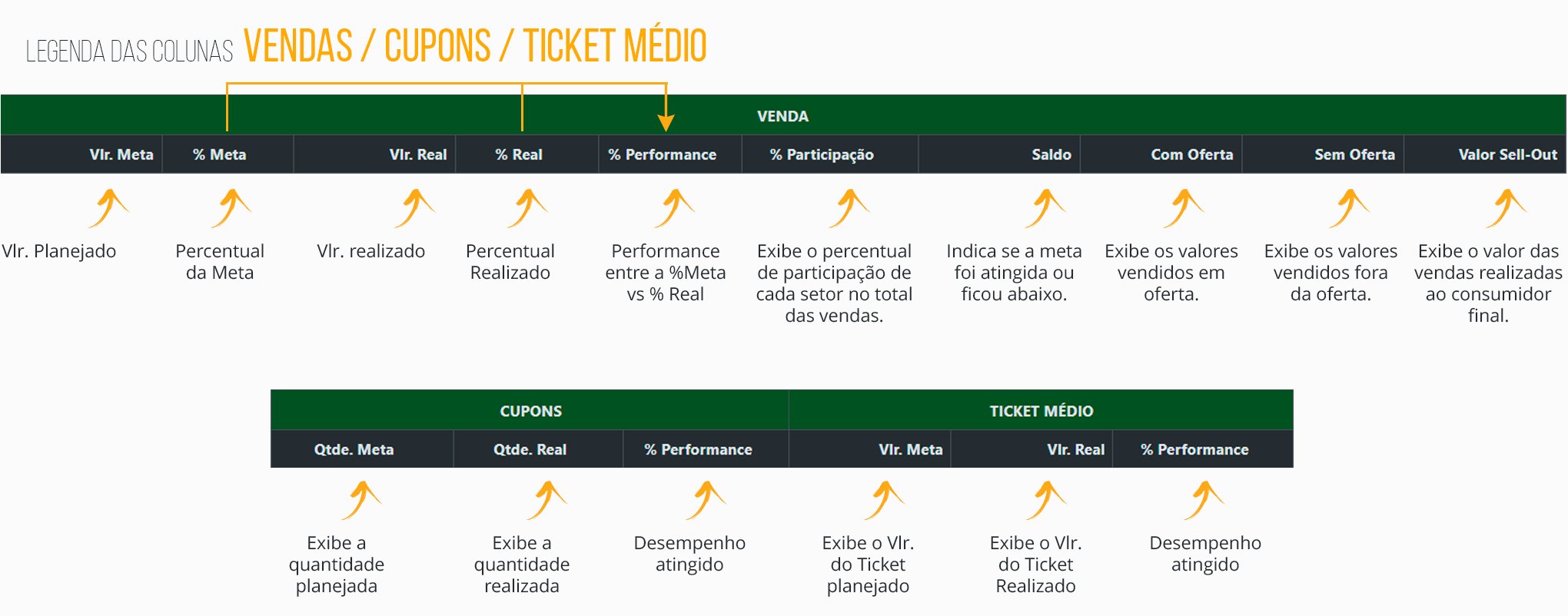
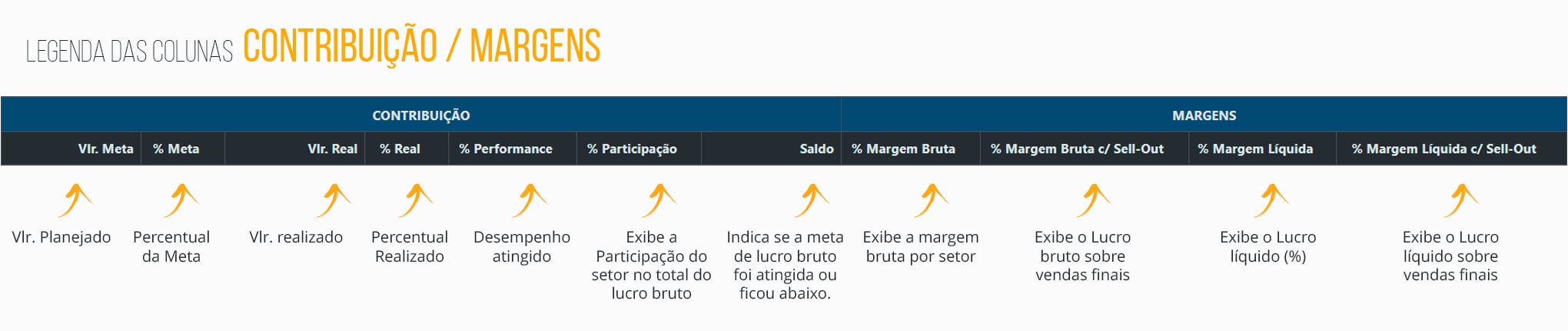
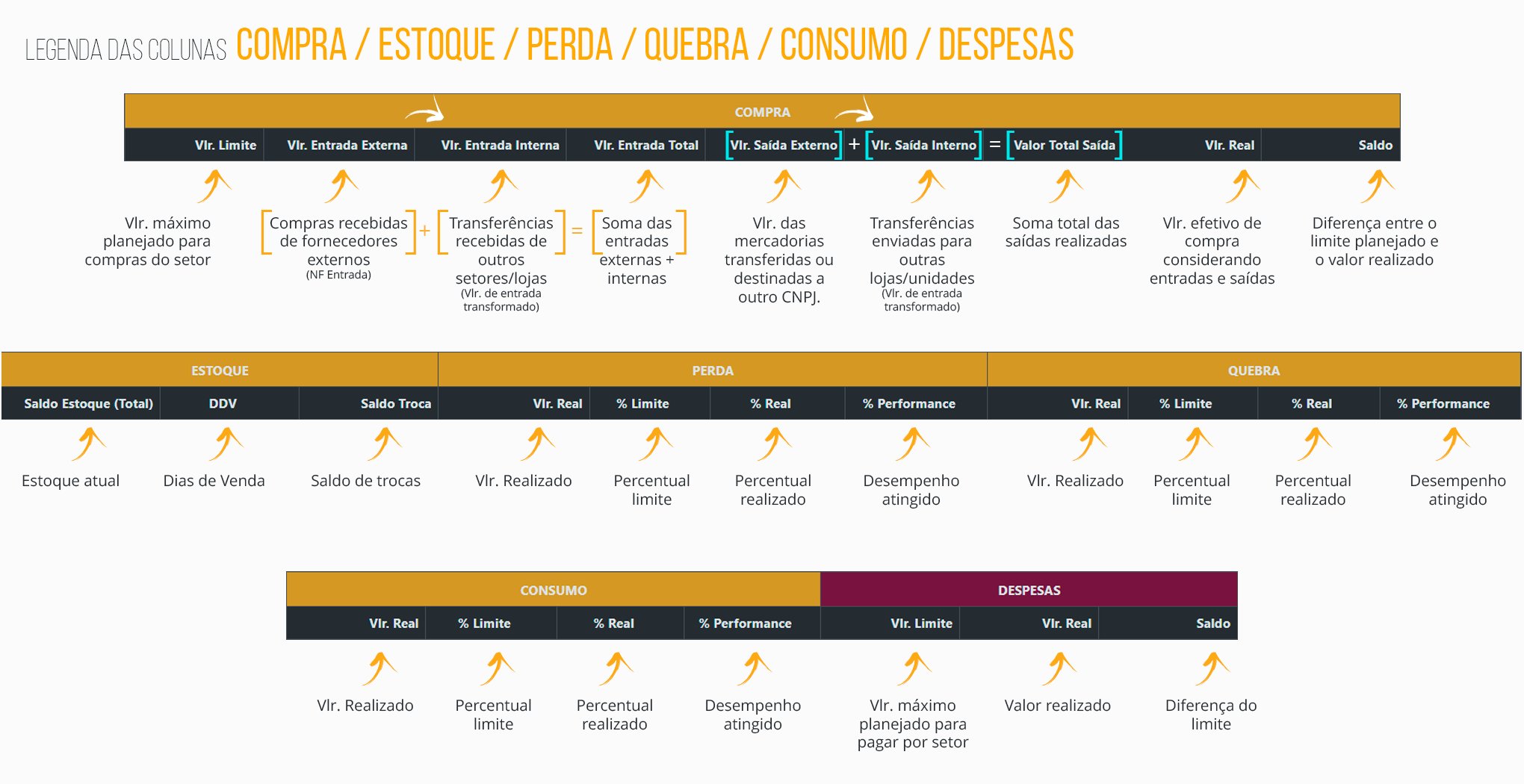
Table Legends
SALES Table Legend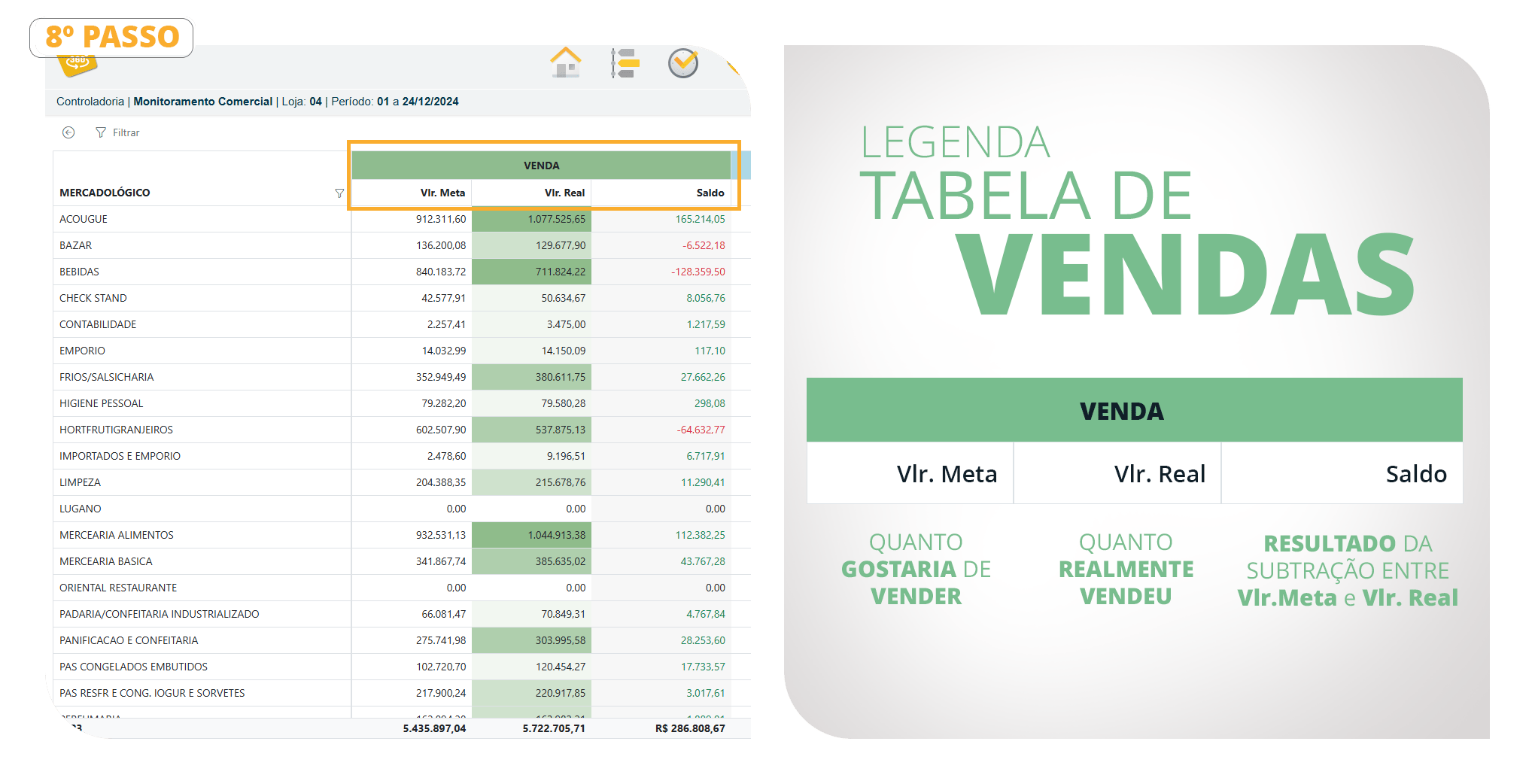
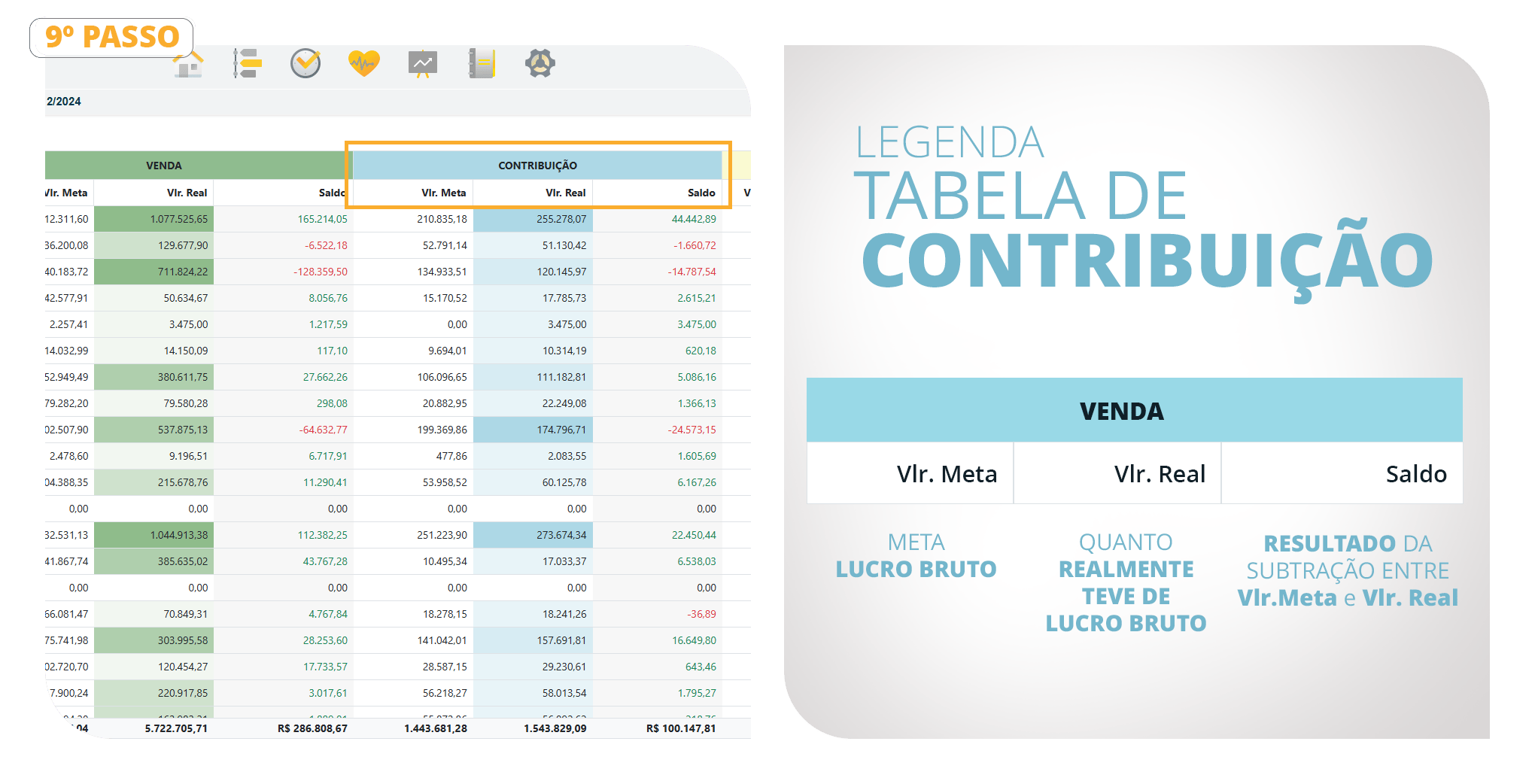
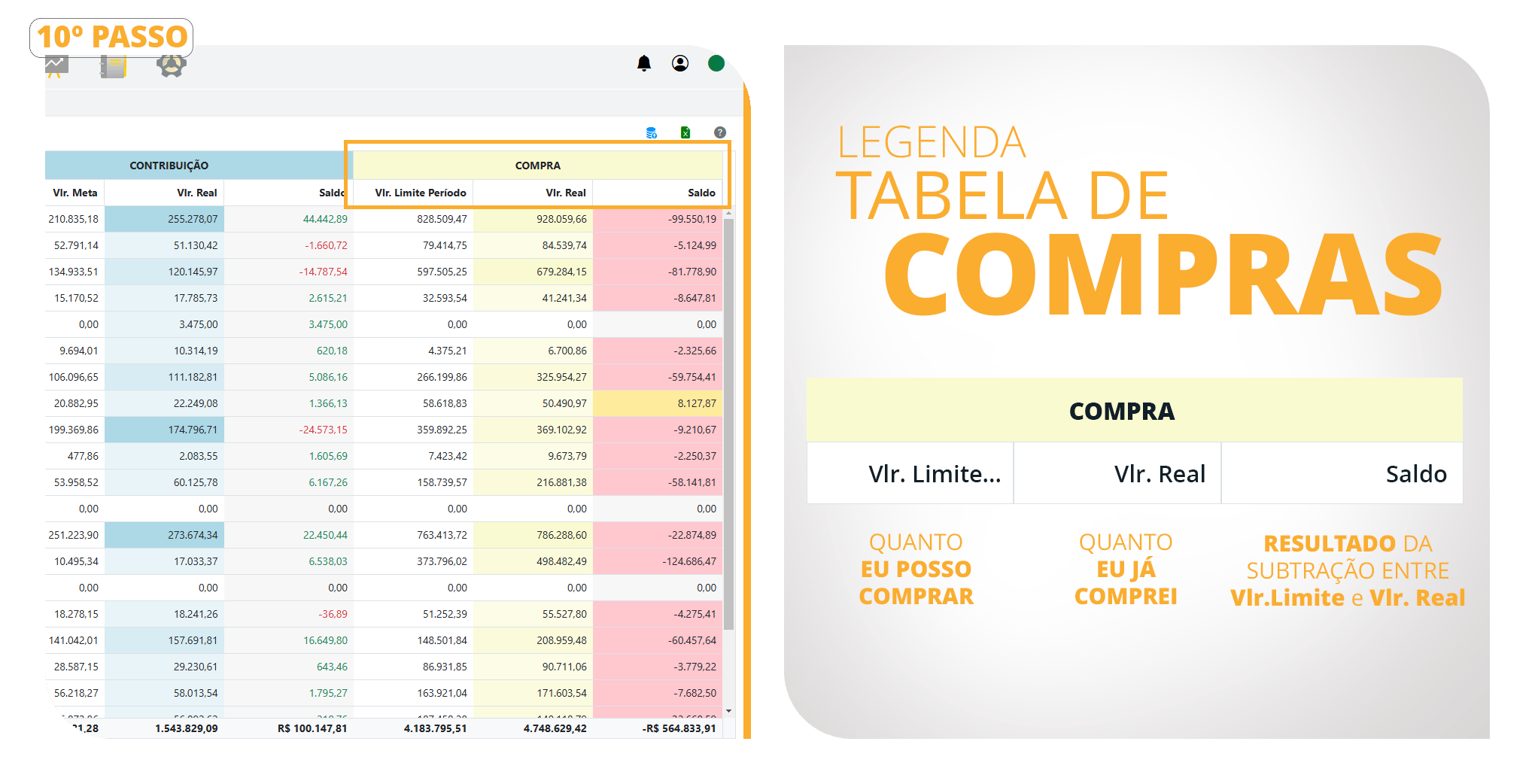
What Is Shown in the Exchange Stock Balance?
The Inventory Monitoring routine records the inventory position when the consistency check is performed.In summary, the inventory shown in this routine corresponds to exchanges that have not yet been completed with the supplier. In other words, these are items that have already been negotiated and are still awaiting action from the supplier, and that appear on the Stock/Exchange screen when the consistency check for that day is completed.
When the return invoice is issued to the supplier or the item is removed from the stock/exchange, the system no longer considers that item after a new consistency check is performed, as it is no longer part of the exchange stock.
Important: exchanges made with end consumers are not included in this validation.
Data – Commercial Monitoring
1The Cost of Sales used by Controllership to calculate the contribution amount is the cost including tax.
If the “Use Average Cost” flag is enabled in the configuration of the Price Management routine in VR Master, it will not be possible to verify the cost of sales.
2Inbound Amount is the sum of the inbound column in the Inbound and Outbound report and the cost including tax of internal transfers.
3Outbound Amount is the sum of the outbound column in the Inbound and Outbound report and the cost including tax of internal transfers.
The Controllership Total Purchases is the sum of the 2inbound amounts and 3outbound amounts from Commercial Monitoring.
Controllership does not retrieve information about transfers between stores directly from inventory. Only outbound invoices with the transfer type are included. The “Include Store Inventory Transfers” option in the Inbound and Outbound report parameters must remain unchecked.
Controllership uses the inbound types added to the Inbound and Outbound settings to determine what is considered a merchandise purchase.
Controllership uses the outbound types added to the Inbound and Outbound settings to determine which purchased merchandise was transferred or returned.
An Internal Transfer generates an outbound movement from merchandising level 1 of the selected product and generates an inbound movement in the merchandising category specified in the Merchandising field. Always enter transfers with operation type = inbound (requires VR Master 4.1.36+).
Important: Daily actual data will only be sent and updated
after the POS consistency check.