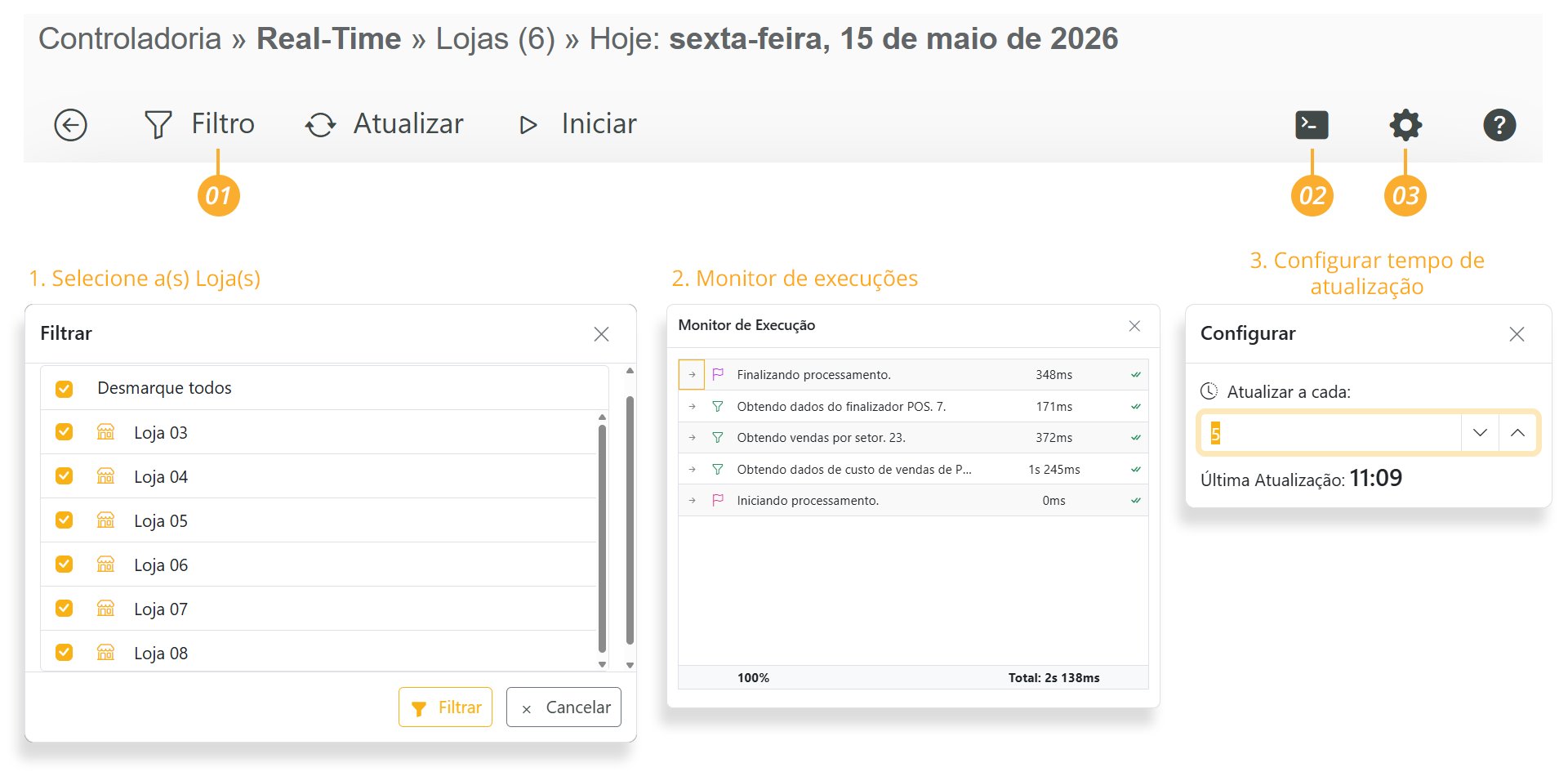
To update actual data automatically, click in the right corner of the screen. Then select the desired update interval and click .Click here to watch the Complete Real-Time Video with details;
- Portal
- Mobile
Real-Time
Follow the steps below to understand how REAL-TIME works-
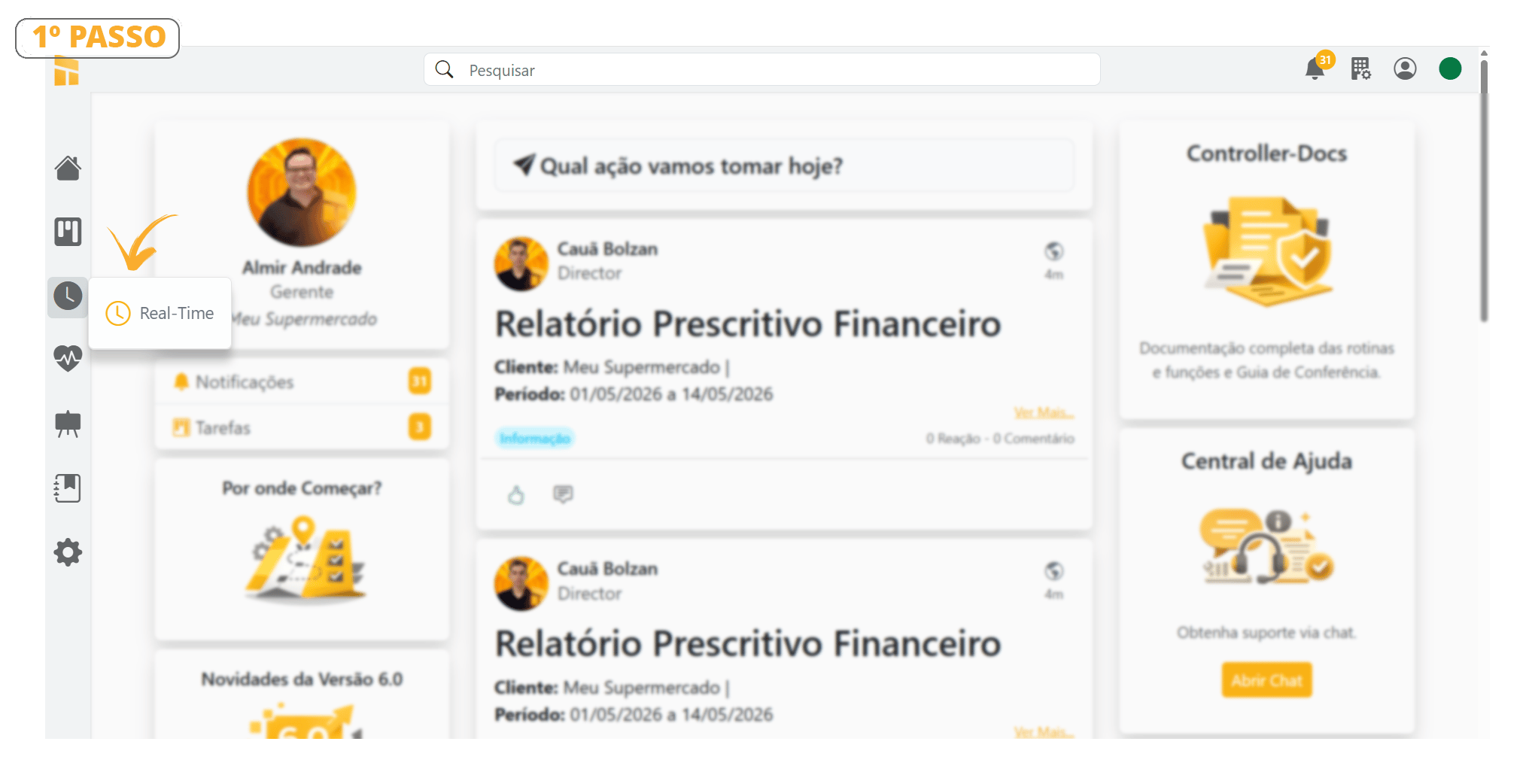
After creating a Budget, click where indicated in the image below to open REAL-TIME.
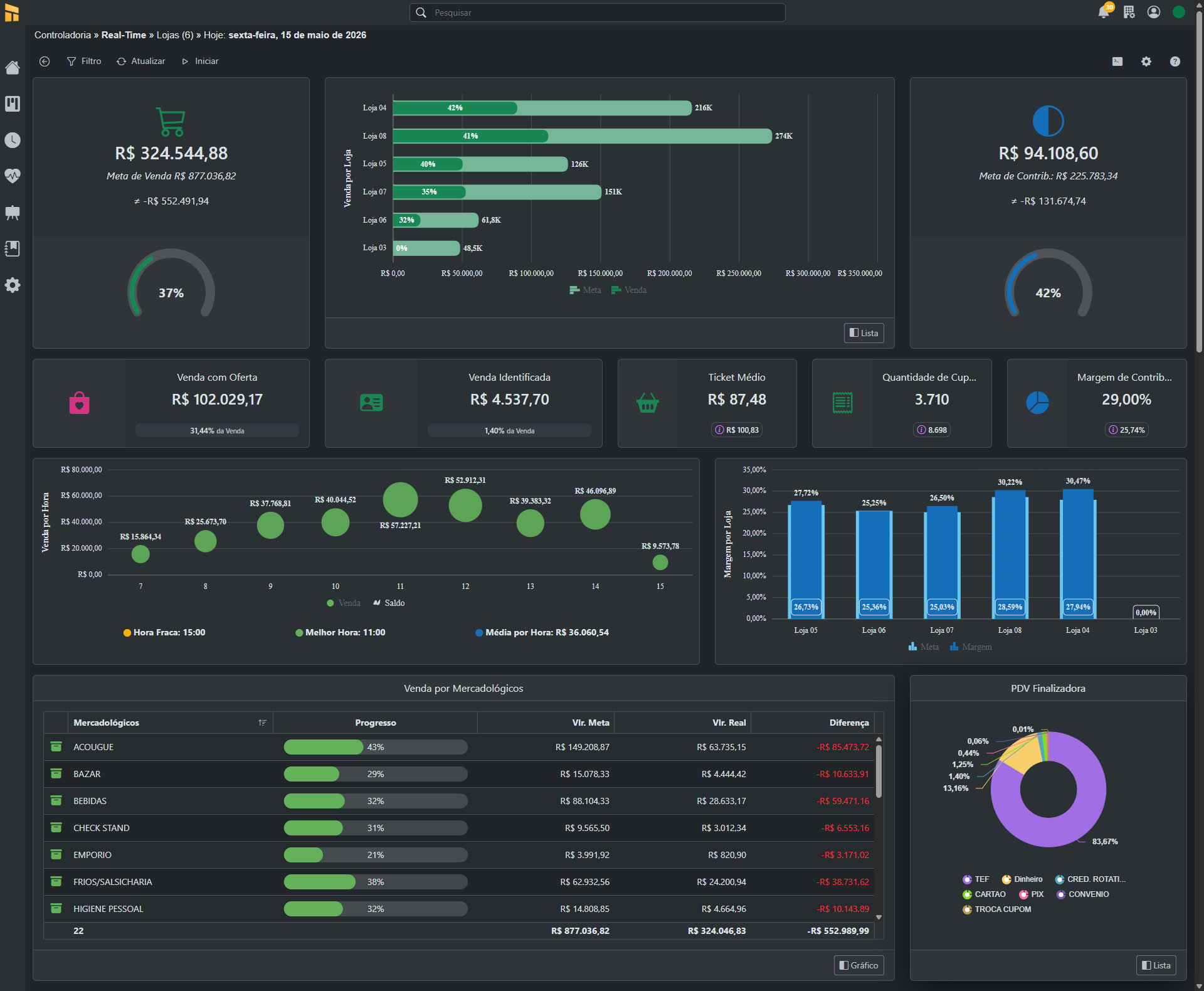
- See the REAL-TIME home screen in the image below
You can only view data in Real-Time after a BUDGET has been created.
To learn how to create a Budget, click HERE
Configuring Real-Time
- Click [Filter] to choose which store you would like to view in Real-Time.
-
You can select one or more stores at the same time.
Dashboard Details
-
Sales Dashboard Details – Real-Time
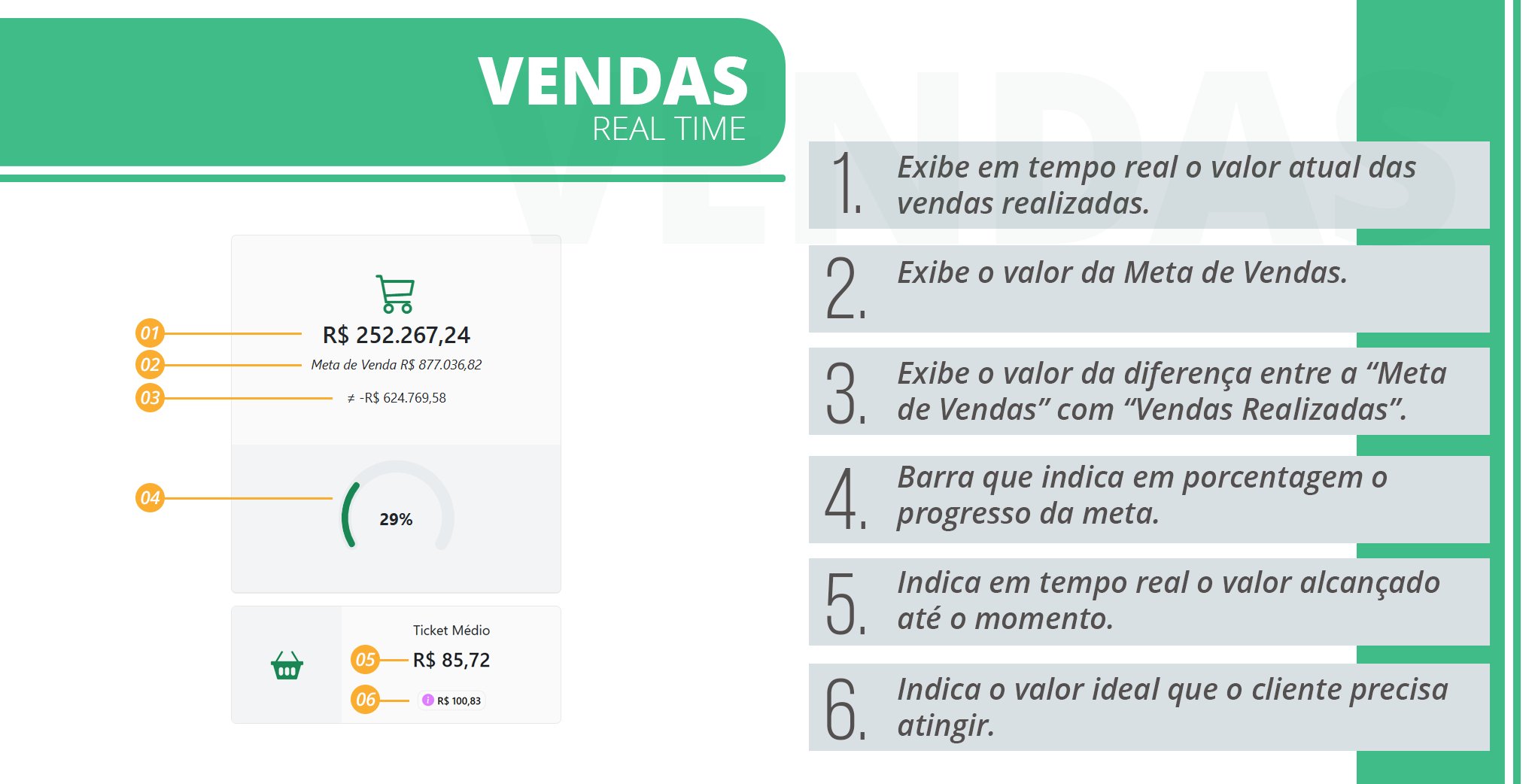
-
Contribution Dashboard Details – Real-Time
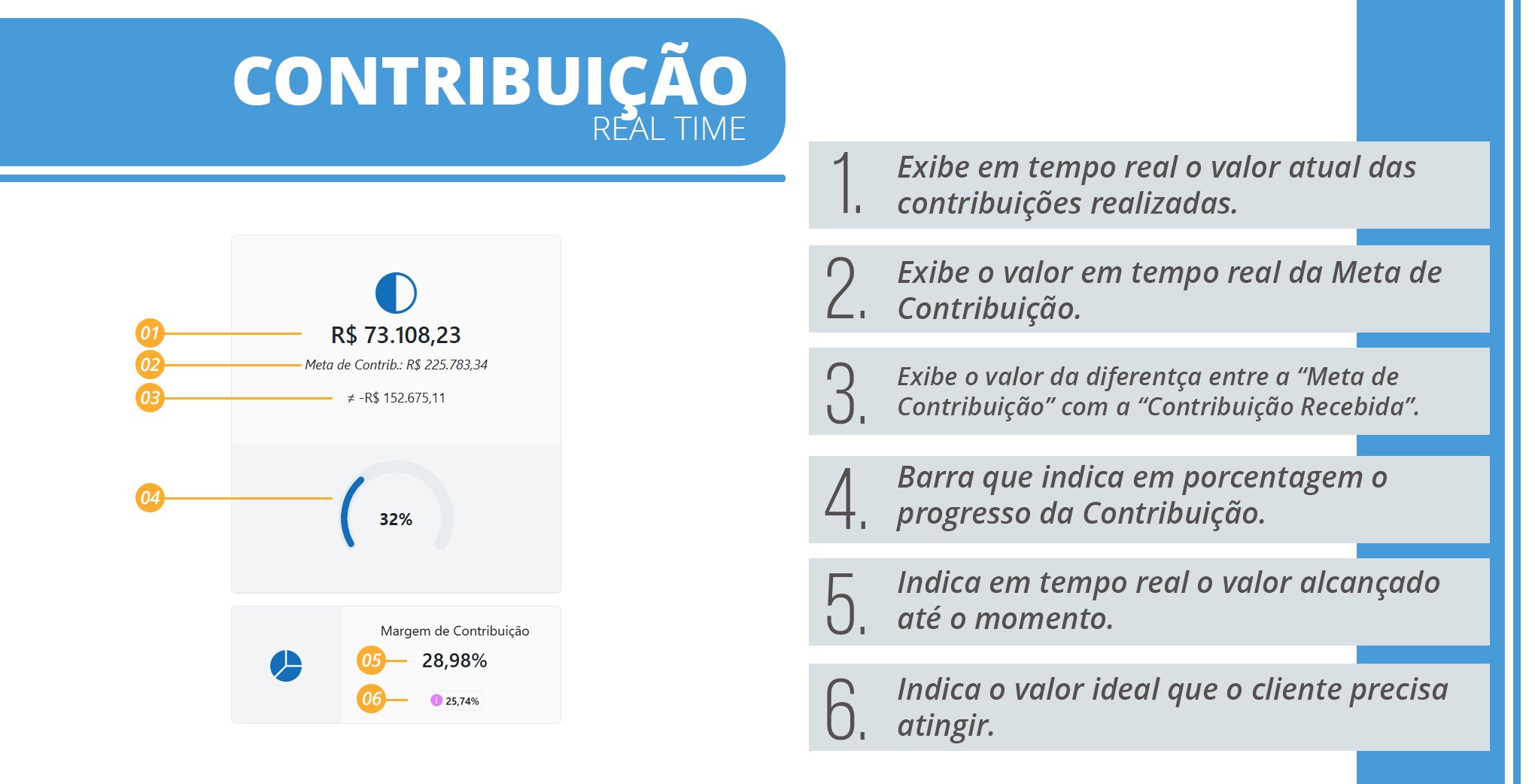
-
Sales by Store Dashboard Details – Real-Time
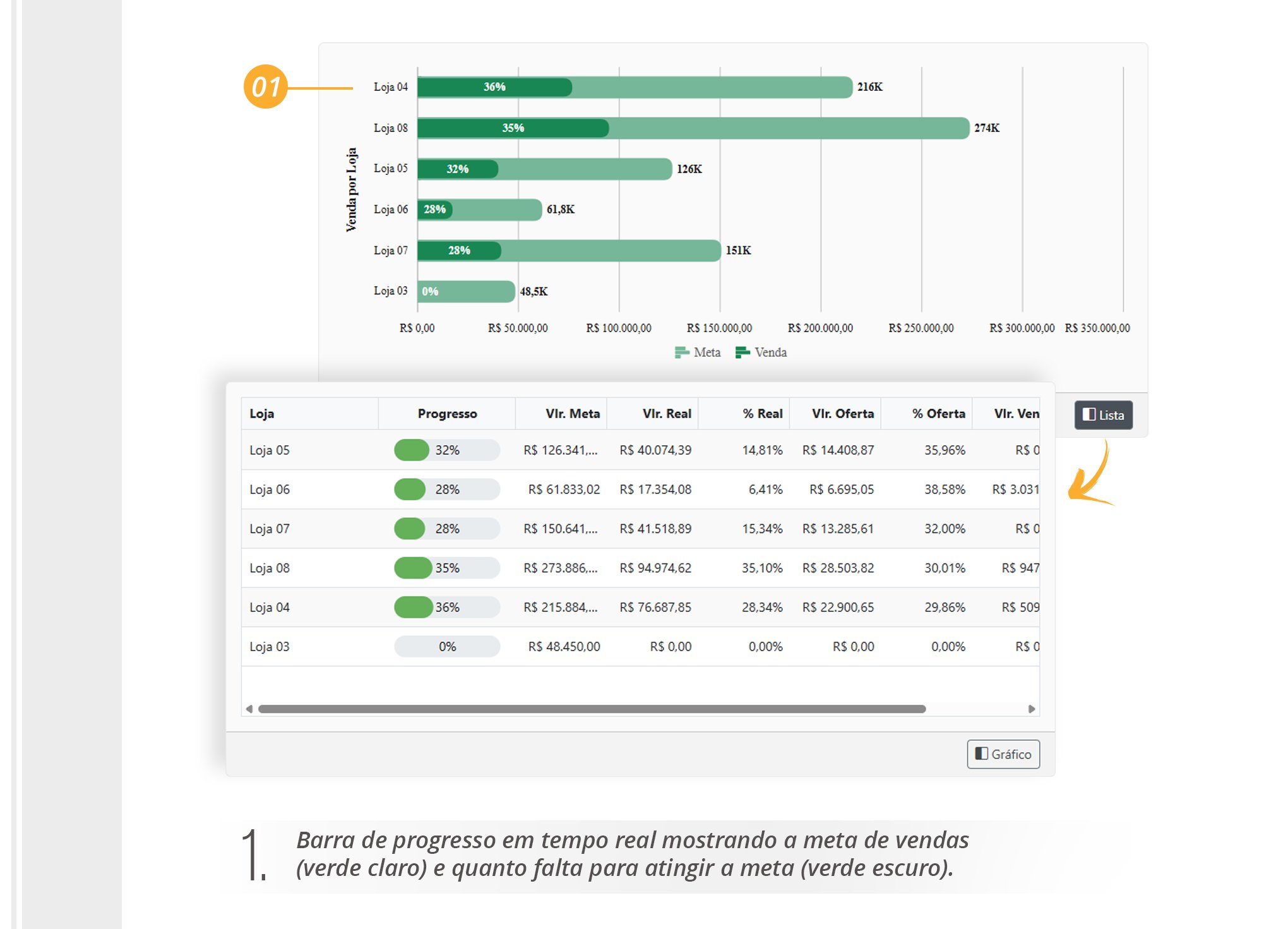
-
Coupon Quantity, Identified Sales, and Coupon Quantity Dashboard Details – Real-Time
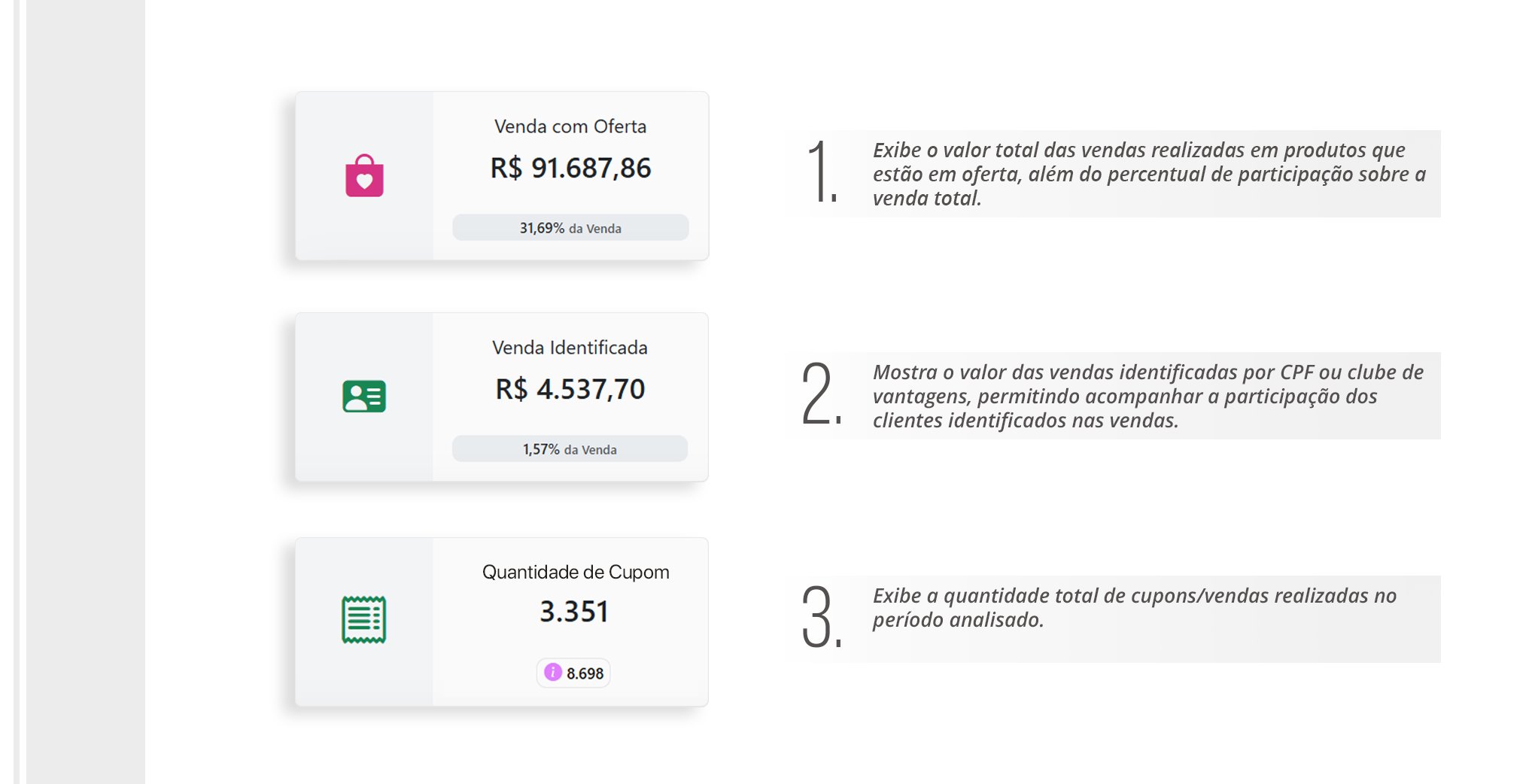
-
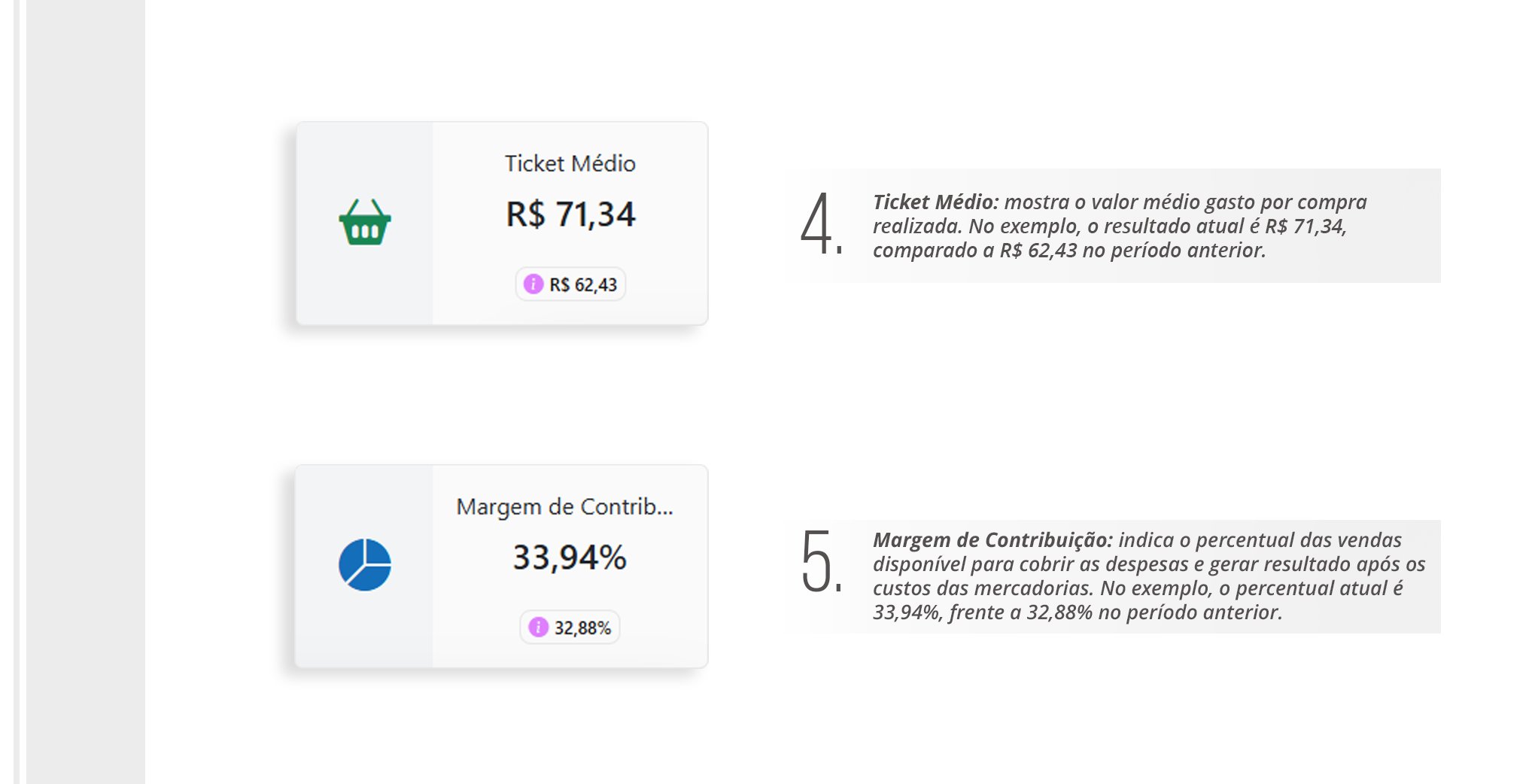
Average Ticket and Contribution Margin Dashboard Details – Real-Time
-
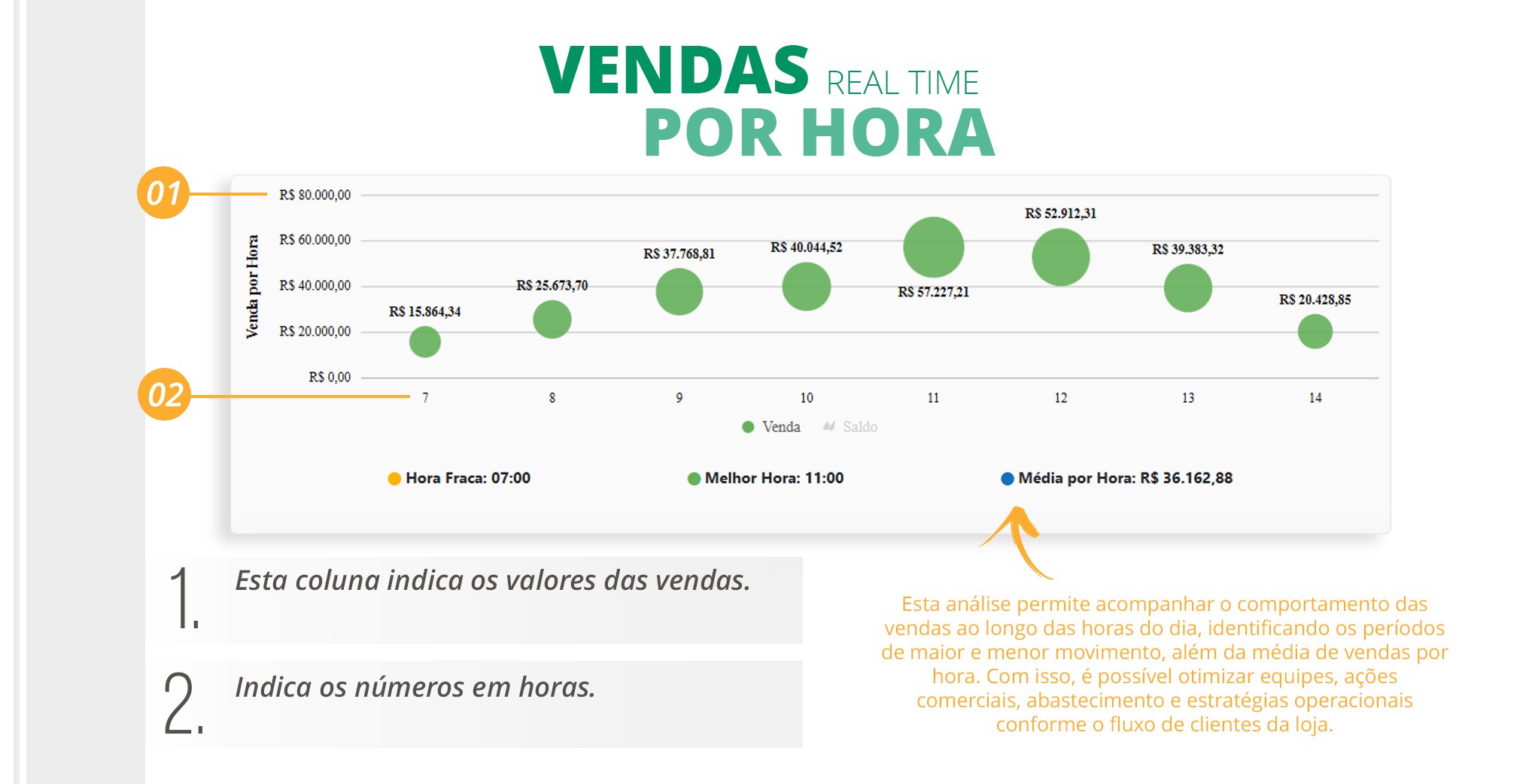
“Sales by Hour” Dashboard Details. Track your sales hour by hour.
-
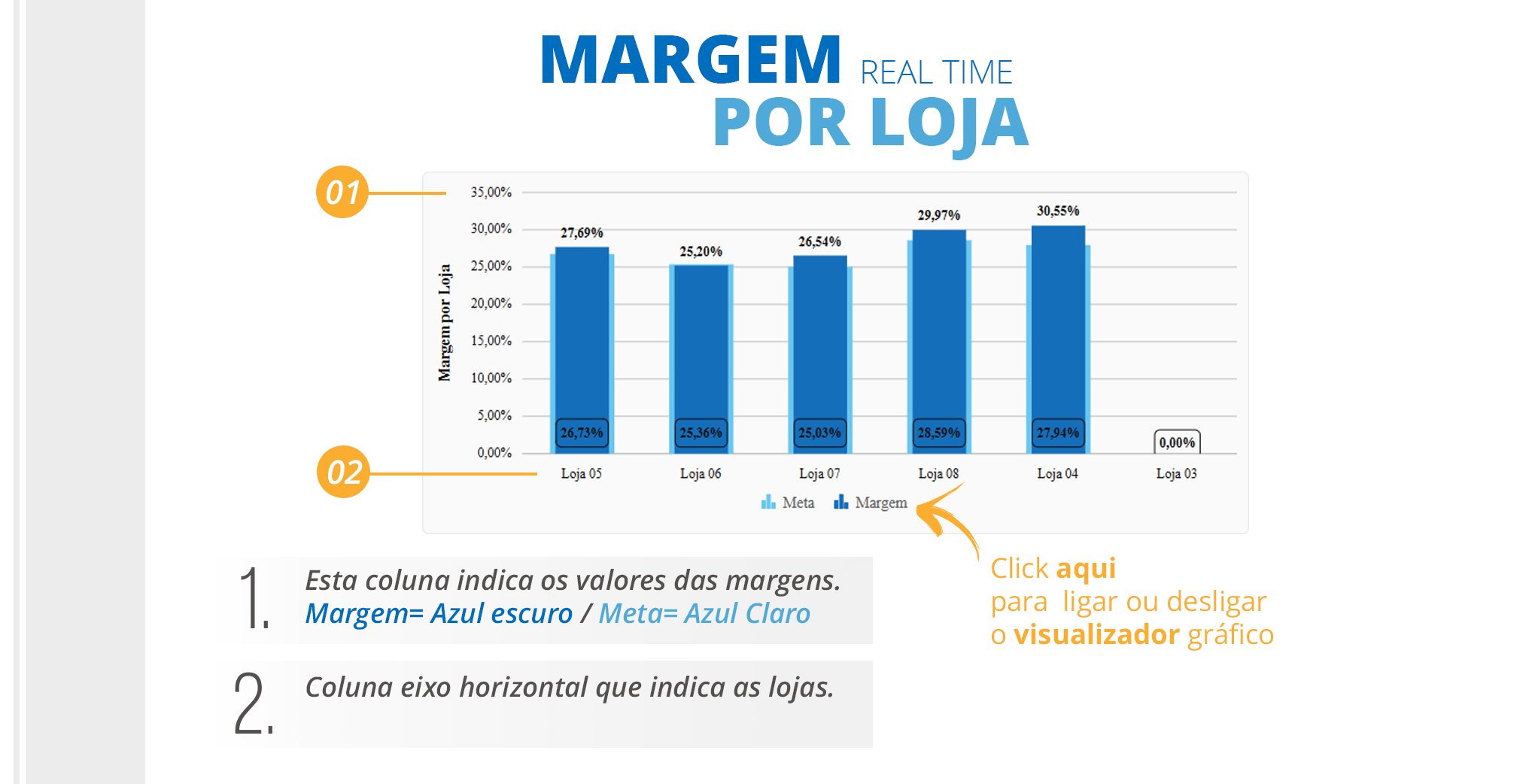
“Margin by Store” Dashboard Details.
-
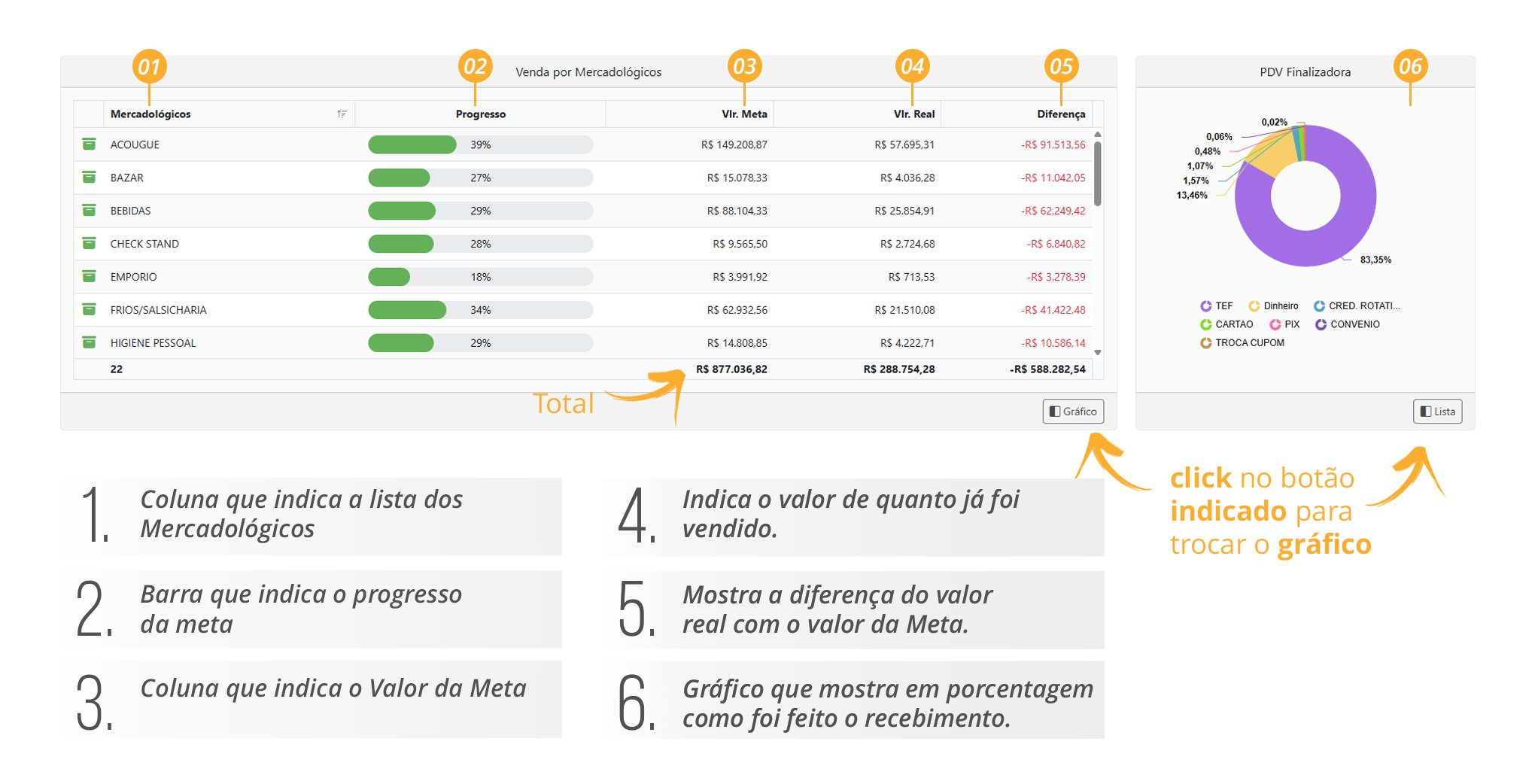
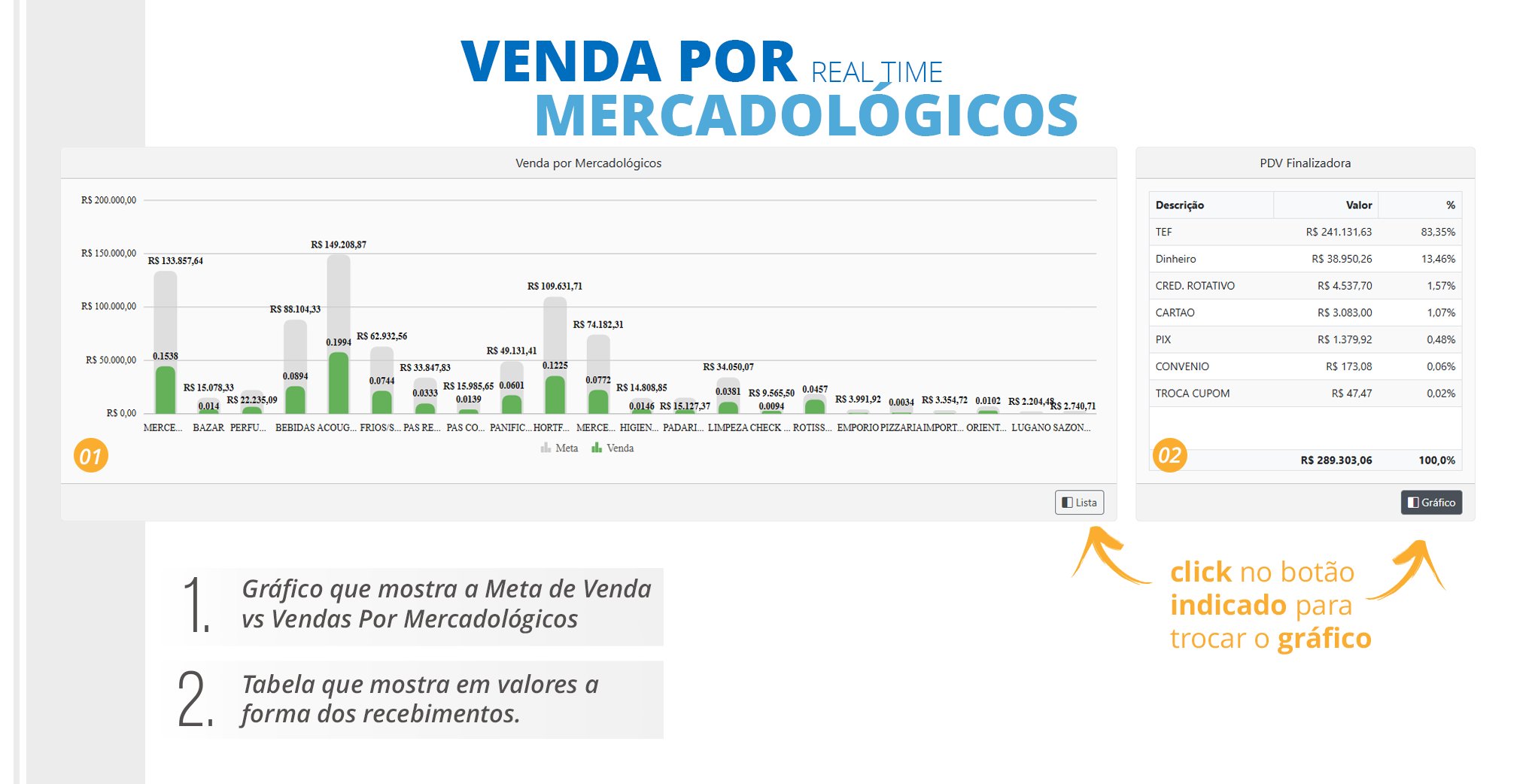
There are 2 options for viewing the Sales by Commercial Category charts. See the details of the first option below
-
Second option for viewing the Sales by Commercial Category charts. See the details of the second option below.