
How to Create a Purchase Plan
Click here to watch the Complete Video with all the details; To maintain a healthy and balanced purchase plan, we recommend creating it WEEKLY. In other words, access the Purchase Limit every Monday and set the period from Monday through Sunday; Follow the step-by-step instructions below to generate the Purchase Limit;- Portal
- Mobile
How to Create a Purchase Plan
To maintain a healthy and balanced purchase plan, we recommend creating it WEEKLY. In other words, access the Purchase Limit every Monday and set the period from Monday through Sunday;Follow the step-by-step instructions below to generate the Purchase Limit;- Controllership> Purchase Limit
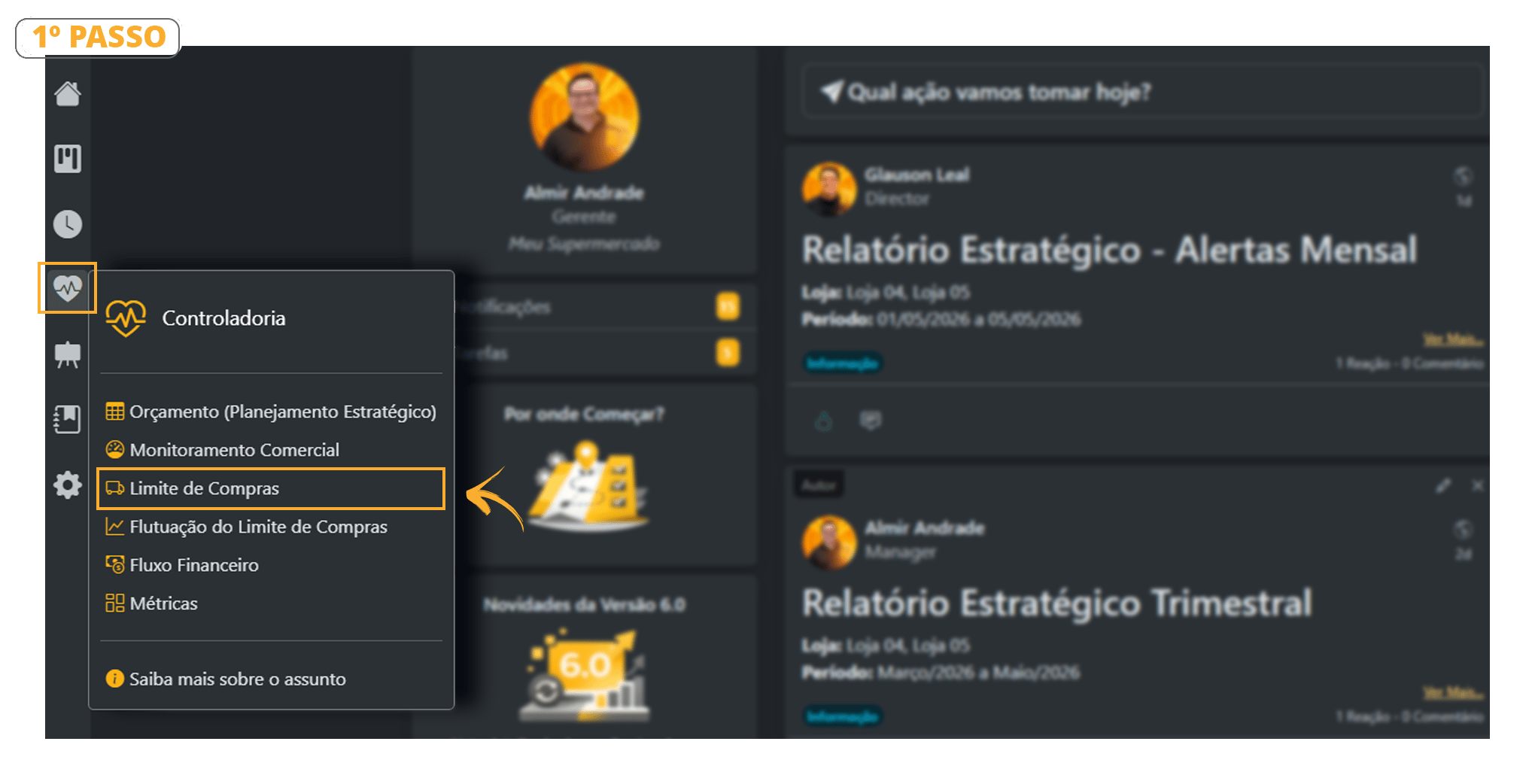
- Follow the step-by-step instructions shown in the images;
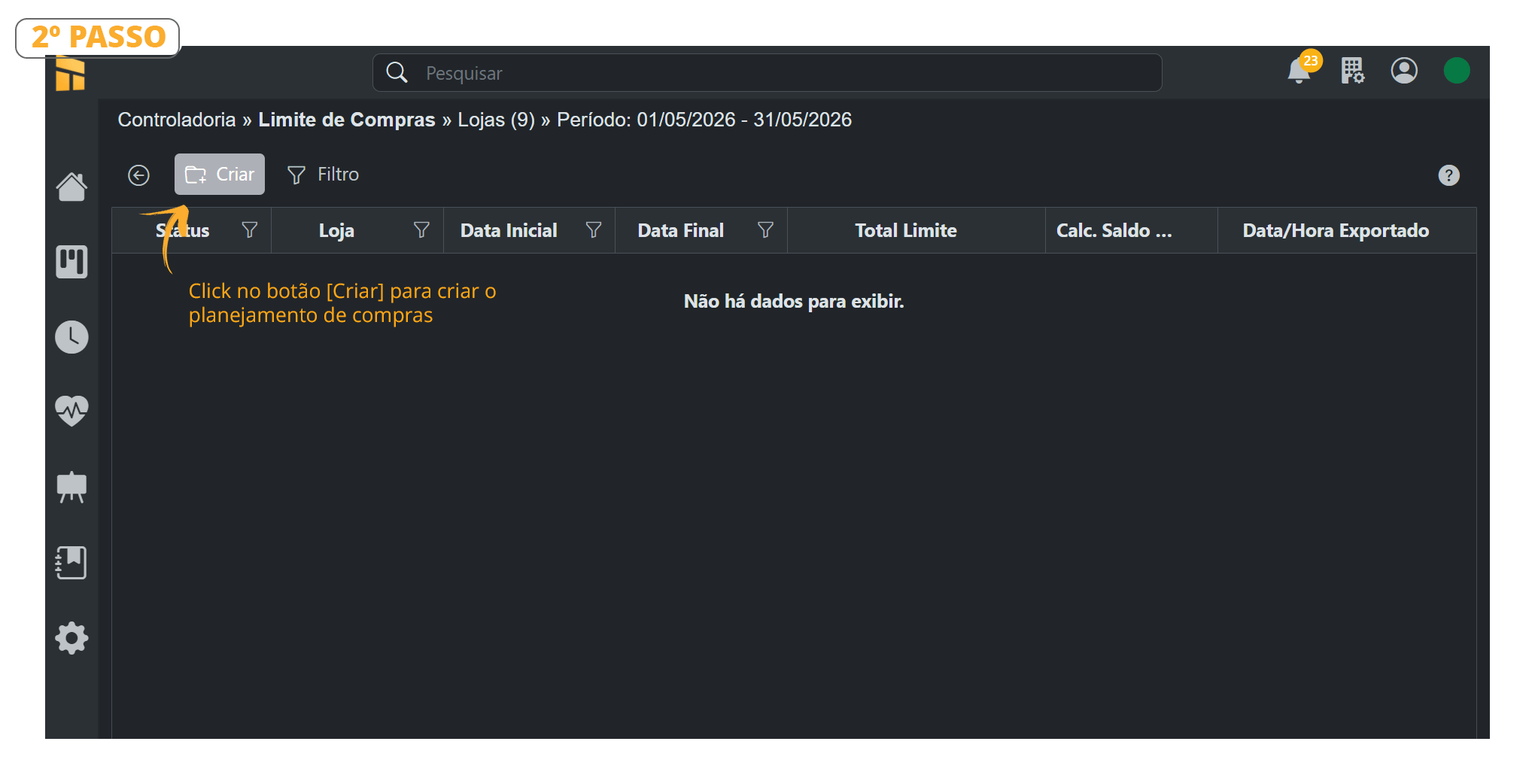
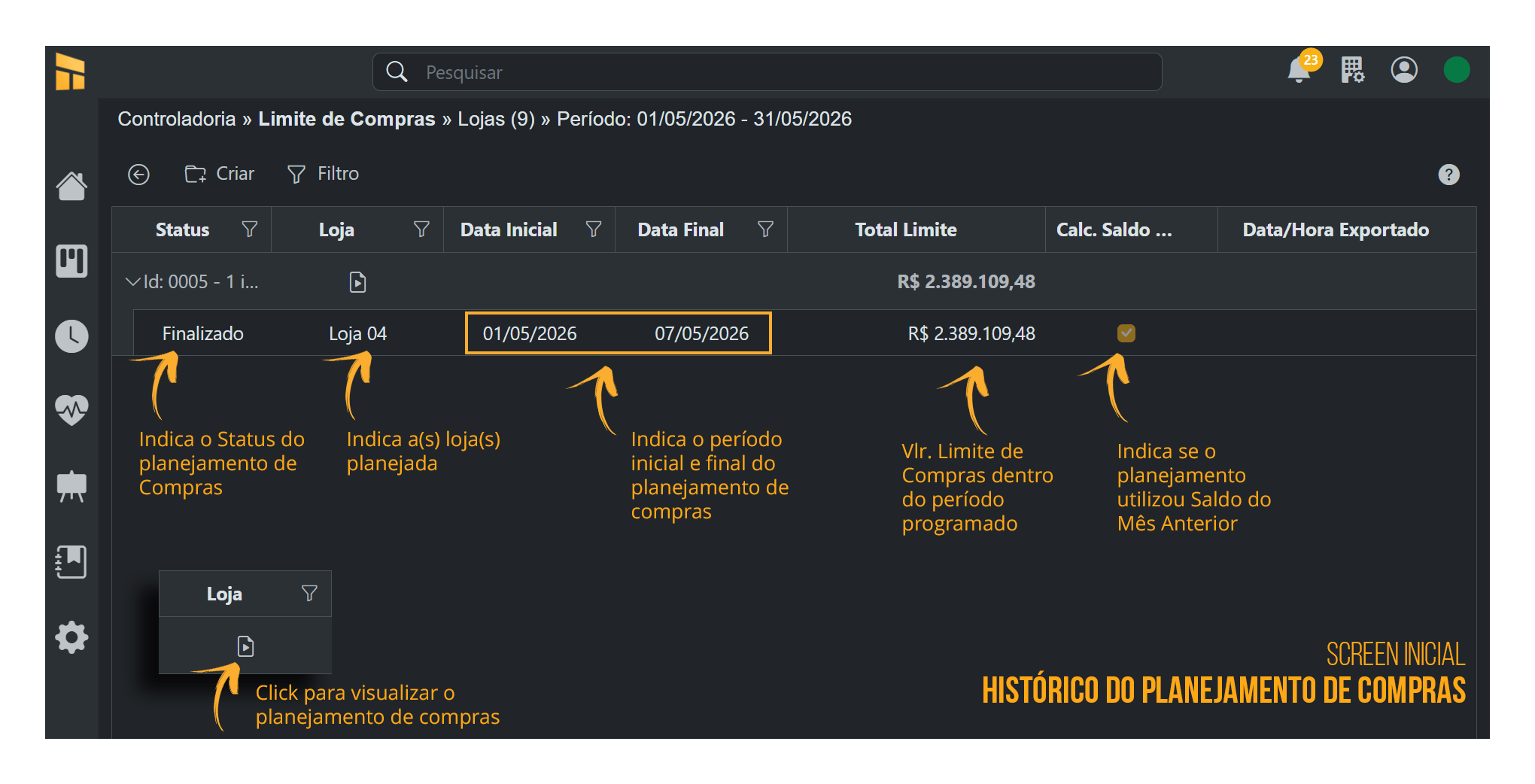
- See the details of each toolbar menu in the image below.
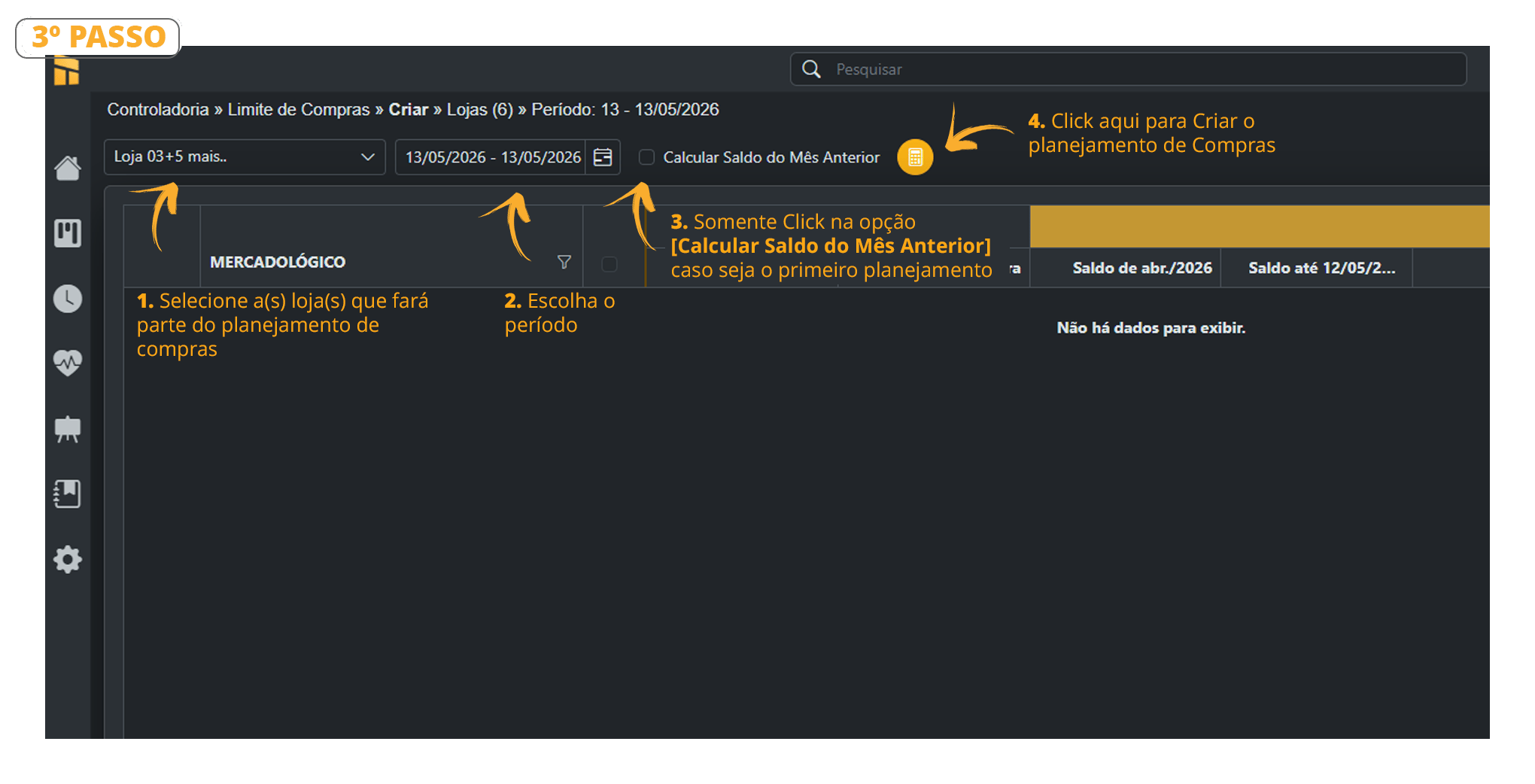
- See below how to continue with the purchase plan, which can be edited at both the Higher Level and the Lower Level;
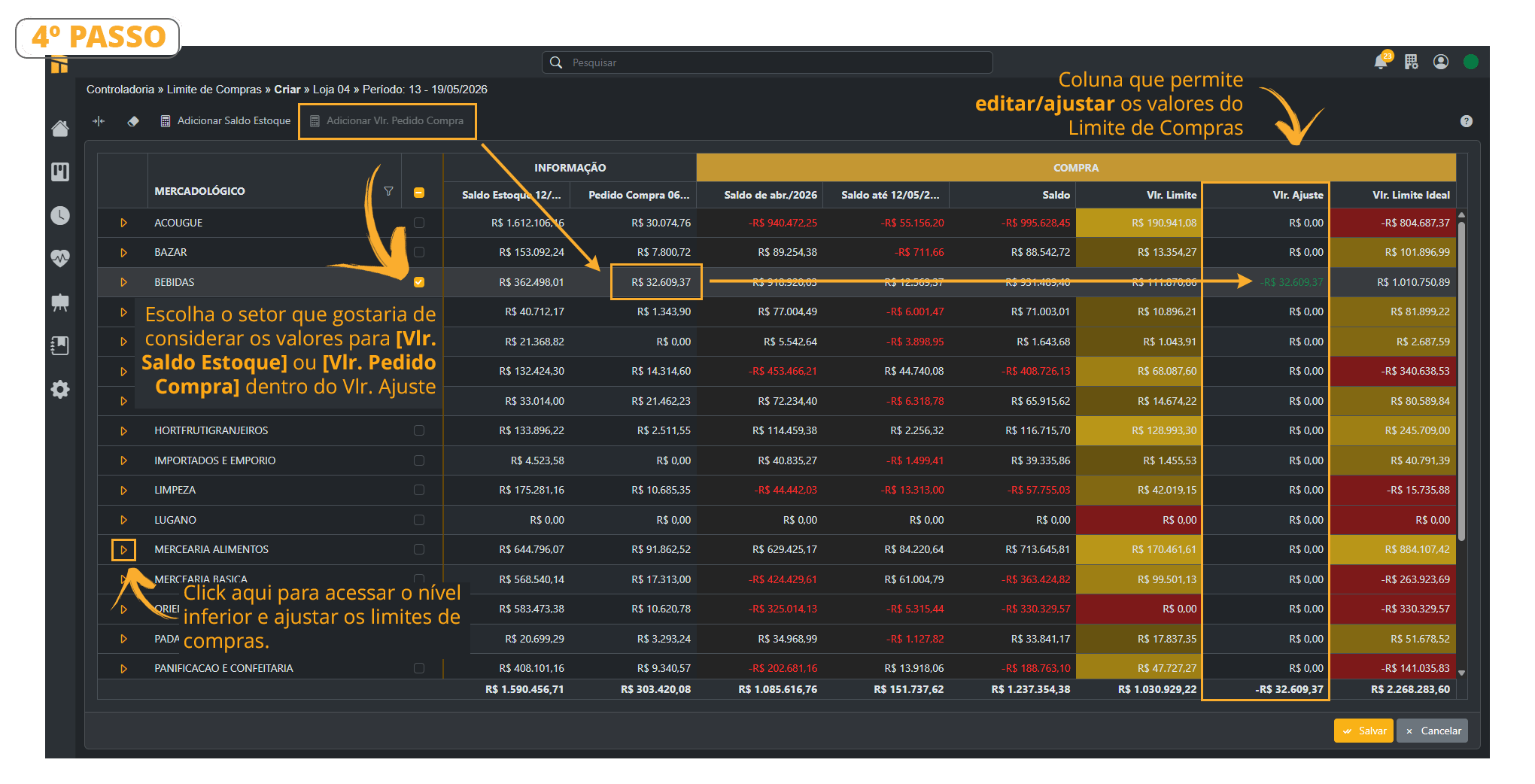
- To complete the Purchase Plan, simply click [Export];
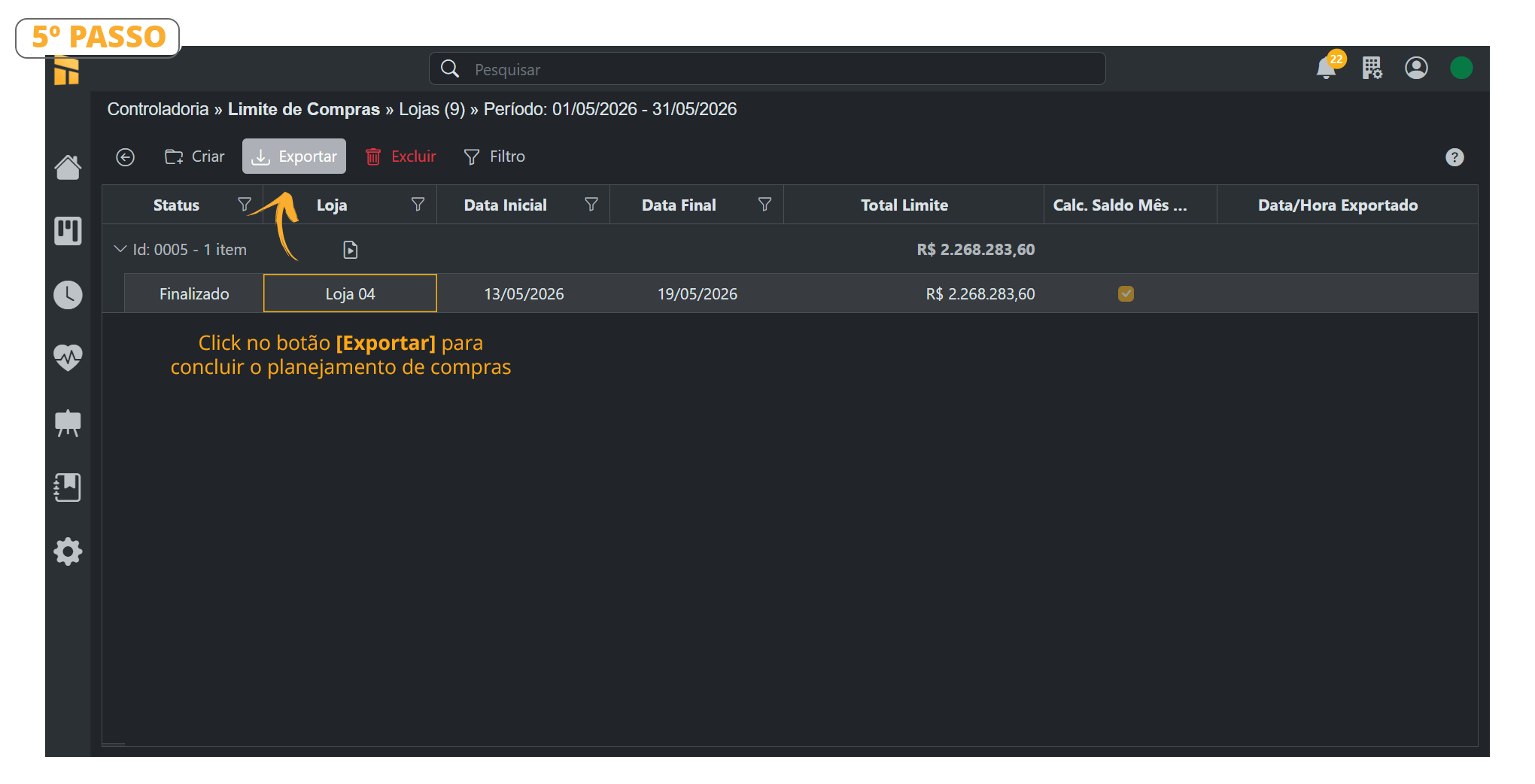
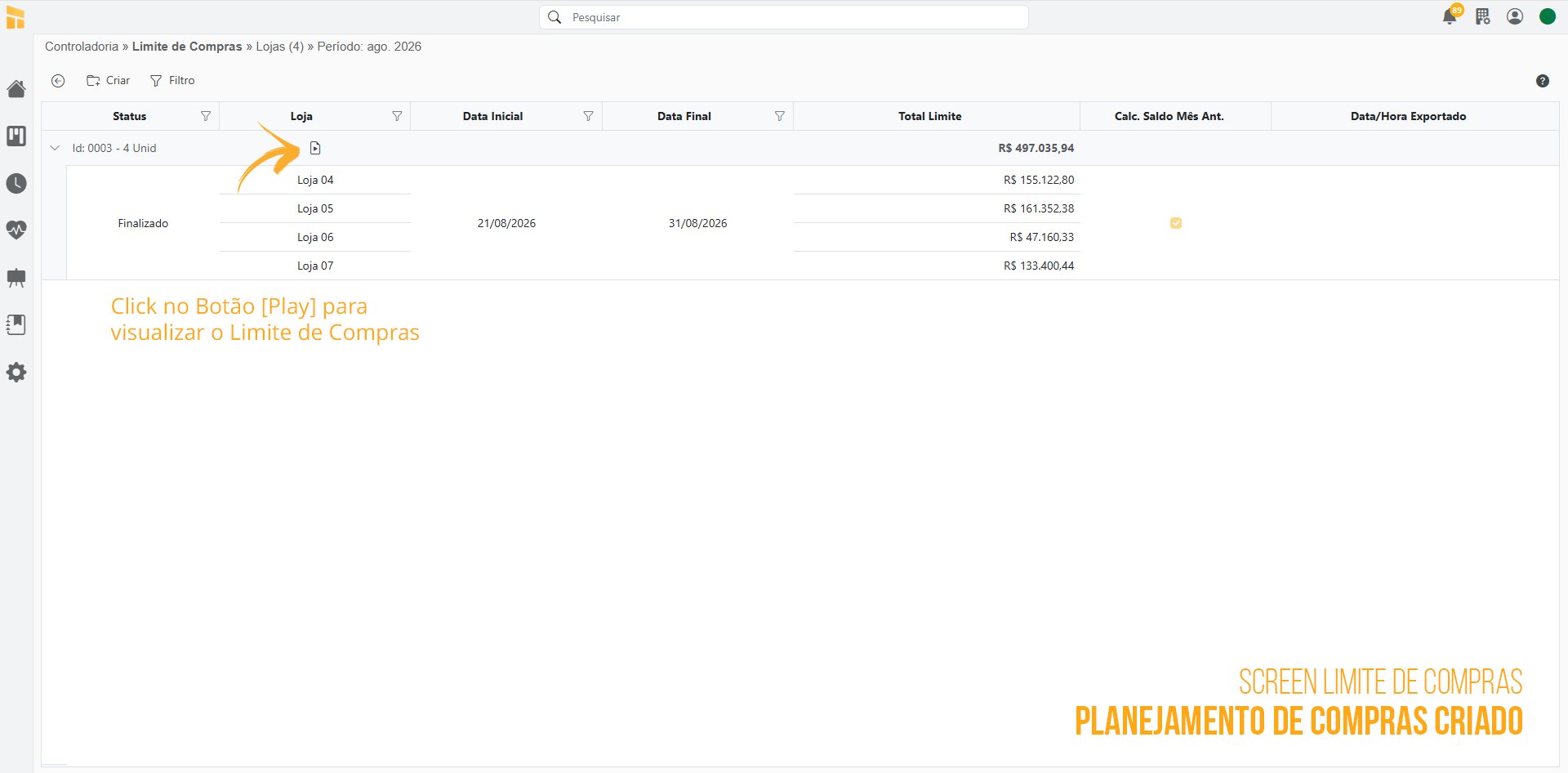
- Click the “Export” button as shown in the image. We must follow these steps to upload the Purchase Limit report to VR Master.
.png?fit=max&auto=format&n=MxGfRo8KrZylQJRB&q=85&s=0e6fb20f41b8f9fee3595335e543fbbe)
How to Export the “Purchase Limit” Report to PDF
- See below how to export a file to PDF. The same procedure applies to EXCEL
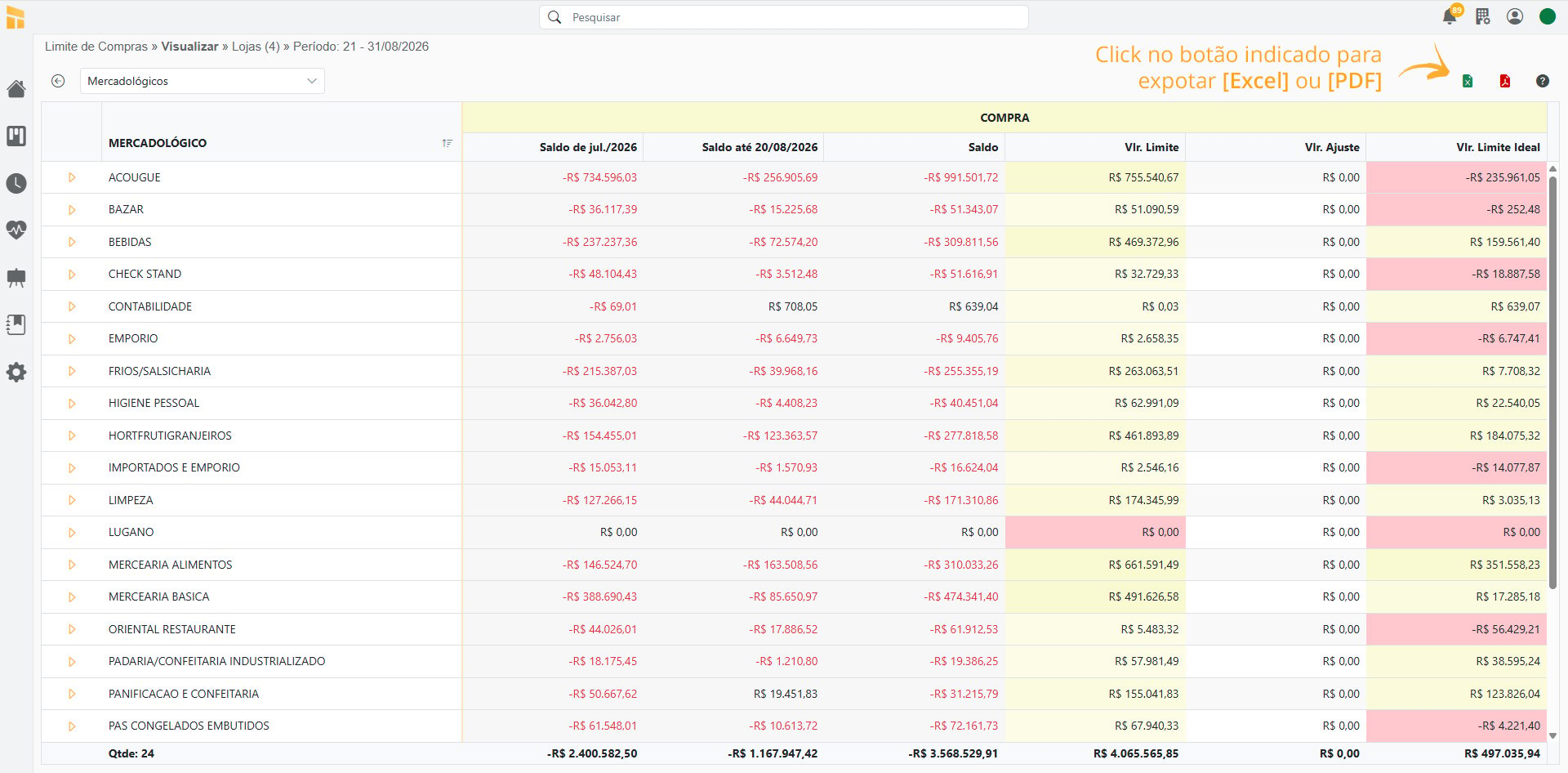
Column Details
See the meaning of each column in the Purchase Limit table..png?fit=max&auto=format&n=MxGfRo8KrZylQJRB&q=85&s=ee473dd95d664da632c6a22786e75a26)
- Controllership> Purchase Limit
.png?fit=max&auto=format&n=MxGfRo8KrZylQJRB&q=85&s=090d4db4a40d2a6916af6f33d01bfaef)
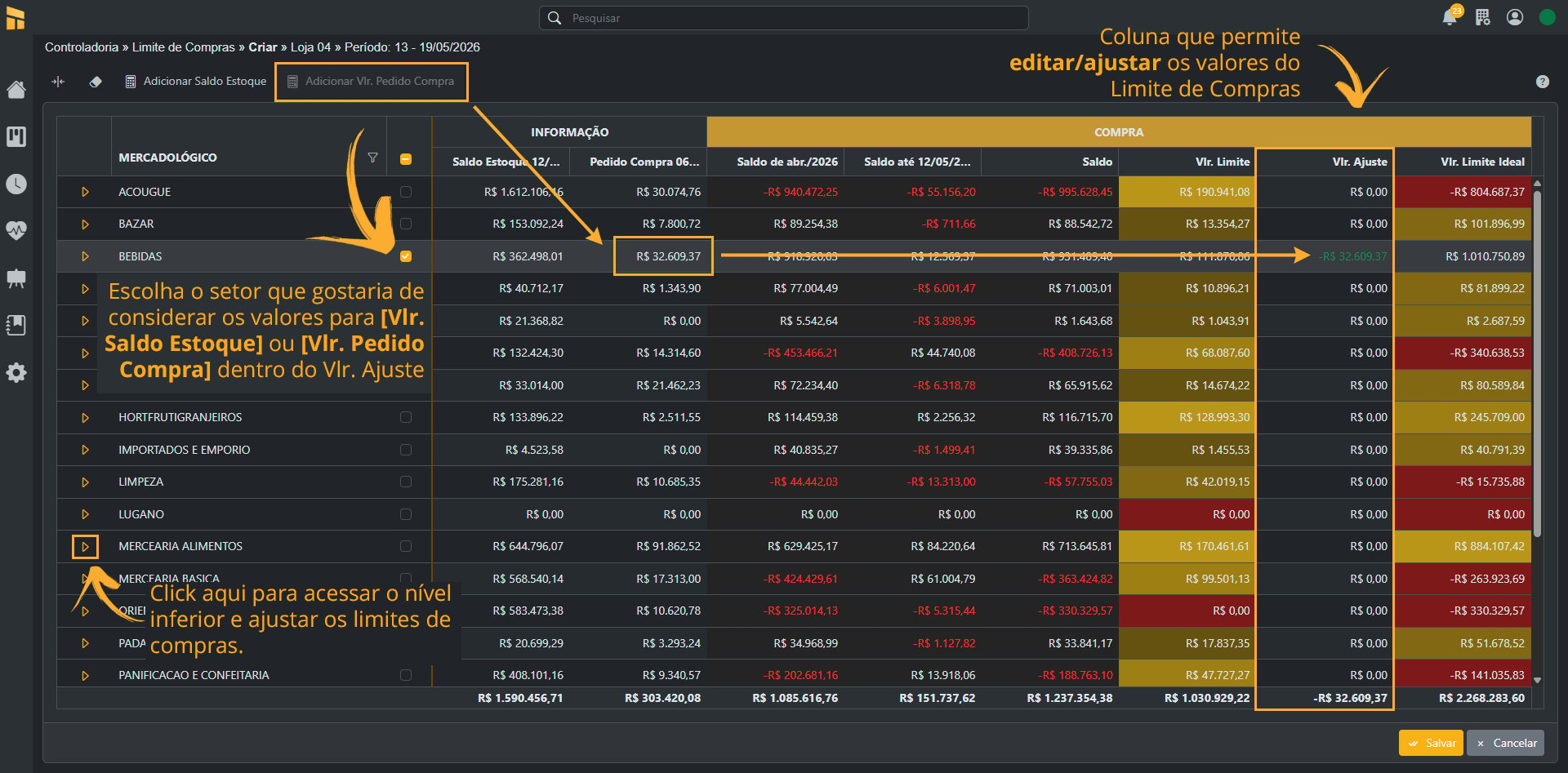
- See the “Adjustment Amount” column in the image below, which can be edited. It is generally used to round amounts or transfer funds from one merchandising category to another. Although the Purchase Limit can be adjusted, this is not recommended.
.png?fit=max&auto=format&n=MxGfRo8KrZylQJRB&q=85&s=4790a87d36ee76a774365d1a4a08f8be)
- See how to make the adjustment in the image below. Select the merchandising category you want to edit. Simply click the indicated field and enter the amount you want to adjust (not recommended).
- In the example below, it was necessary to transfer a Purchase Limit amount from the Beverages merchandising category to the Cleaning department. We entered negative amounts to show that the amount was being deducted from that merchandising category, as shown in the example below. Click “Recalculate and Save” to finish.
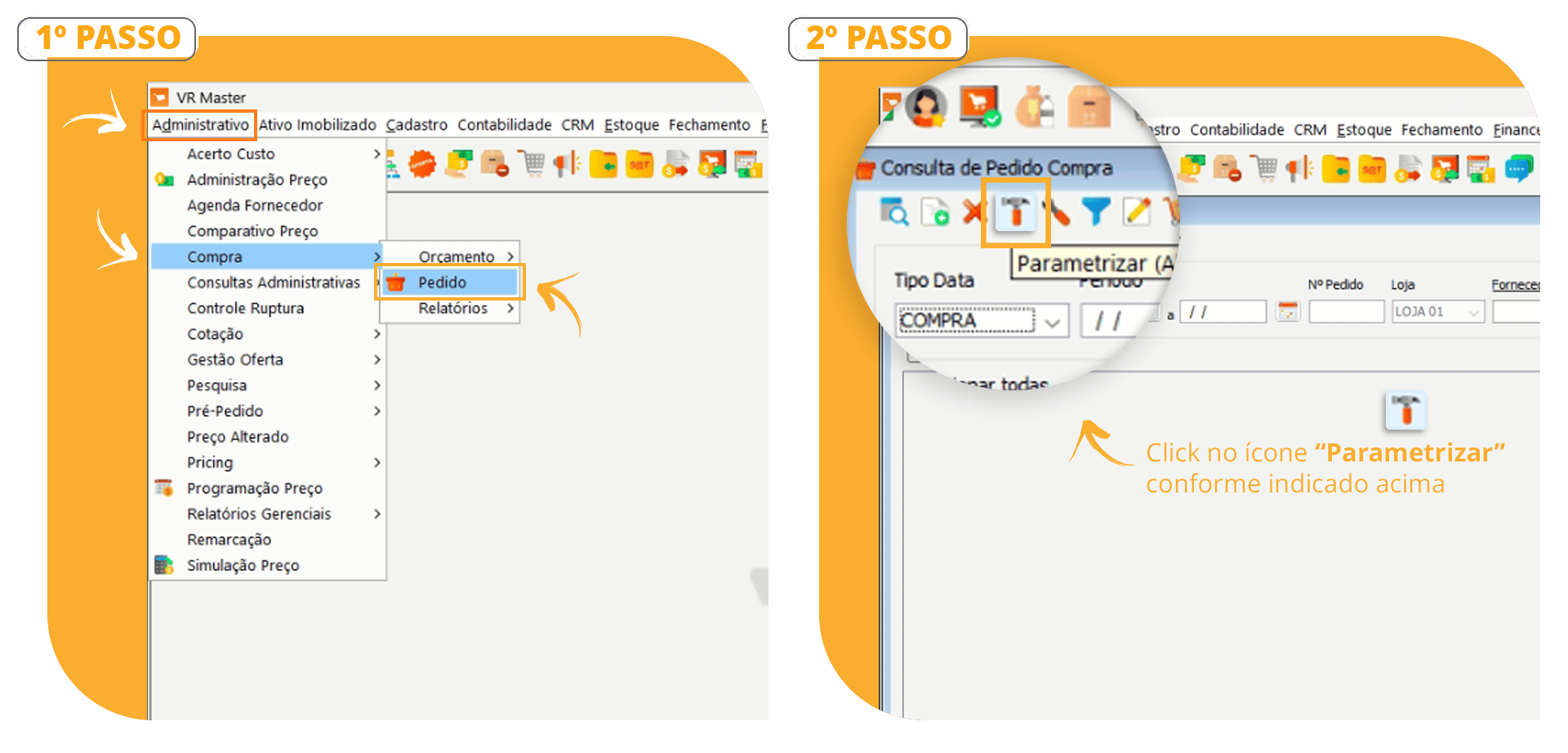
- Click Administrative / Purchases / Order;
- Then click Configure;
.png?fit=max&auto=format&n=OorSAChFNVfXfATx&q=85&s=63ee0c4aa1962bc3b7809a6aceb6e2aa)
Purchase Limit Calculation
When we create the Budget (Strategic Planning), the initial calculation of the Controller Purchase Limit considers:[Sales Target] x [% Budgeted COGS] + [Loss] + [Breakage] + [Consumption] (these should only be included when properly monitored), which are calculated based on the result of [Sales Target] x [% Budgeted COGS].Note: The margins used to calculate Loss/Breakage and Consumption come from the Budget.Purchase Limit Calculation (Excluding Loss / Breakage and Consumption):
[Sales Target Amount] x [% Budgeted COGS] = Purchase Limit AmountPurchase Limit Calculation (Including Loss / Breakage and Consumption):
[Purchase Limit Amount] x [% loss] = [P]
[Purchase Limit Amount] x [% Breakage] = [Q]
[Purchase Limit Amount] x [Consumption] = [C]
[Purchase Limit Amount] + [P] + [Q] + [C] = Purchase Limit Amount
Calculate Loss/Breakage/Consumption? NO
Calculate Loss/Breakage/Consumption? YES
