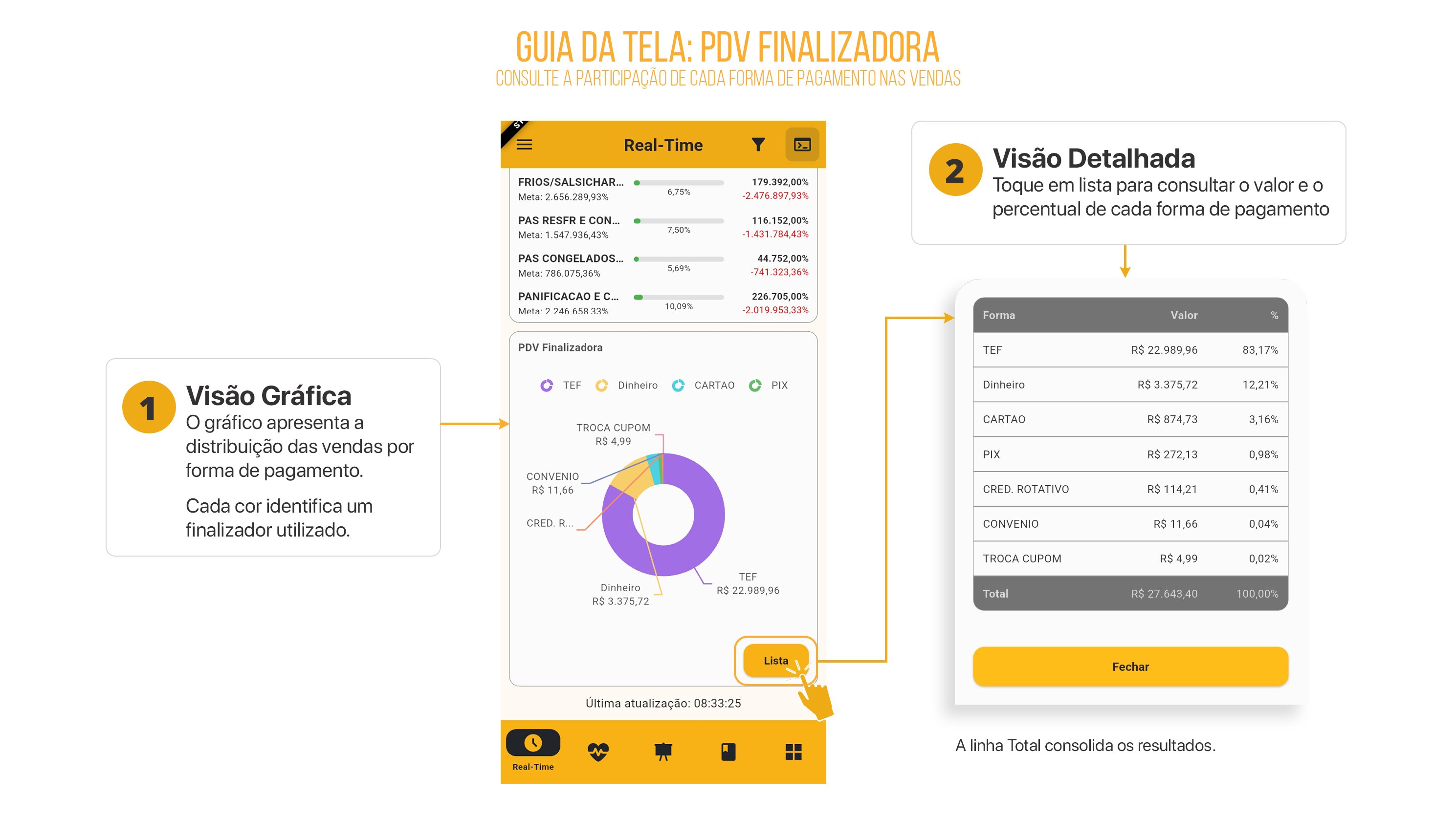
To update actual data automatically, click in the right corner of the screen. Then, select the desired update interval and click .Click here to watch the Complete Real Time video with detailed information;
- Portal
- Mobile
Real Time
Follow the steps below to understand how Real Time works.-
After creating a Budget, click the location indicated in the image below to open Real Time.
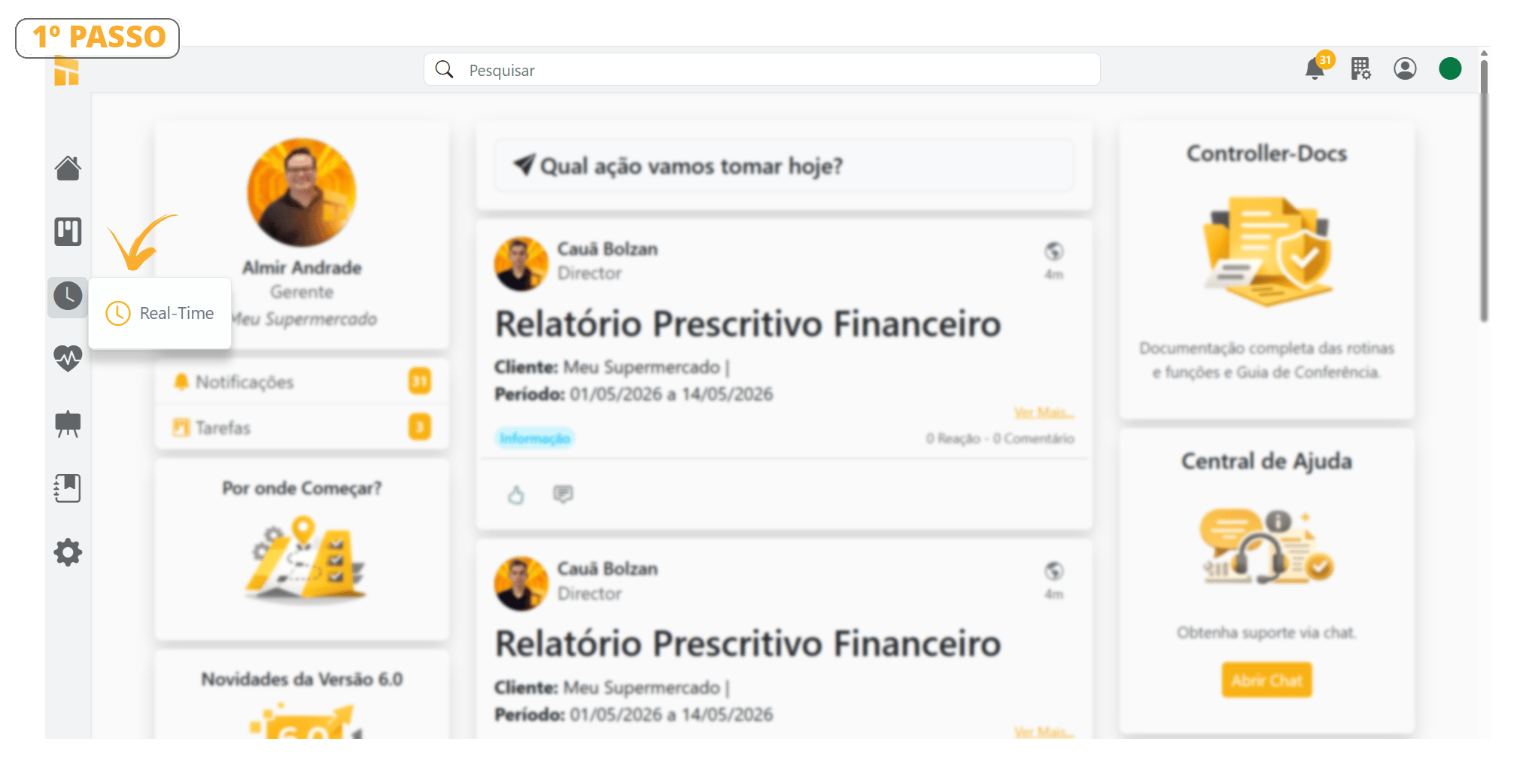
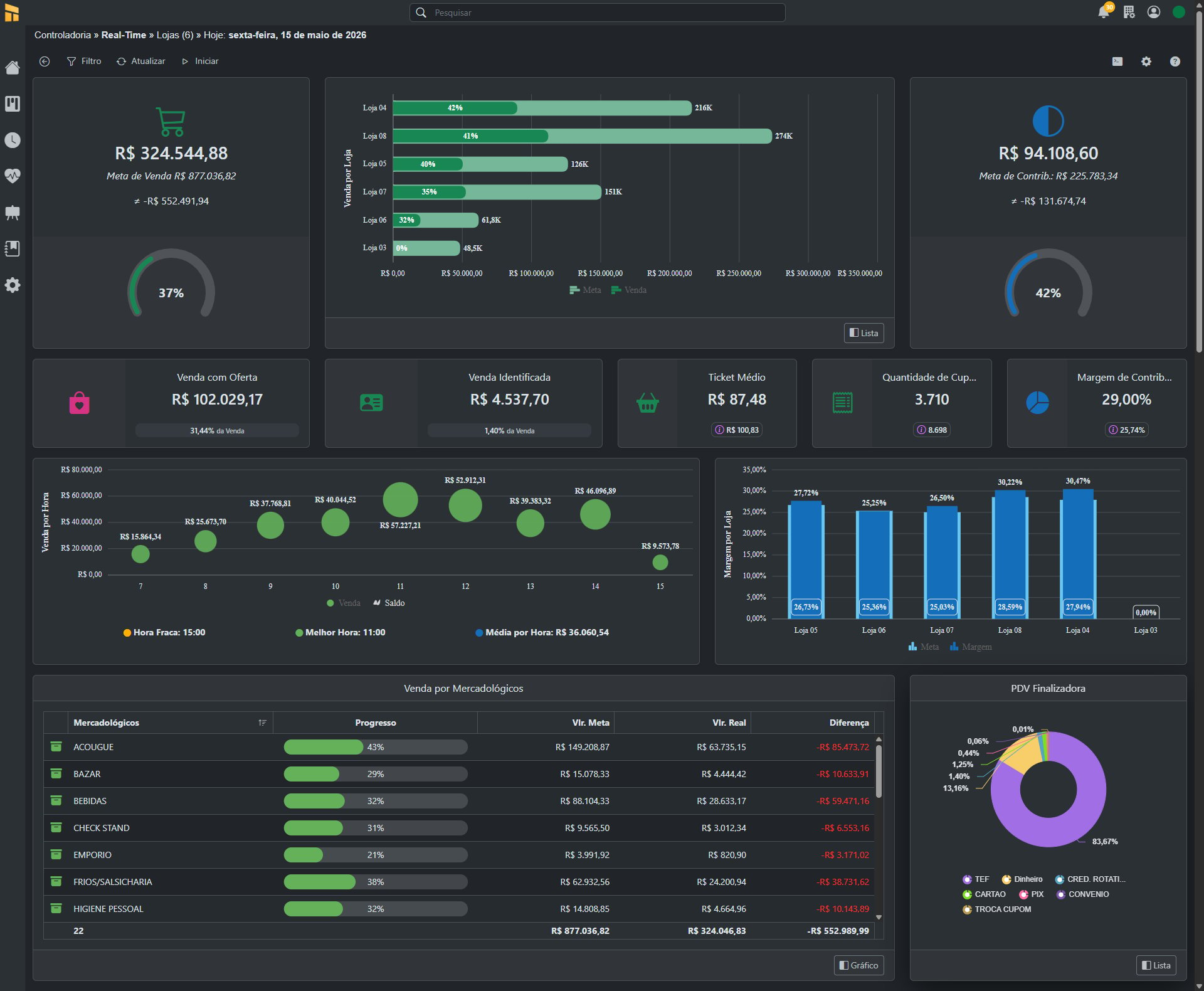
- See the Real Time home screen in the image below.
You can only view data in Real-Time after a Budget has been created.
To learn how to create a Budget, click here
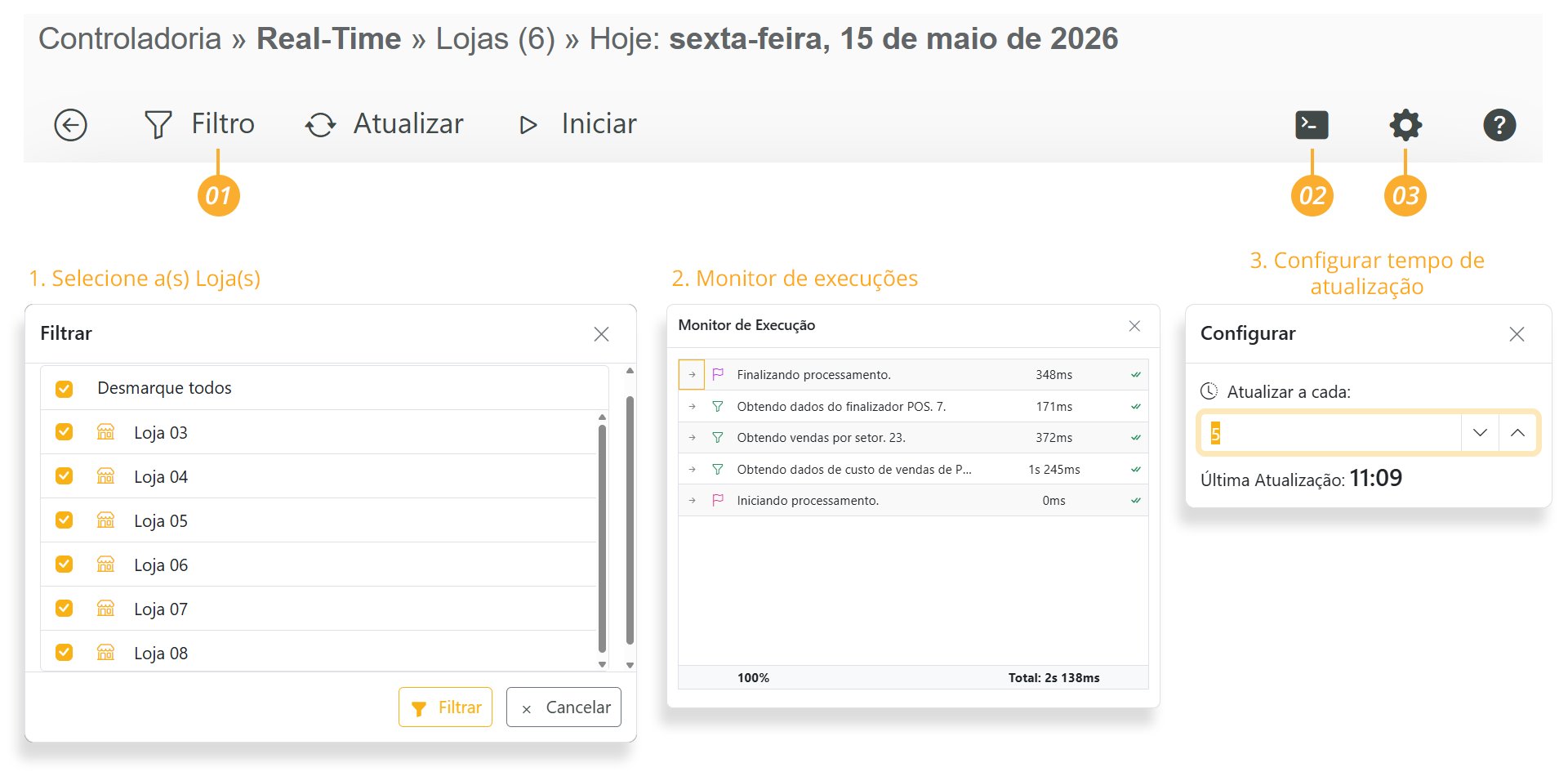
Configuring Real Time
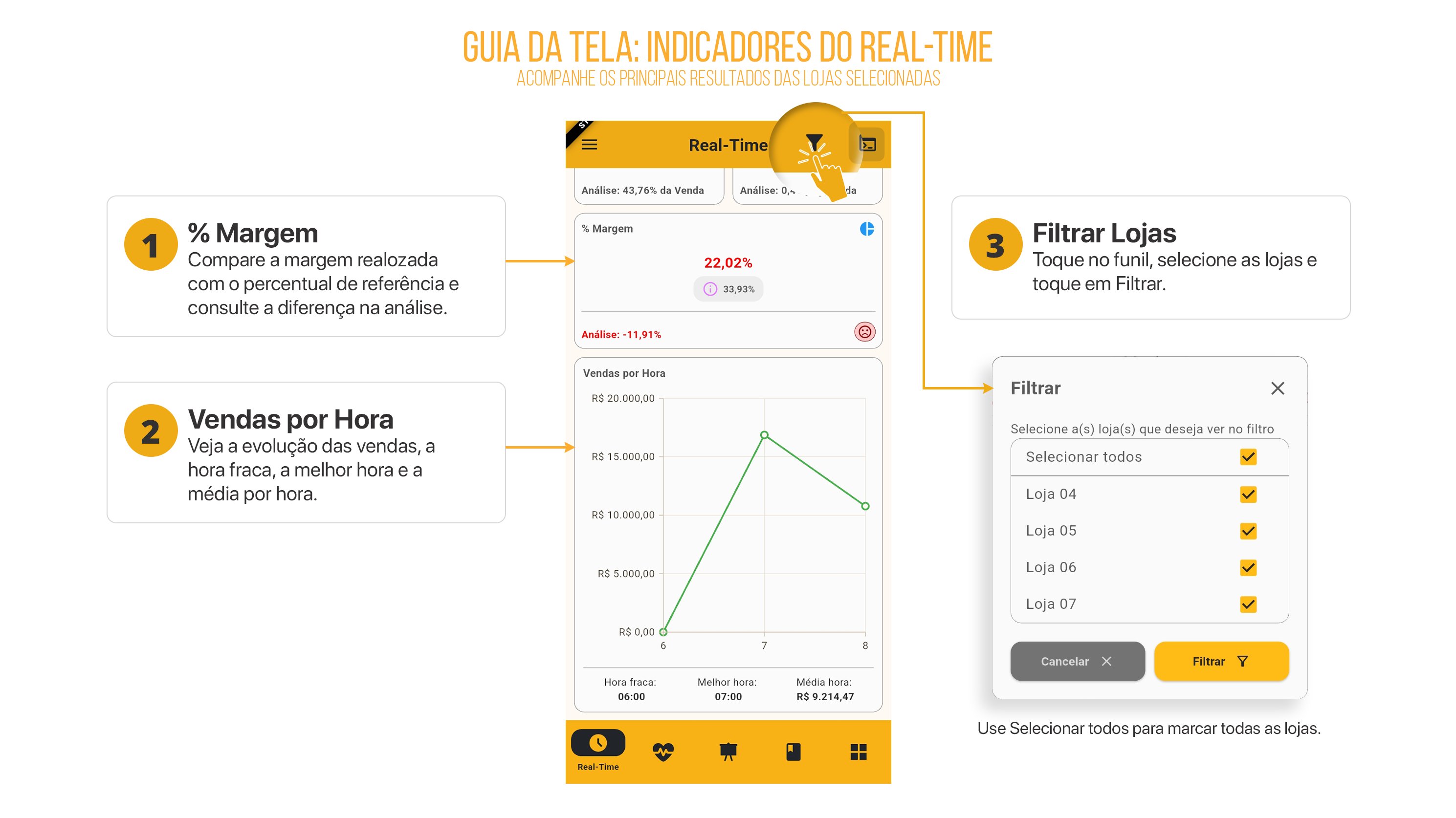
- Click [Filter] to select the store you would like to view in Real Time.
-
You can select one or more stores at the same time.
Dashboard Details
-
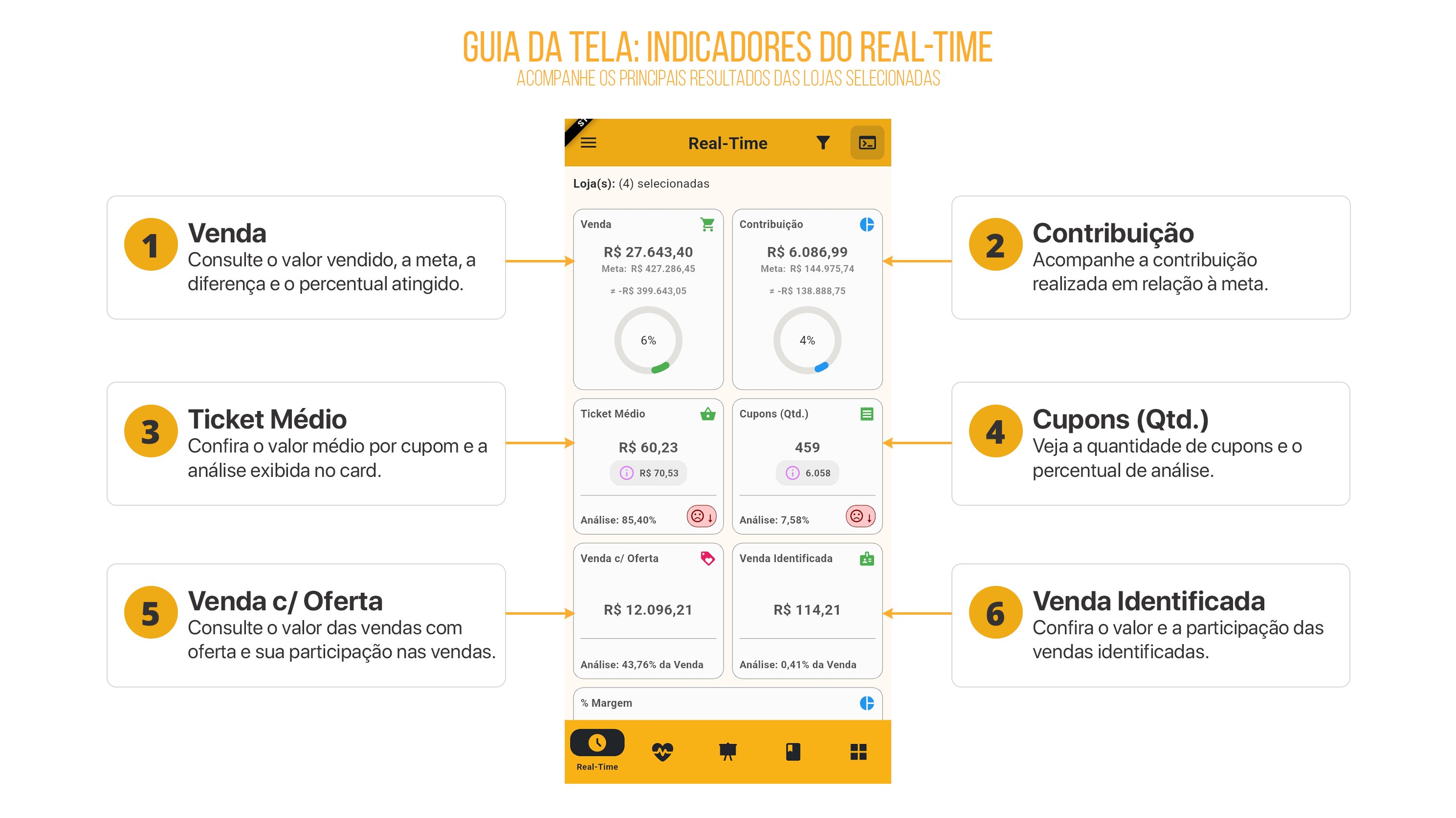
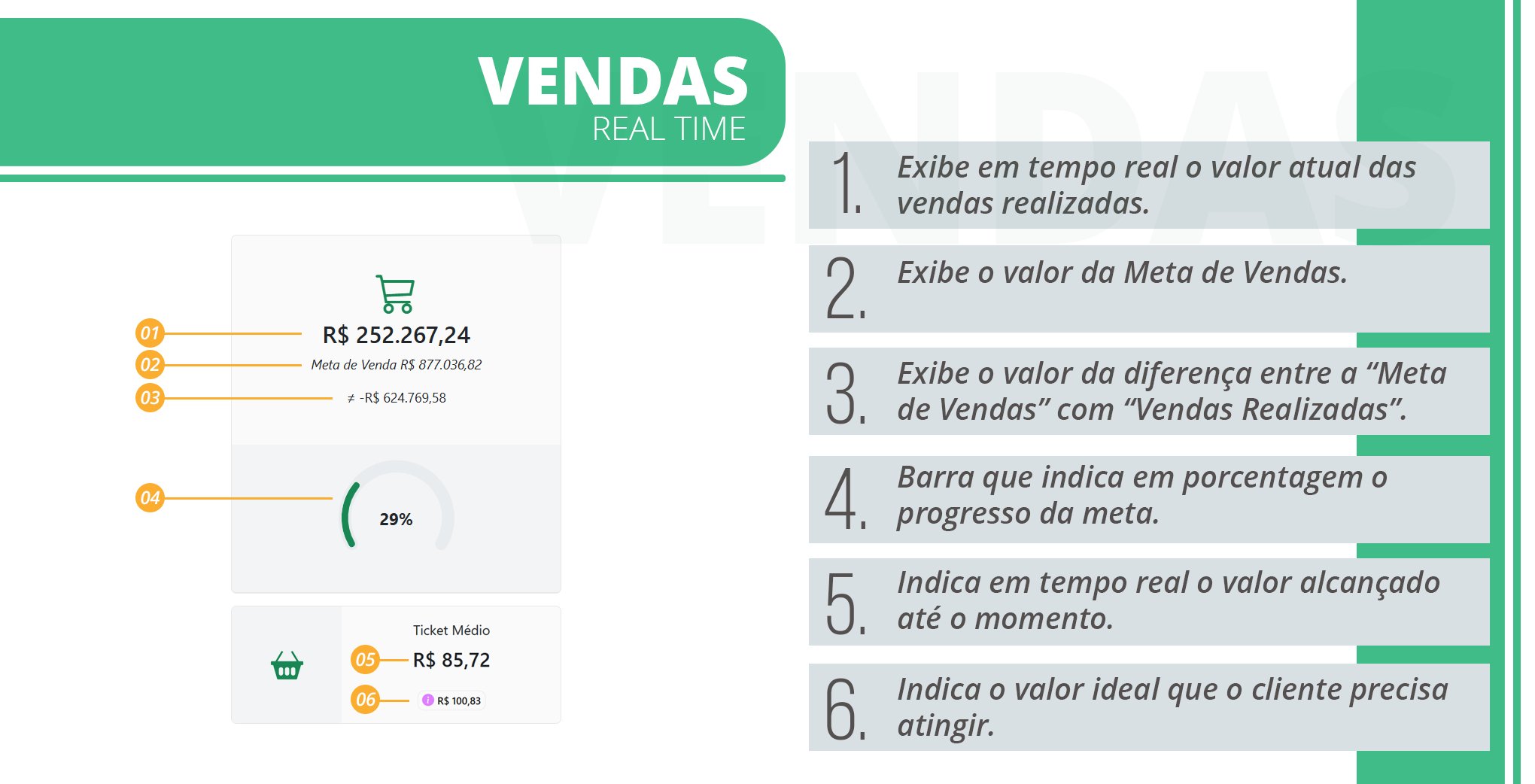
Sales Dashboard Details – Real Time
-
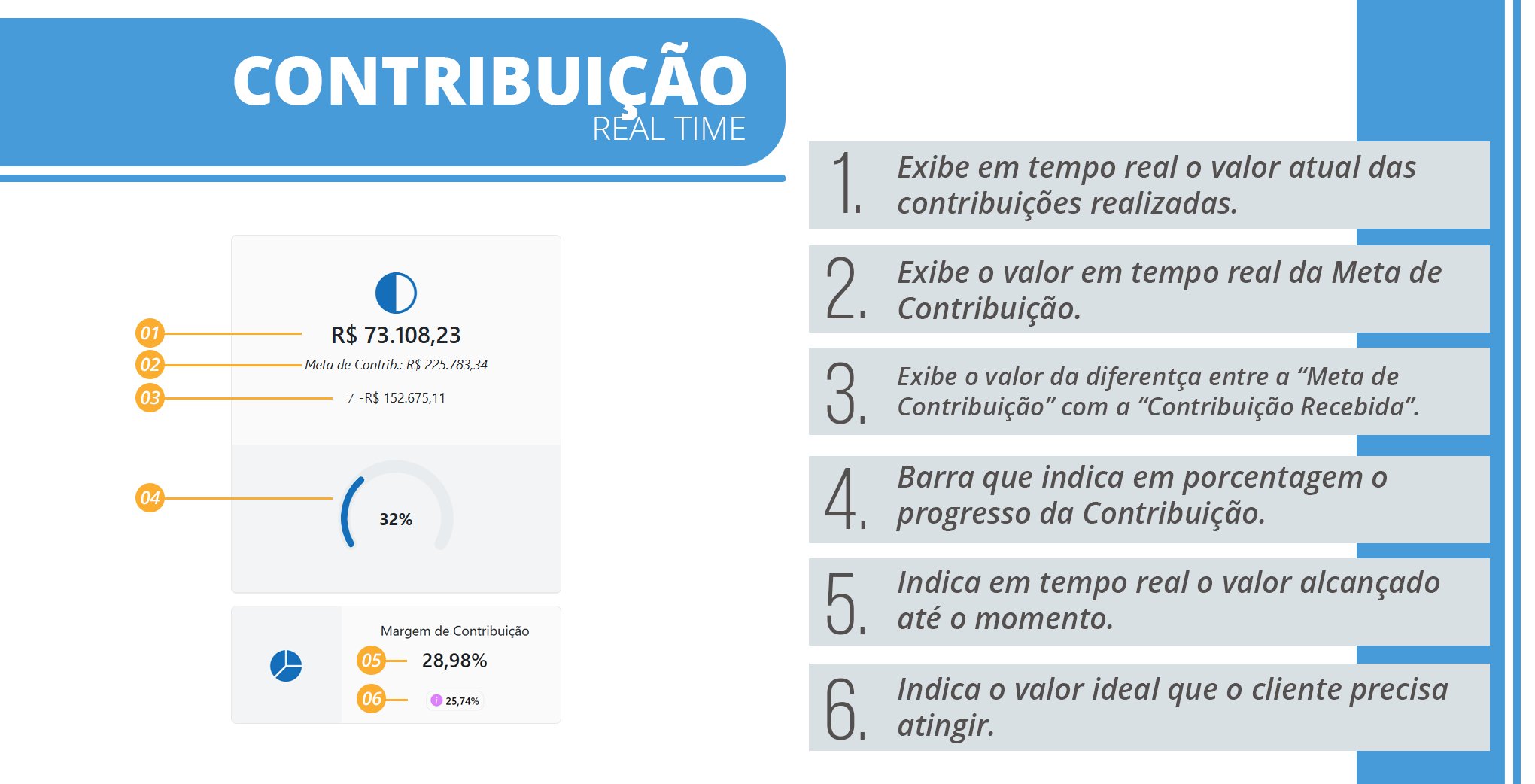
Contribution Dashboard Details – Real Time
-
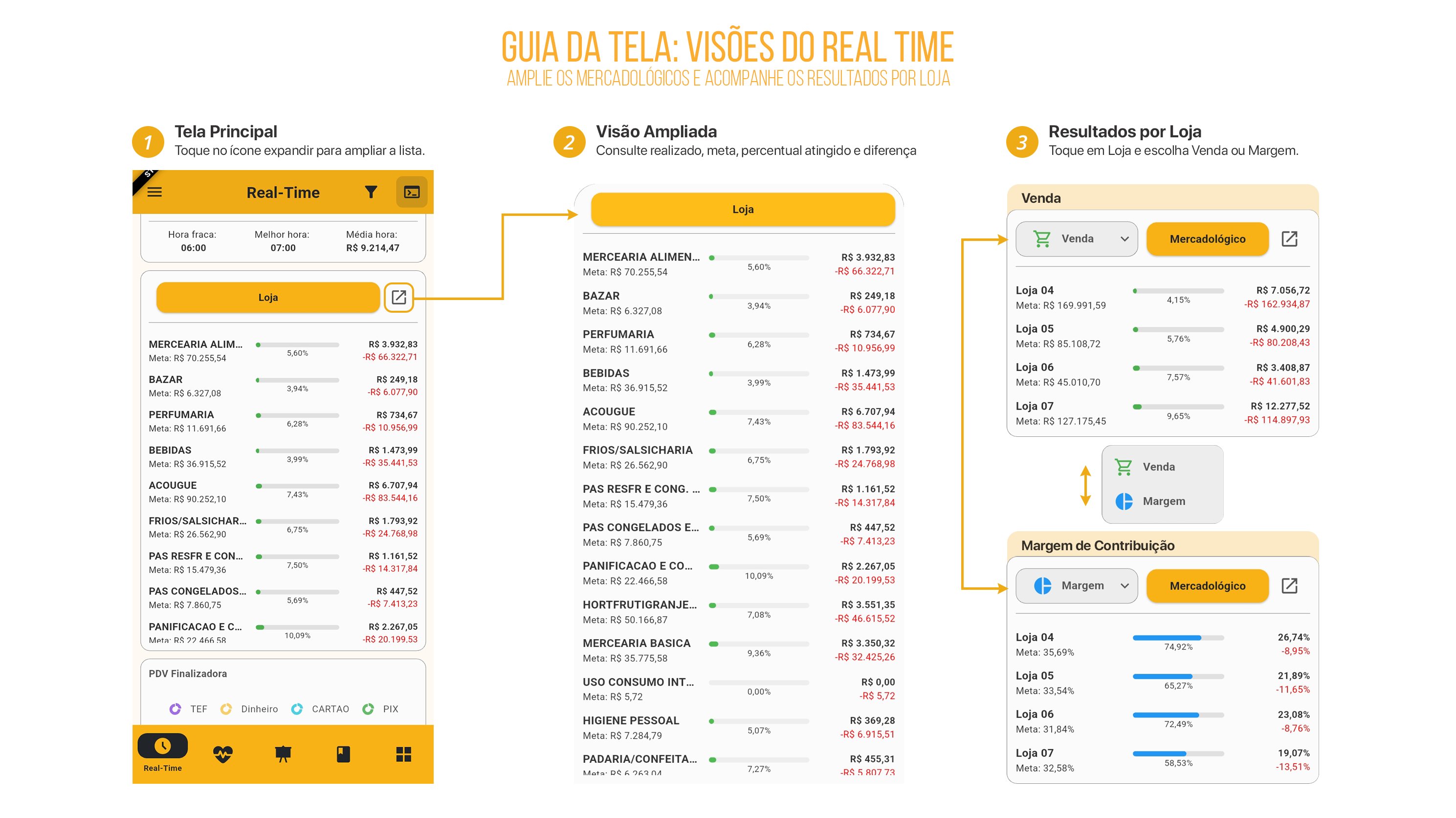
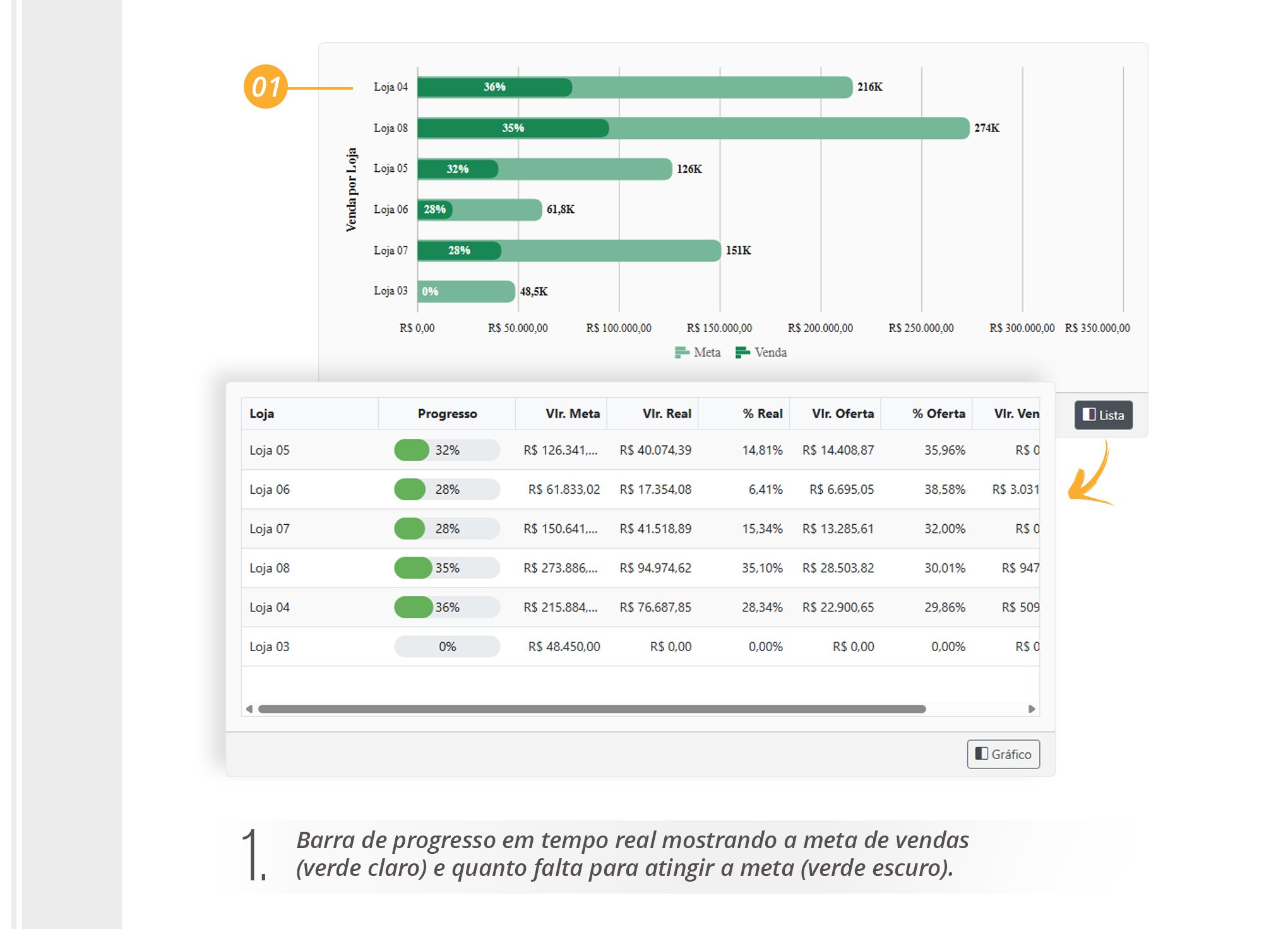
Sales by Store Dashboard Details – Real Time
-
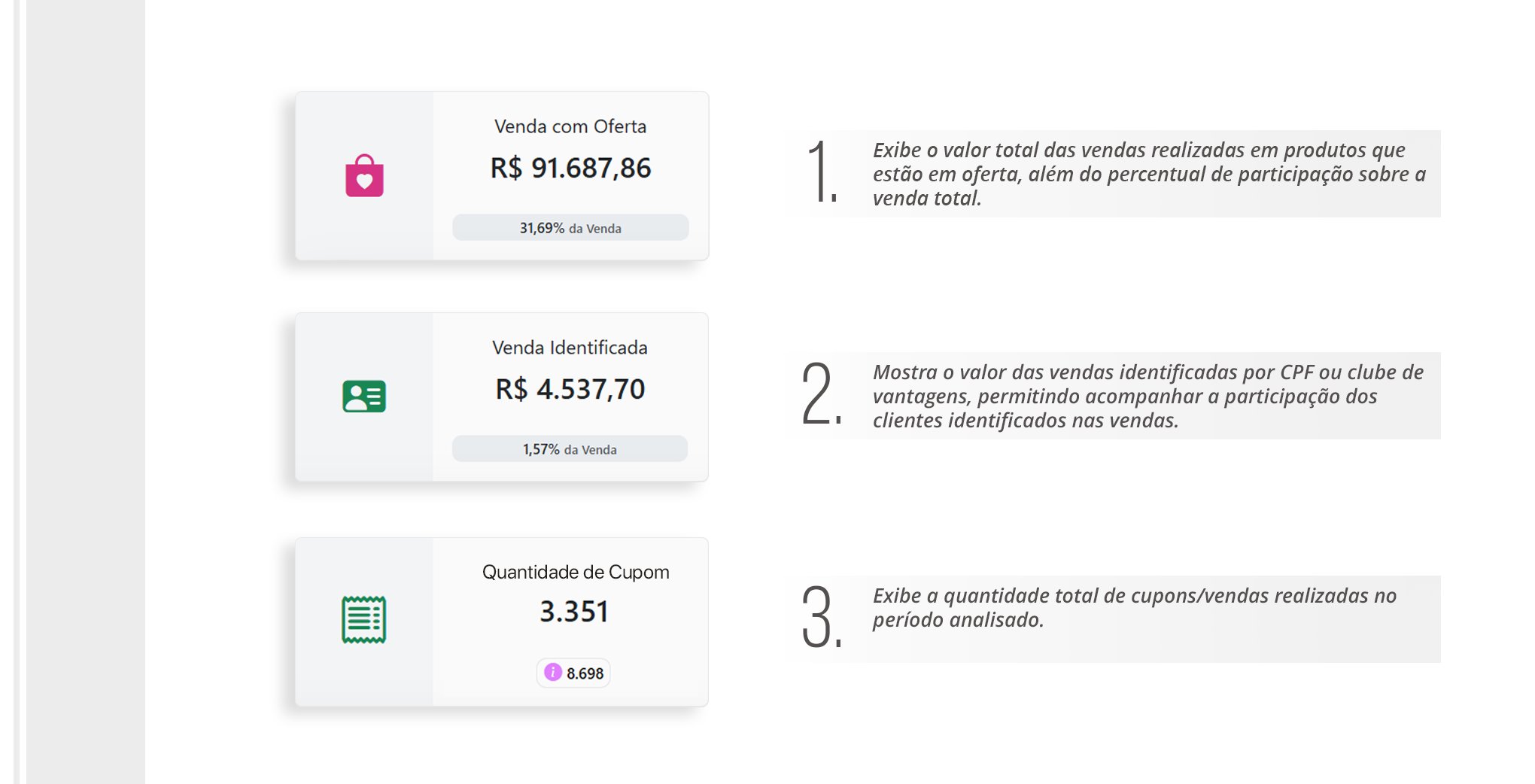
Coupon Quantity, Identified Sales, and Coupon Quantity Dashboard Details – Real Time
-
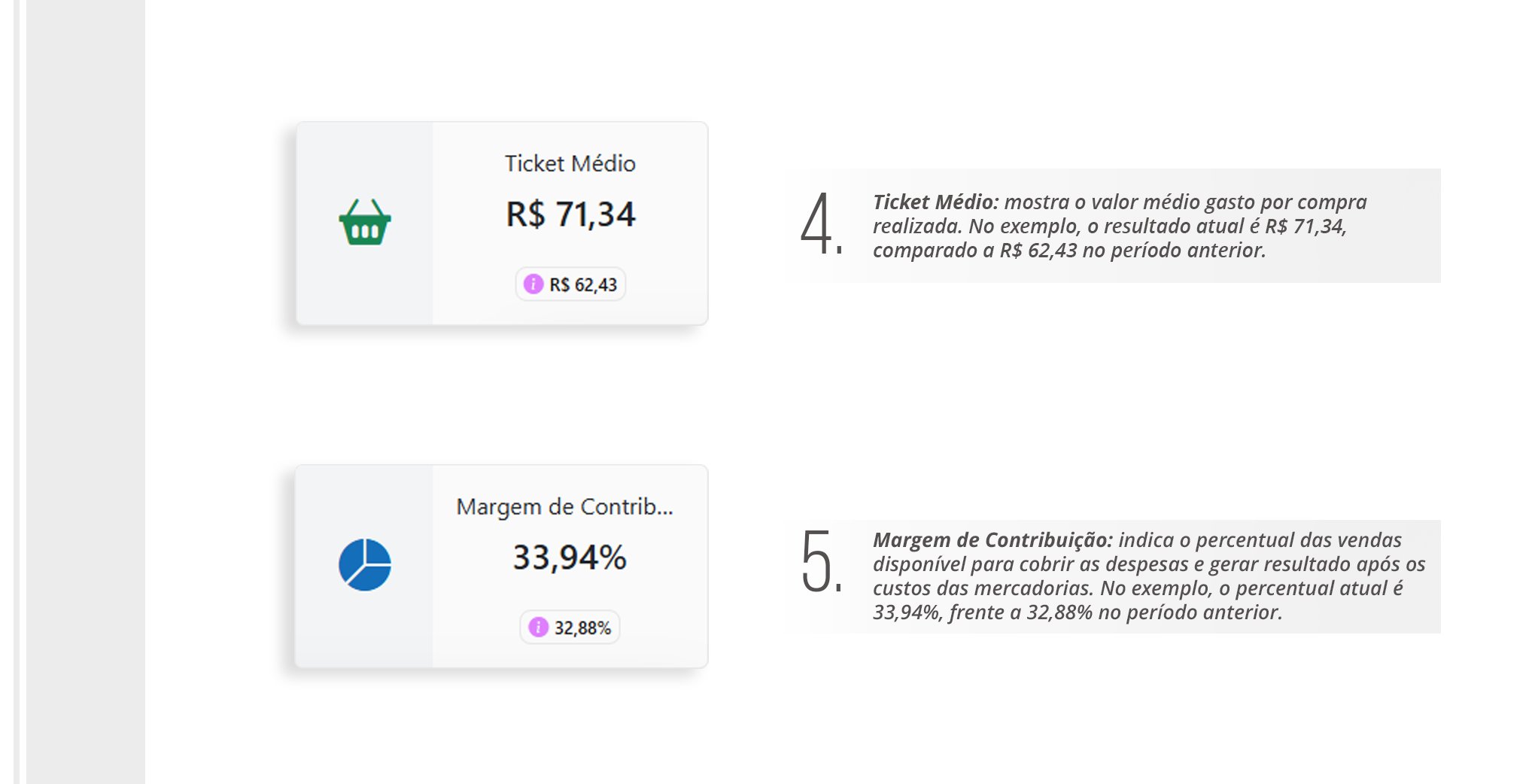
Average Ticket and Contribution Margin Dashboard Details – Real Time
-
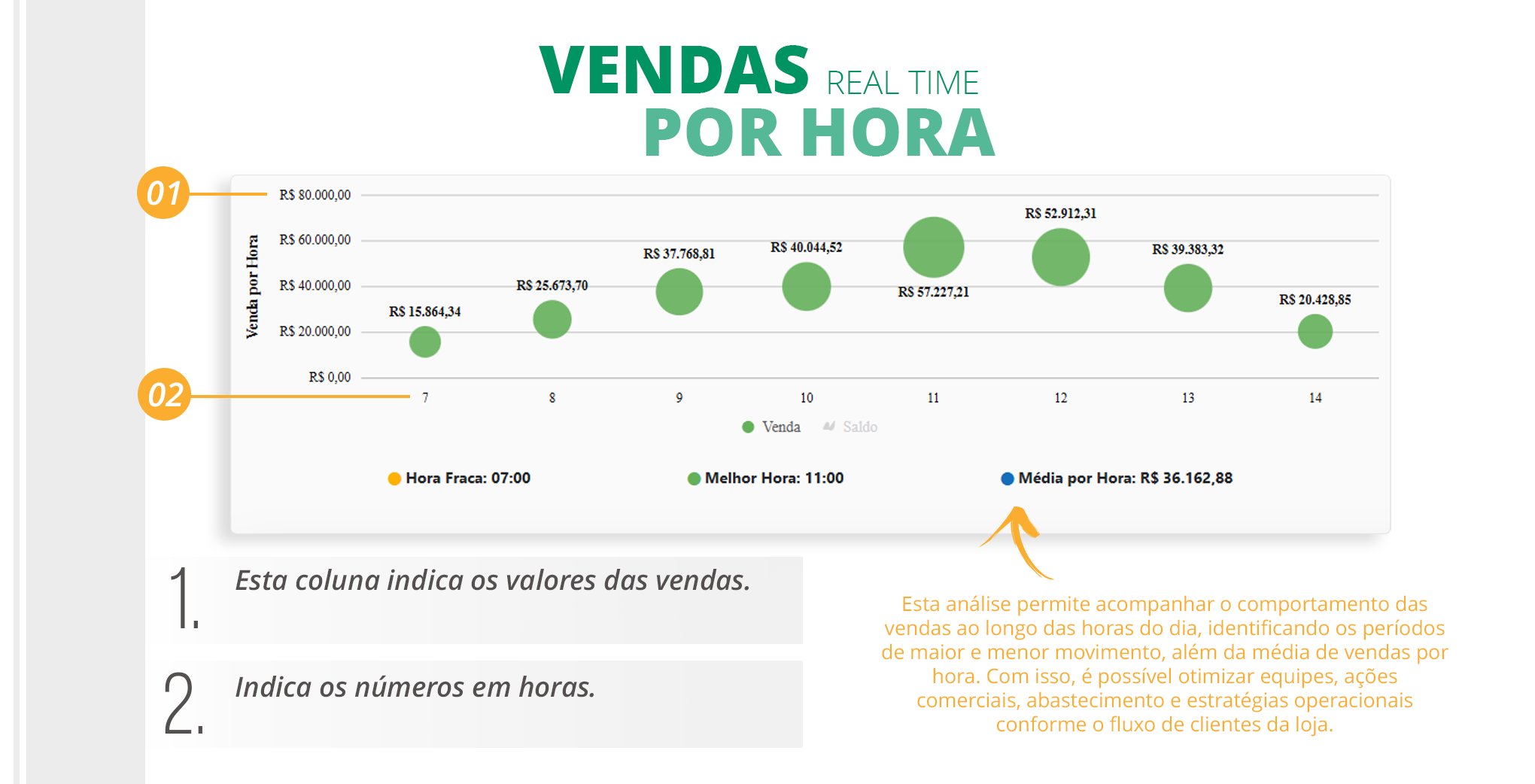
“Sales by Hour” Dashboard Details. Track your sales hour by hour.
-
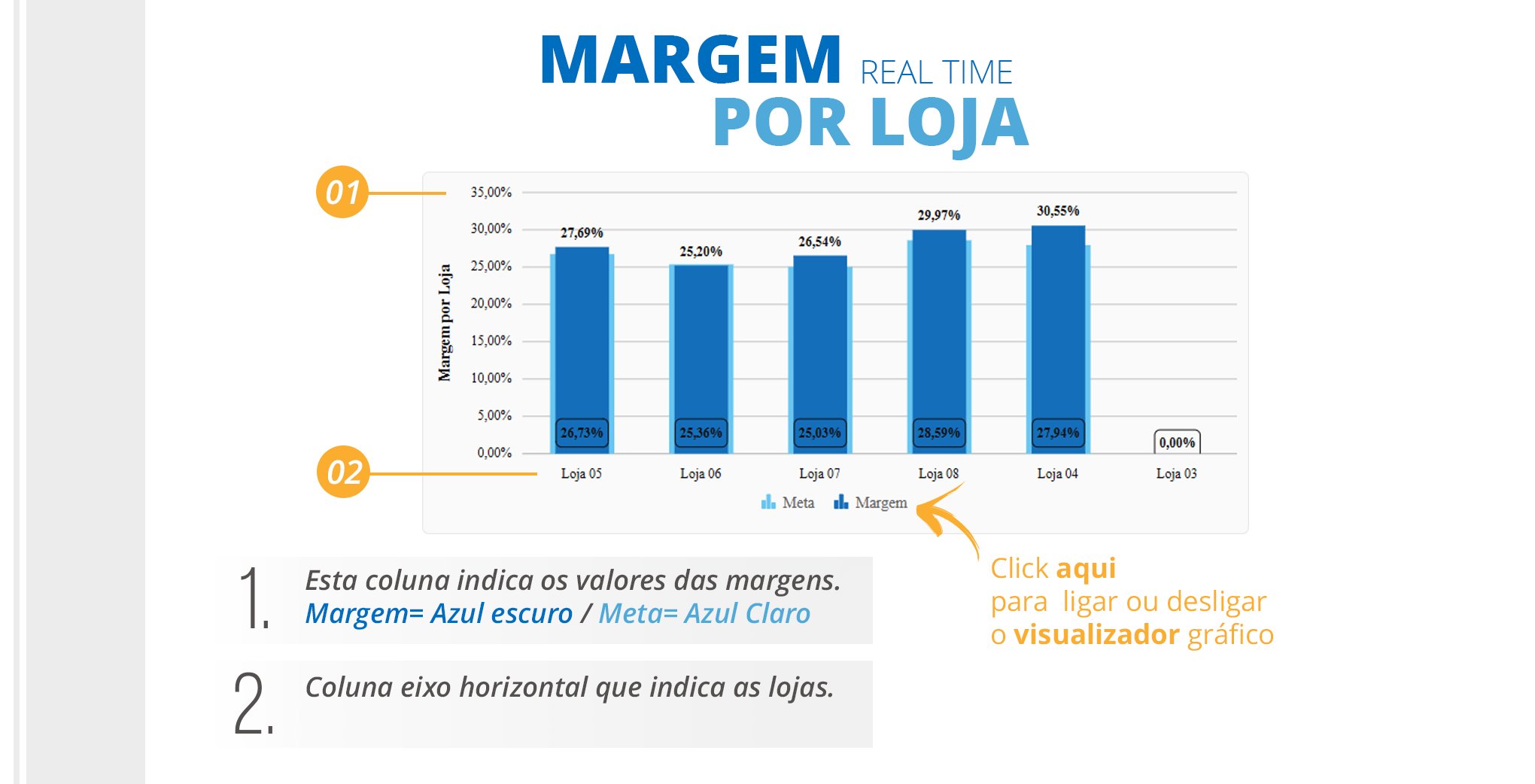
“Margin by Store” Dashboard Details.
-
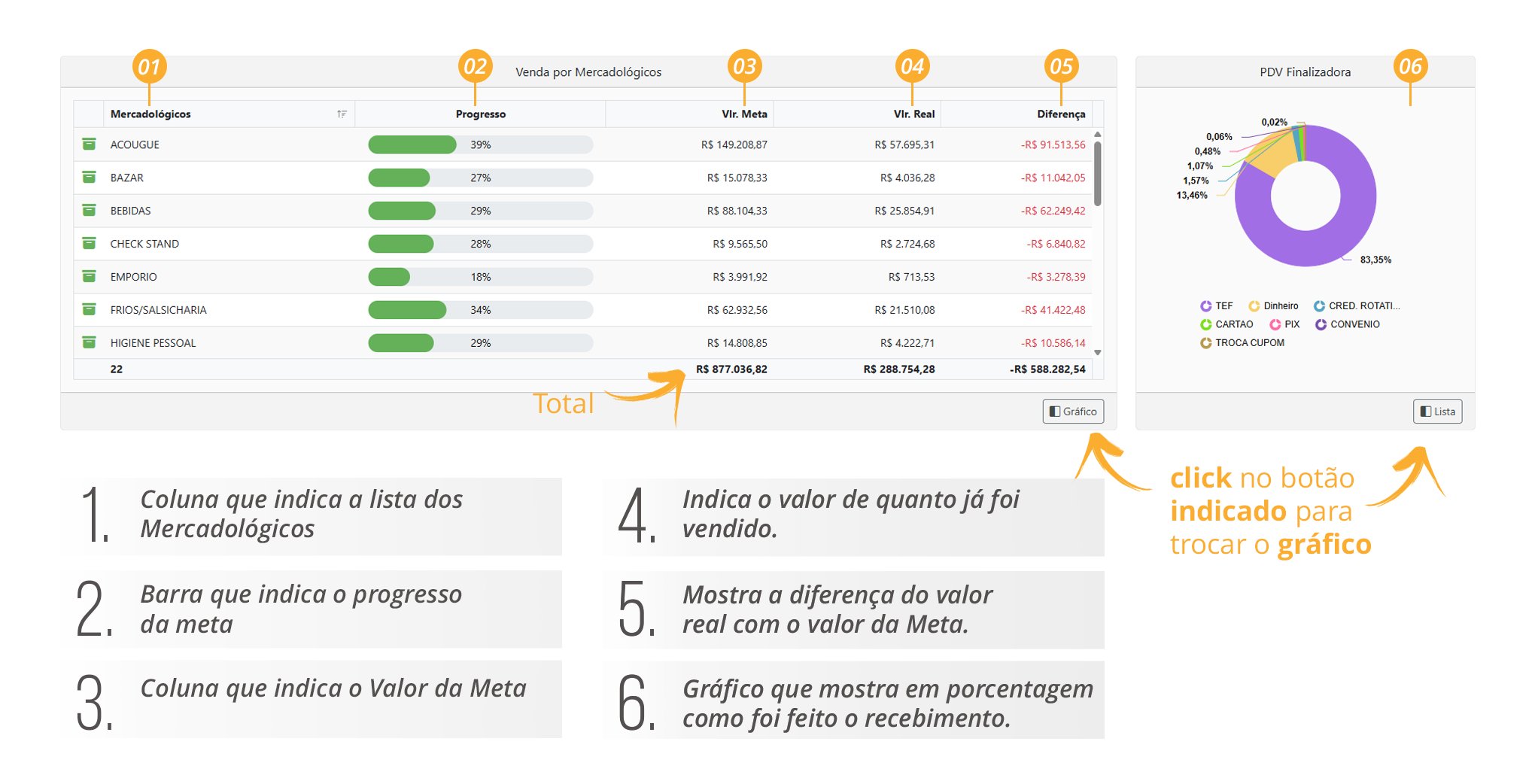
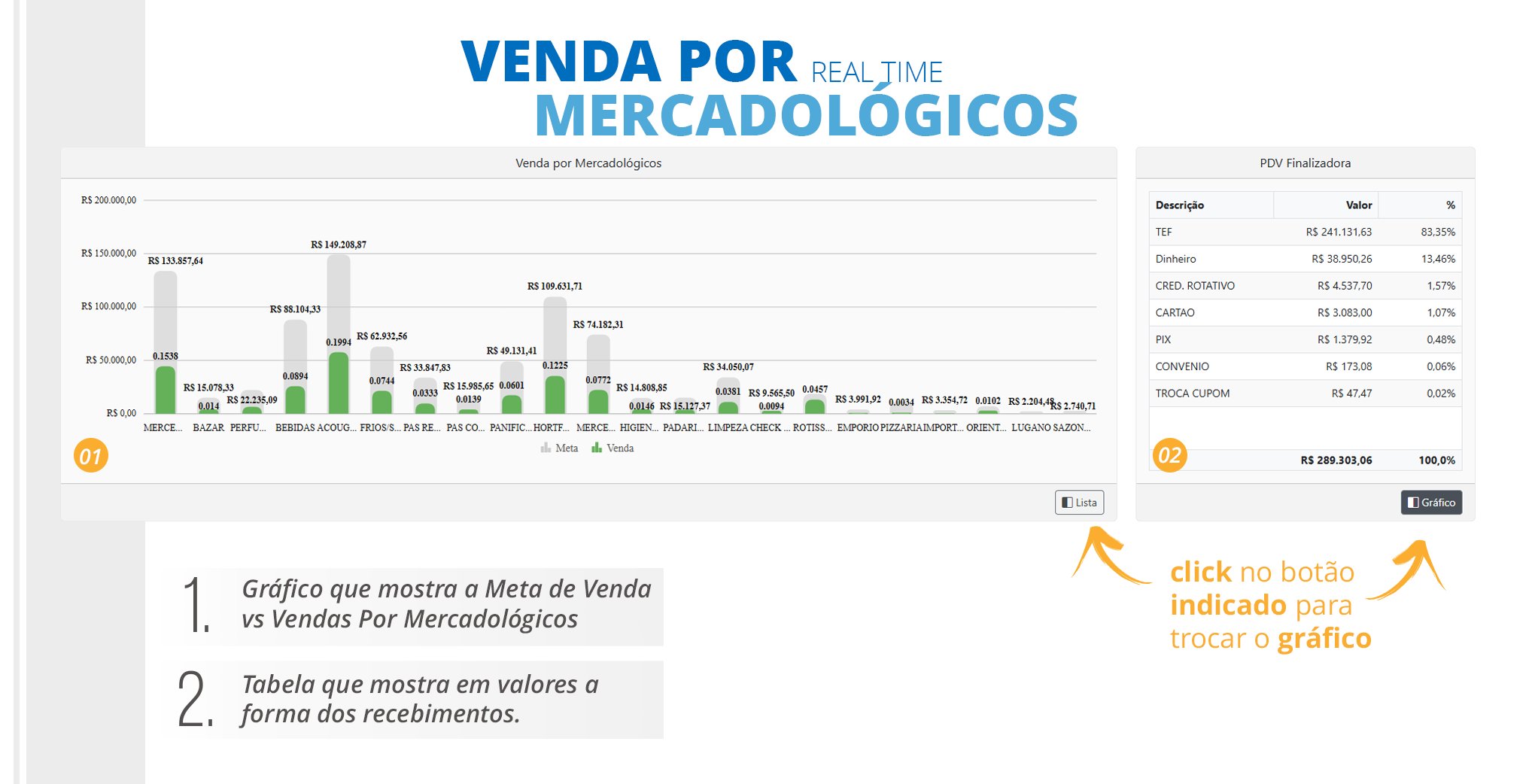
There are two options for viewing the Sales by Commercial Category charts. See the details of the first option below.
-
Second option for viewing the Sales by Commercial Category charts. See the details of the second option below.