Analysis by Store and Marketing
What do you want to verify?
Sales / Contribution / Purchases / Offers / Average Ticket / Receipt QuantityFollow the steps below:
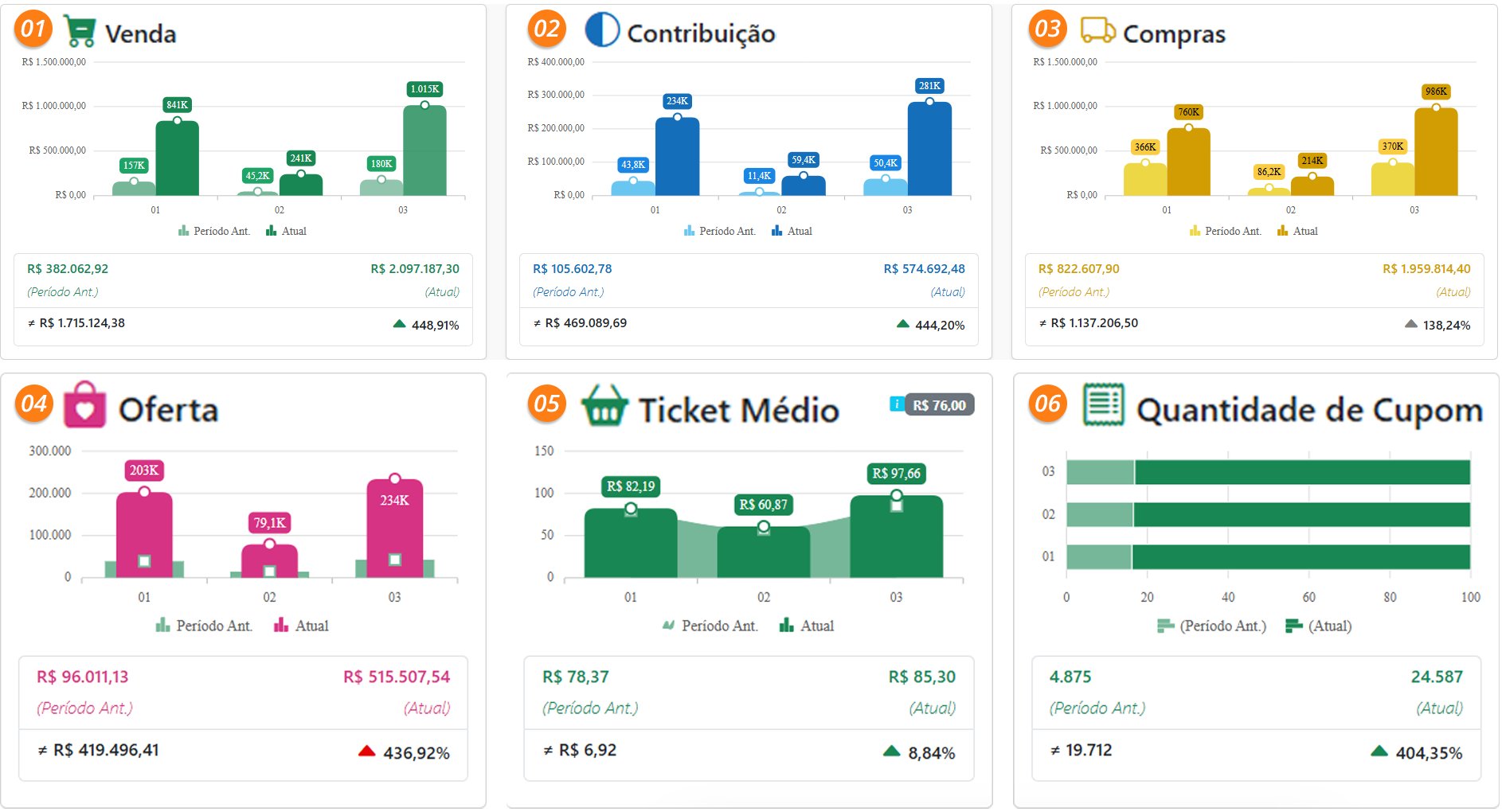
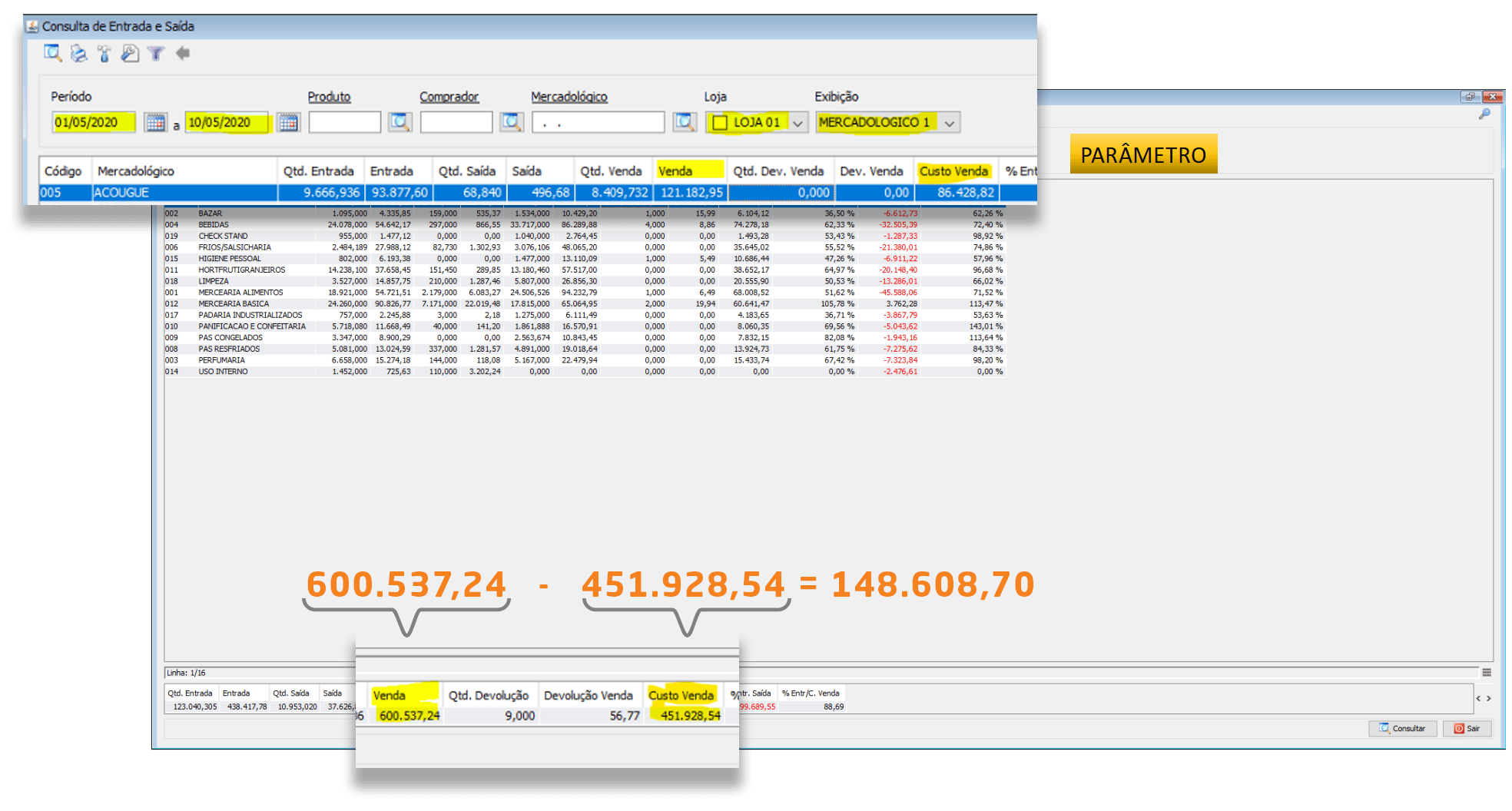
Sales
- Access the correct VR Master screen to verify the data: Administrative / Administrative Inquiries / Entry and Exit

Contribution
- Administrative / Administrative Inquiries / Entry and Exit
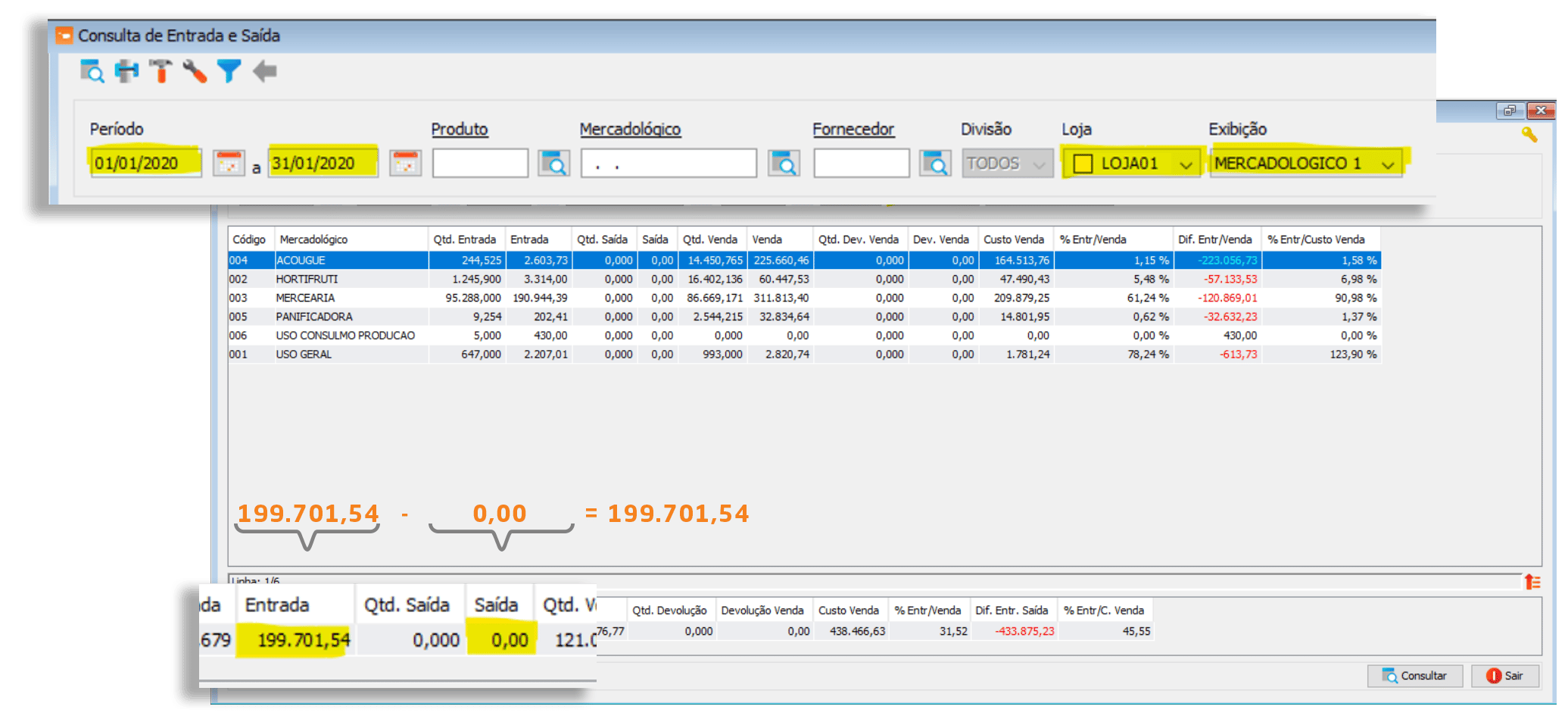
Purchases
- Administrative / Administrative Inquiries / Entry and Exit
Offers / Average Ticket and Receipt Quantity
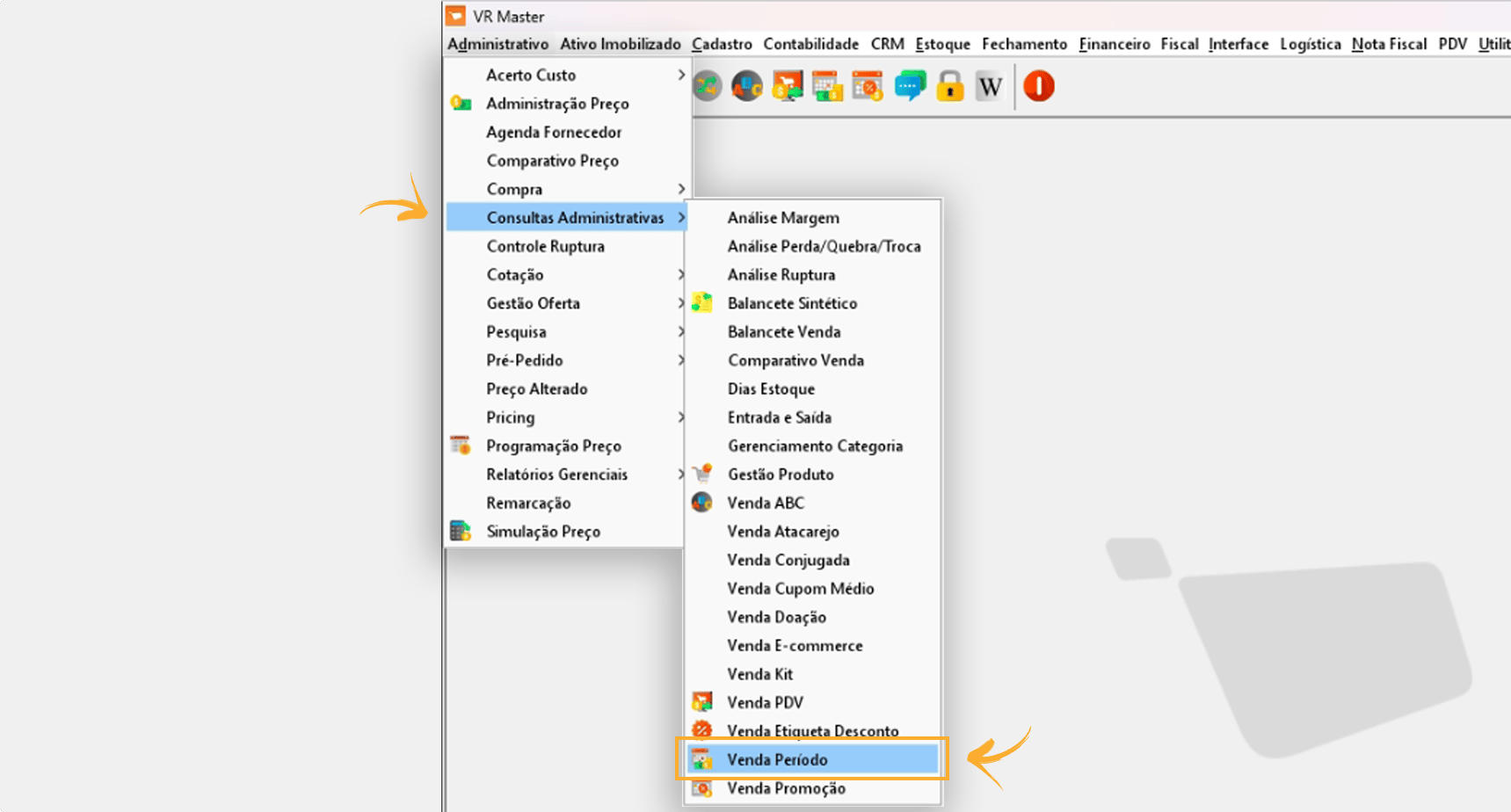
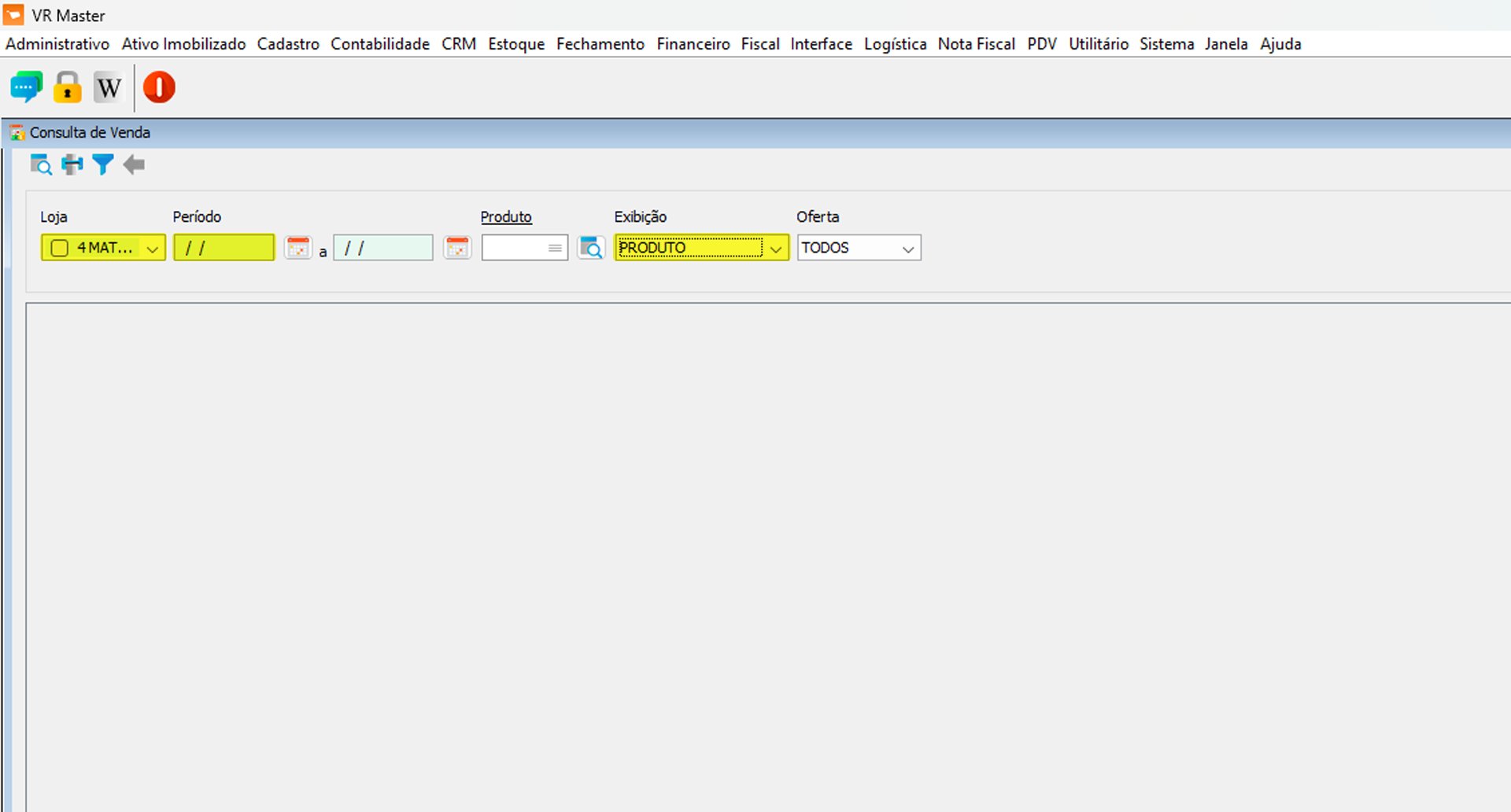
- Administrative / Administrative Inquiries / POS Sales or Sales by Period
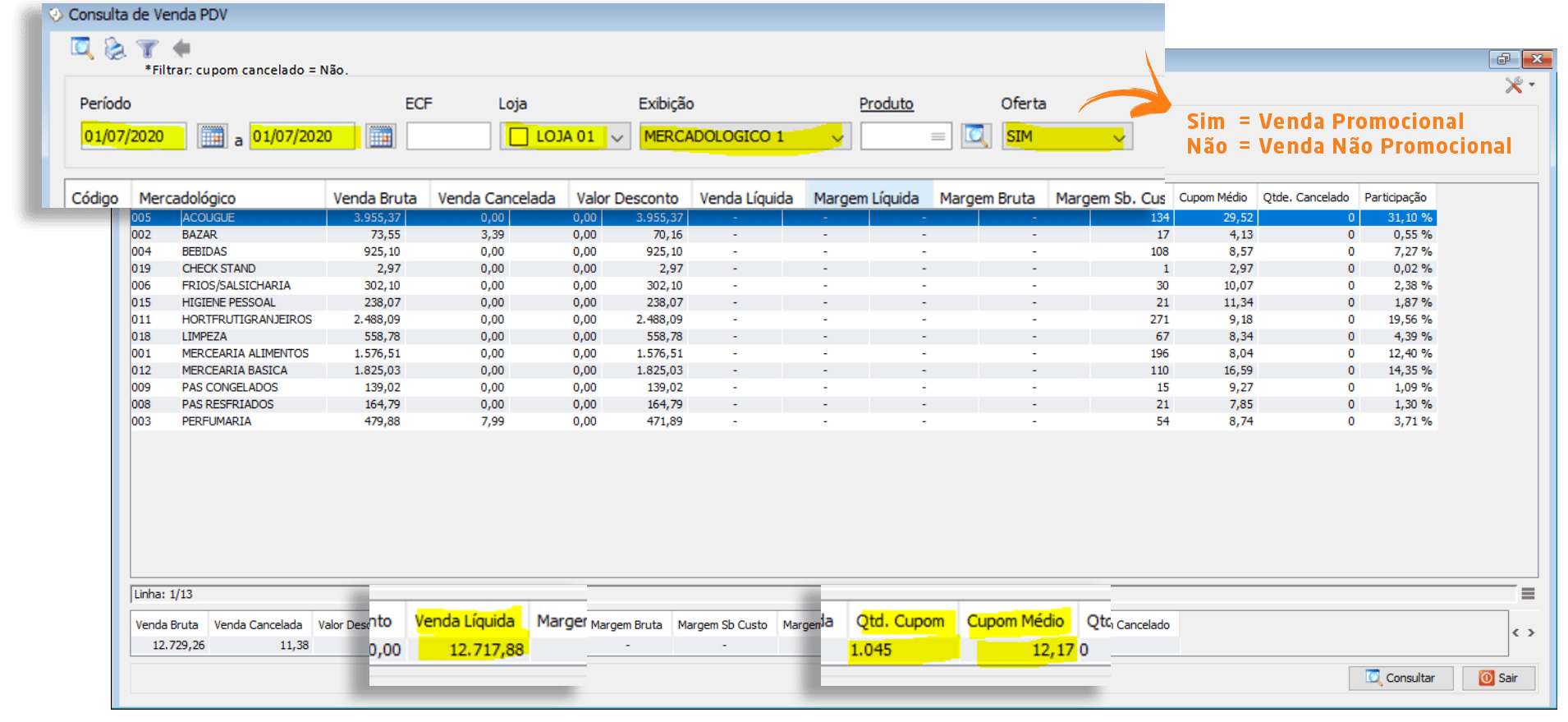
Purchases vs. Sales
- See the Purchases vs. Sales calculation: [Purchase Amount] / [Sales Amount] = [Percentage]
Contribution Margin and COGS
To access the VR Master / Contribution Margin screen: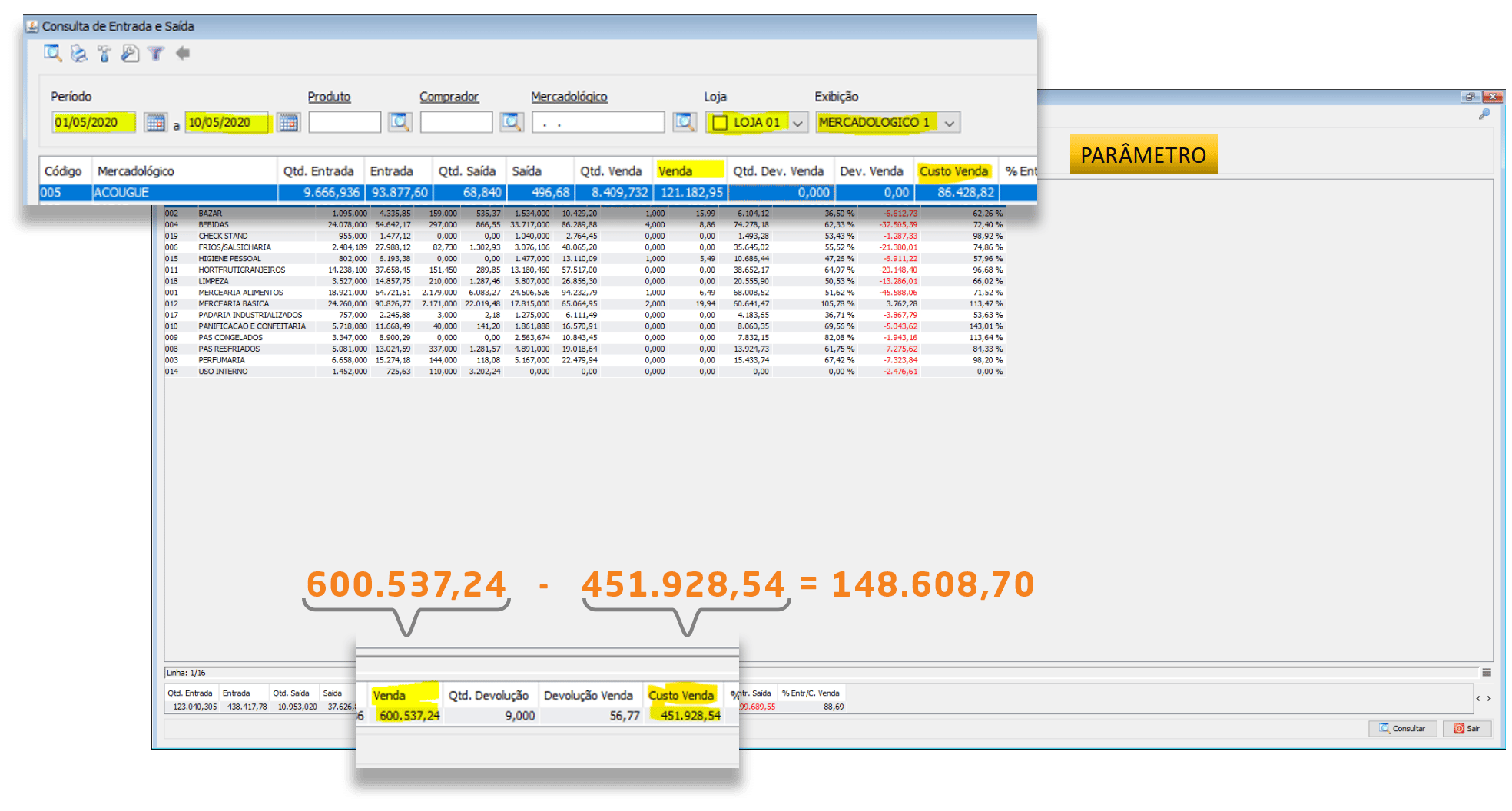
Sales per M²
Calculation: [Sales by Period] / [Total M²] = [Sales per M²] To access the fields for the Sales per M² indicators, click here.Sales per Employee
Calculation: [Sales by Period] / [Total Number of Employees] = [Sales per Employee] To access the fields for the Sales per Employee indicators, click here.Loss / Breakage and Consumption
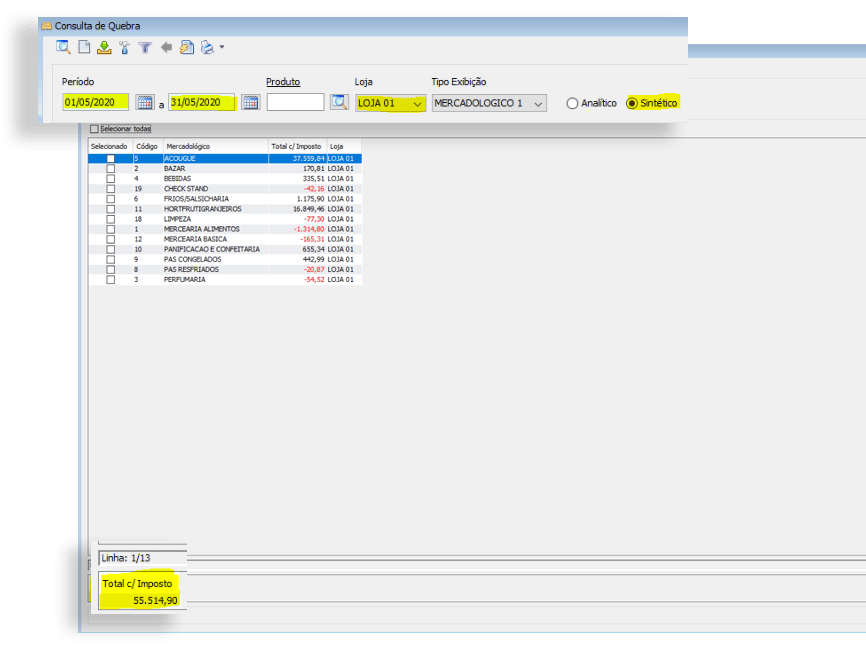
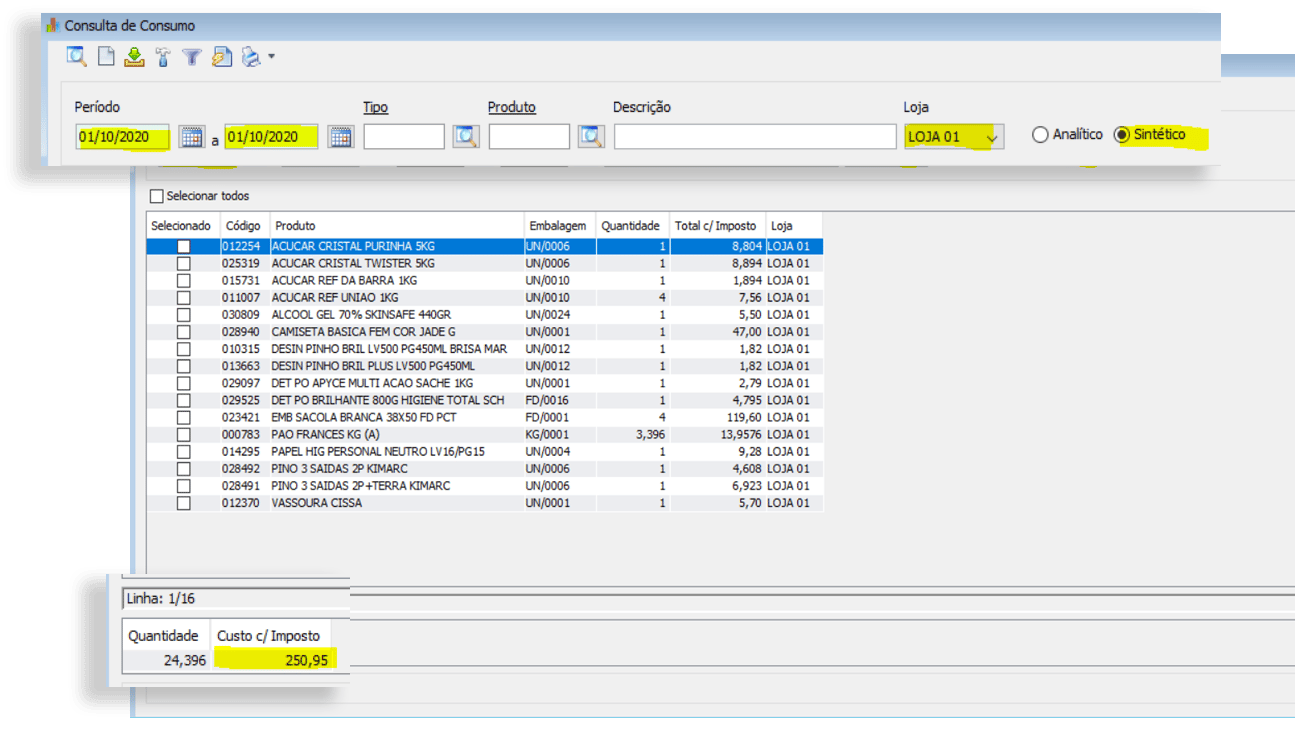
Loss Calculation: [Total Loss Amount] / [Total Sales Amount] x 100 = [% Loss] Breakage Calculation: [Total Breakage Amount] / [Total Sales Amount] x 100 = [% Breakage] Consumption Calculation: [Total Consumption Amount] / [Total Sales Amount] x 100 = [% Consumption] To access the VR Master / LOSS screen: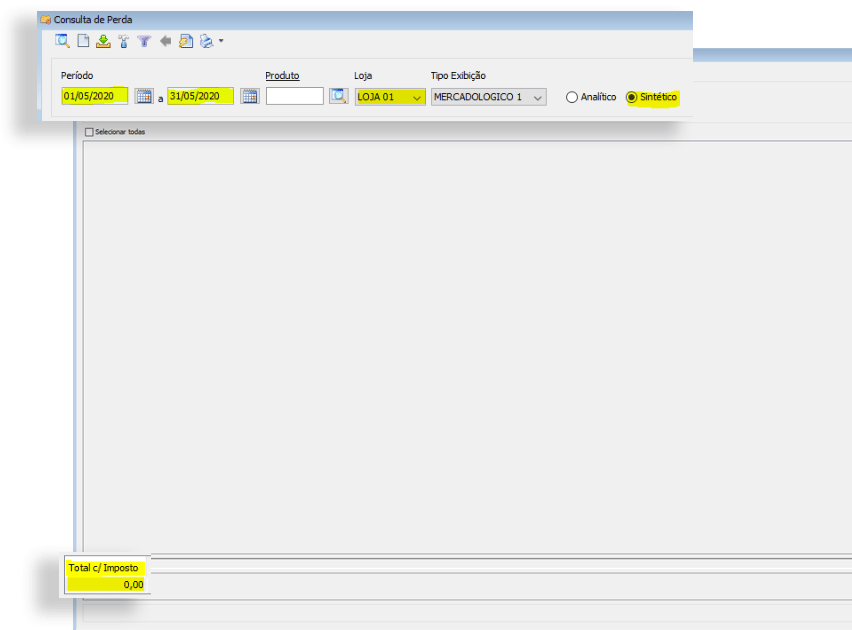
Top 10+ Best-Selling Products and Contributions
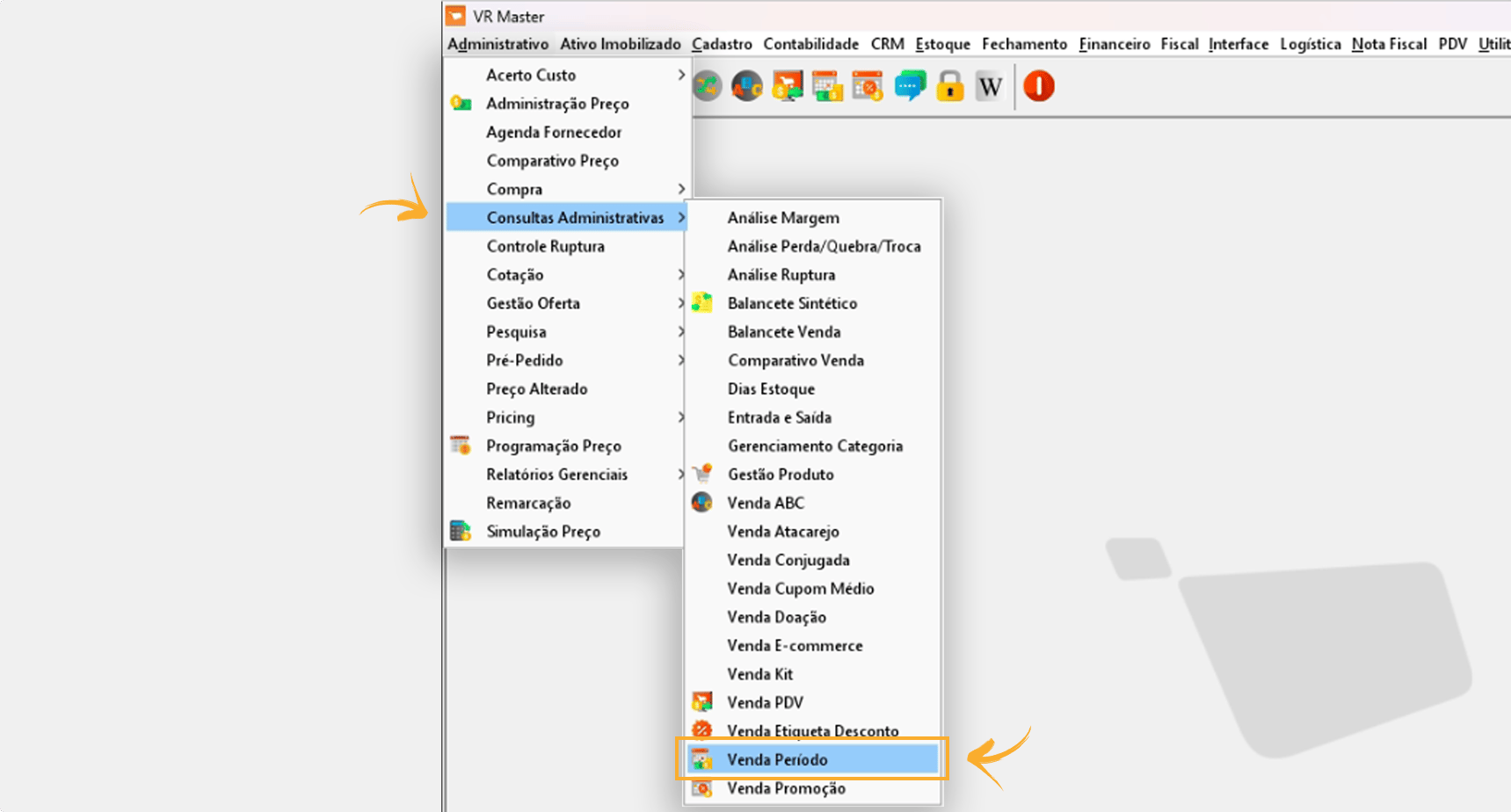
To access the VR Master Top 10+ Best-Selling Products and Contributions screens, follow the steps below:- Administrative / Administrative Inquiries / Sales by Period
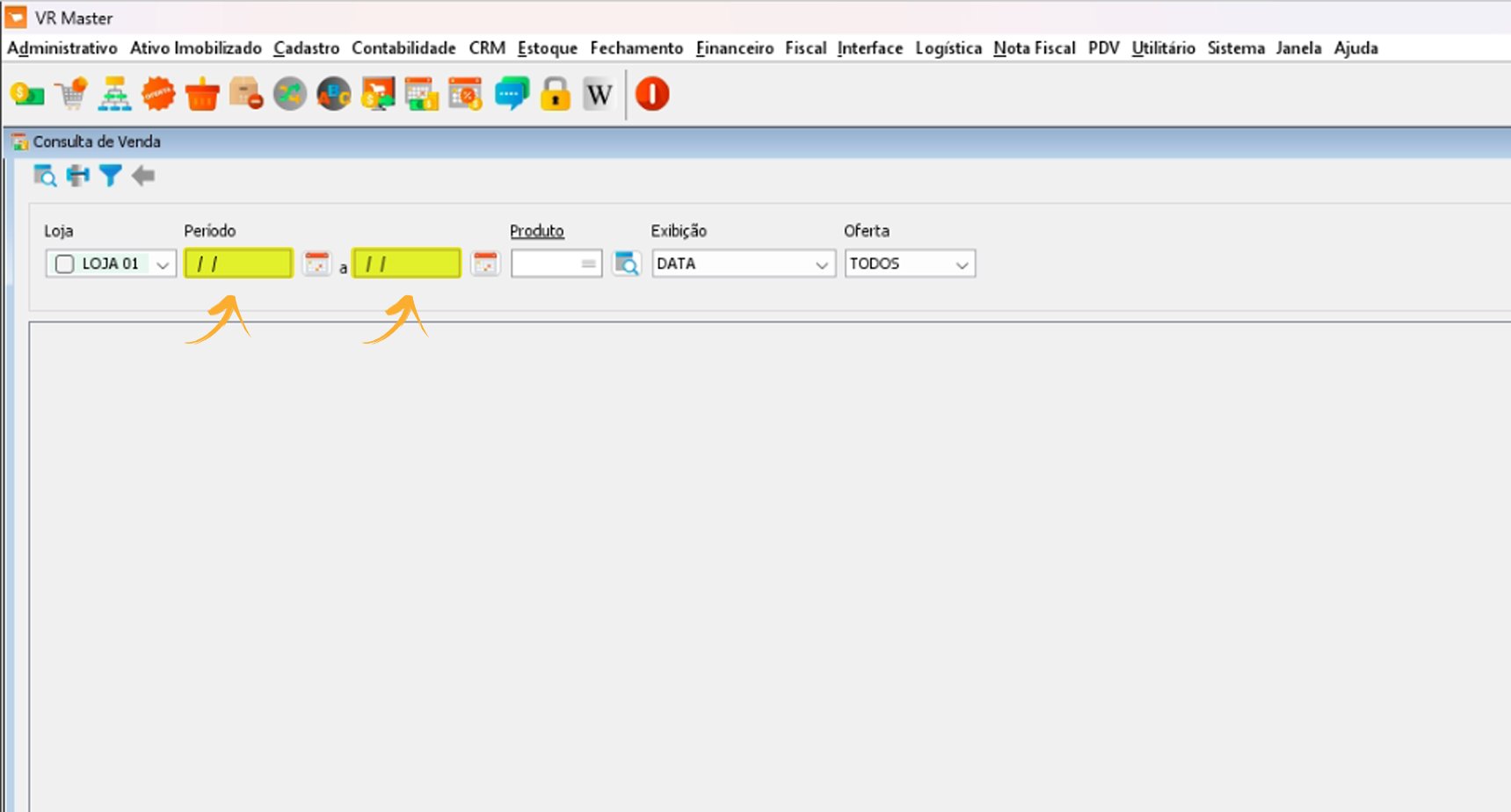
- See the fields indicated below:
Top 10+ Most-Purchased Products and Suppliers
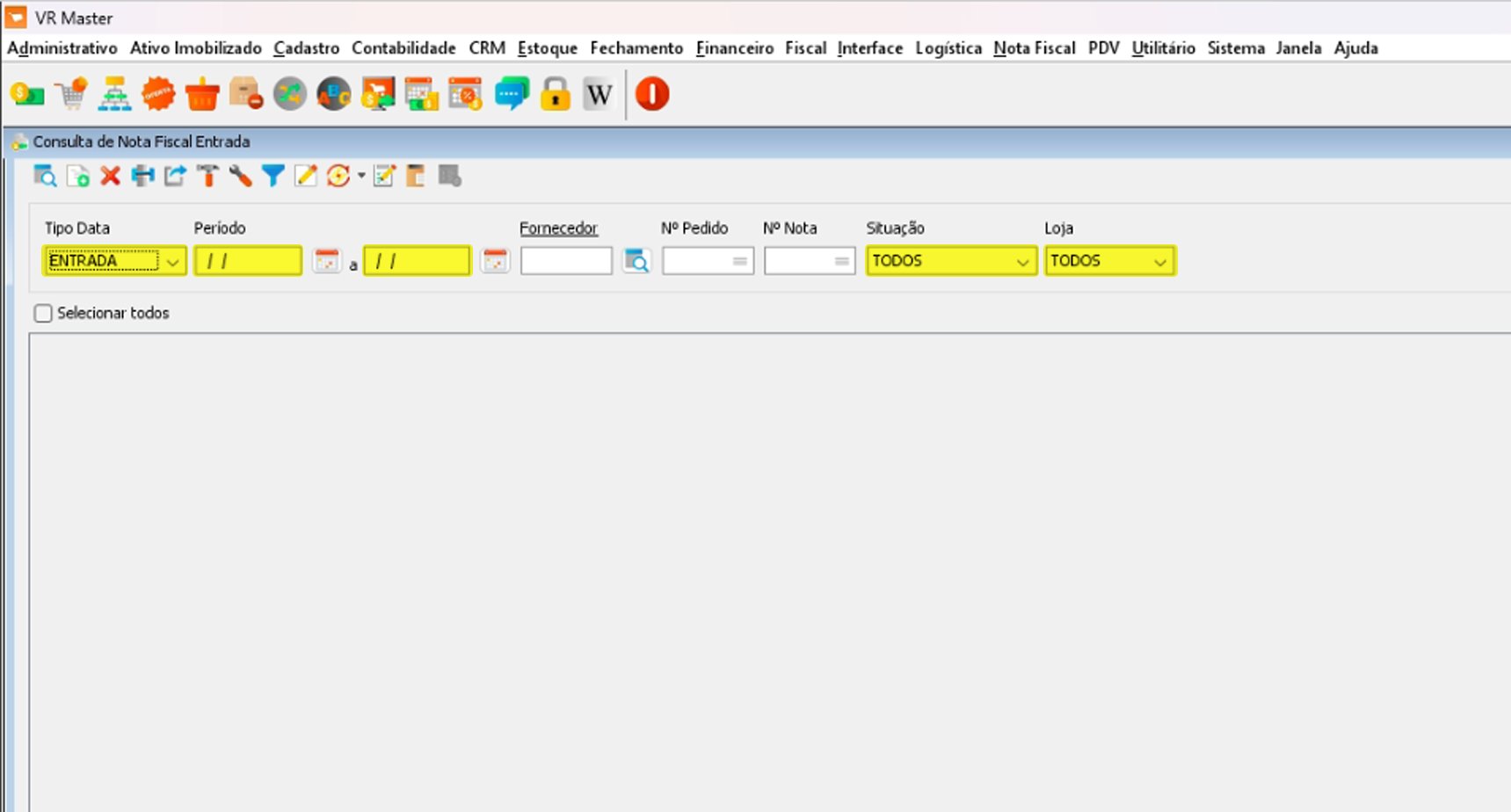
- To access the VR Master Top 10+ Most-Purchased Products and Suppliers screens, follow this path: Invoice / Entry Invoice / Entry
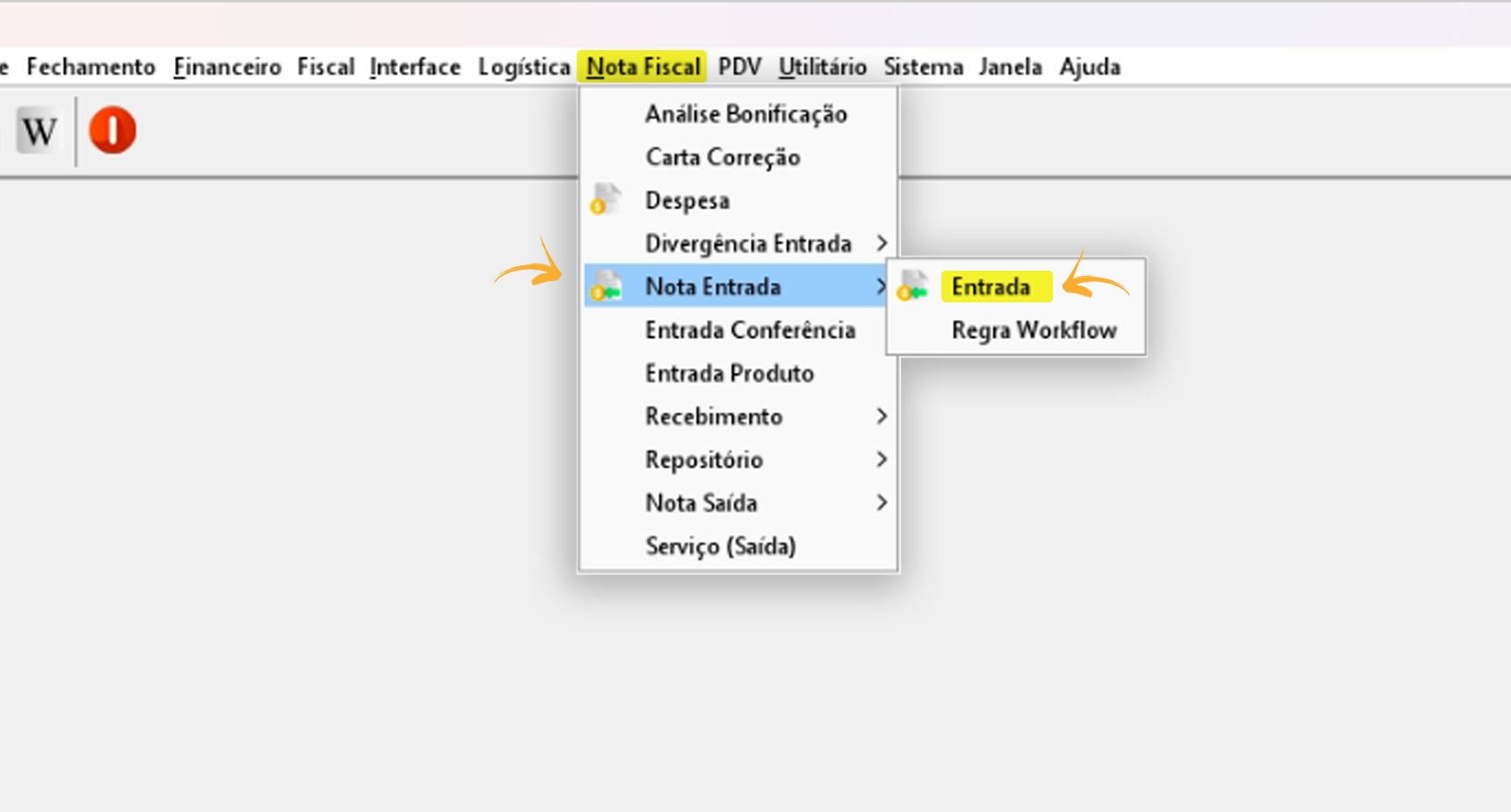
- Complete the fields as indicated below:
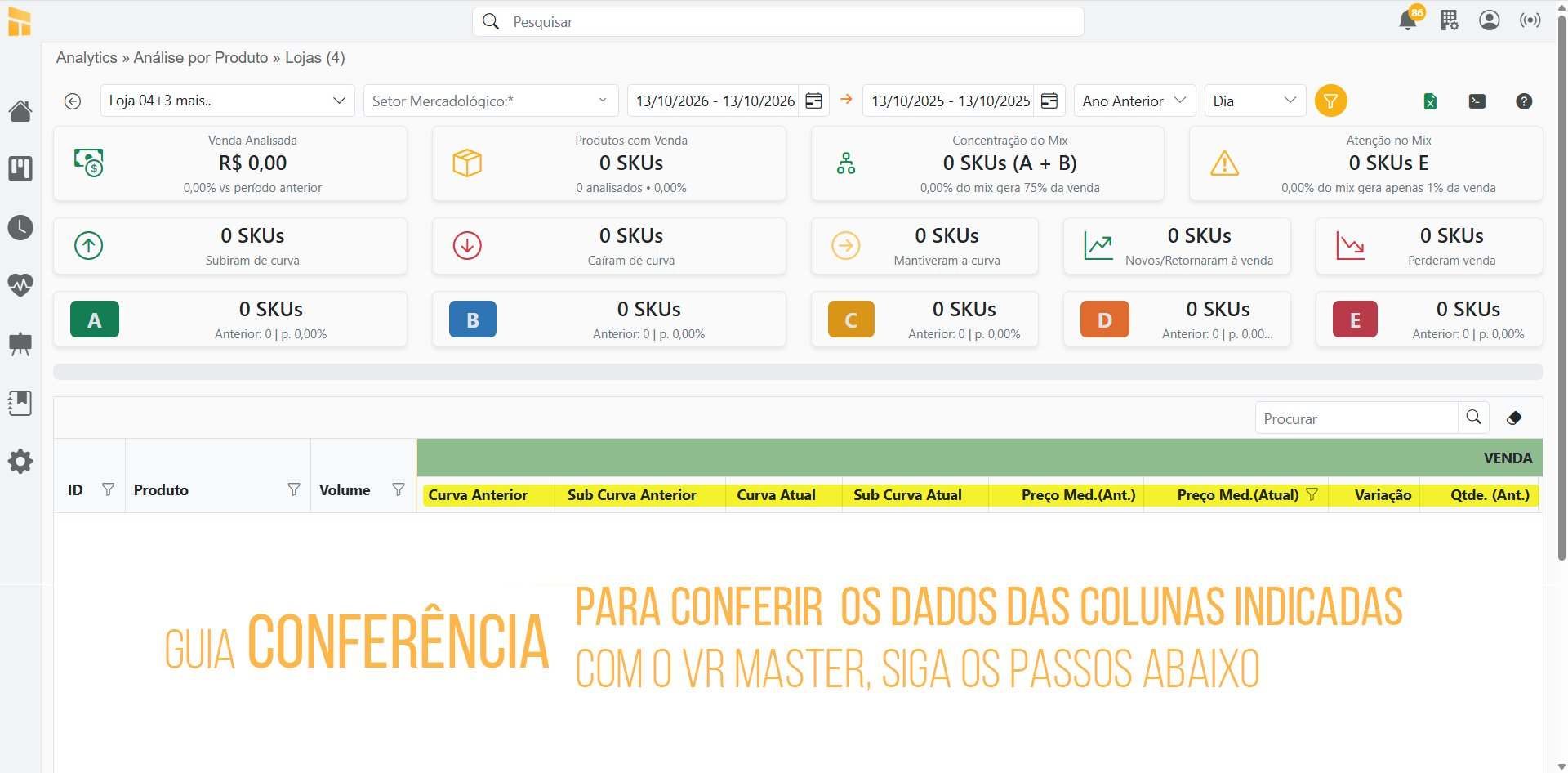
Analytics – Product Analysis
- To verify the data in the Sales, Contribution, and Margin columns, follow the steps below:
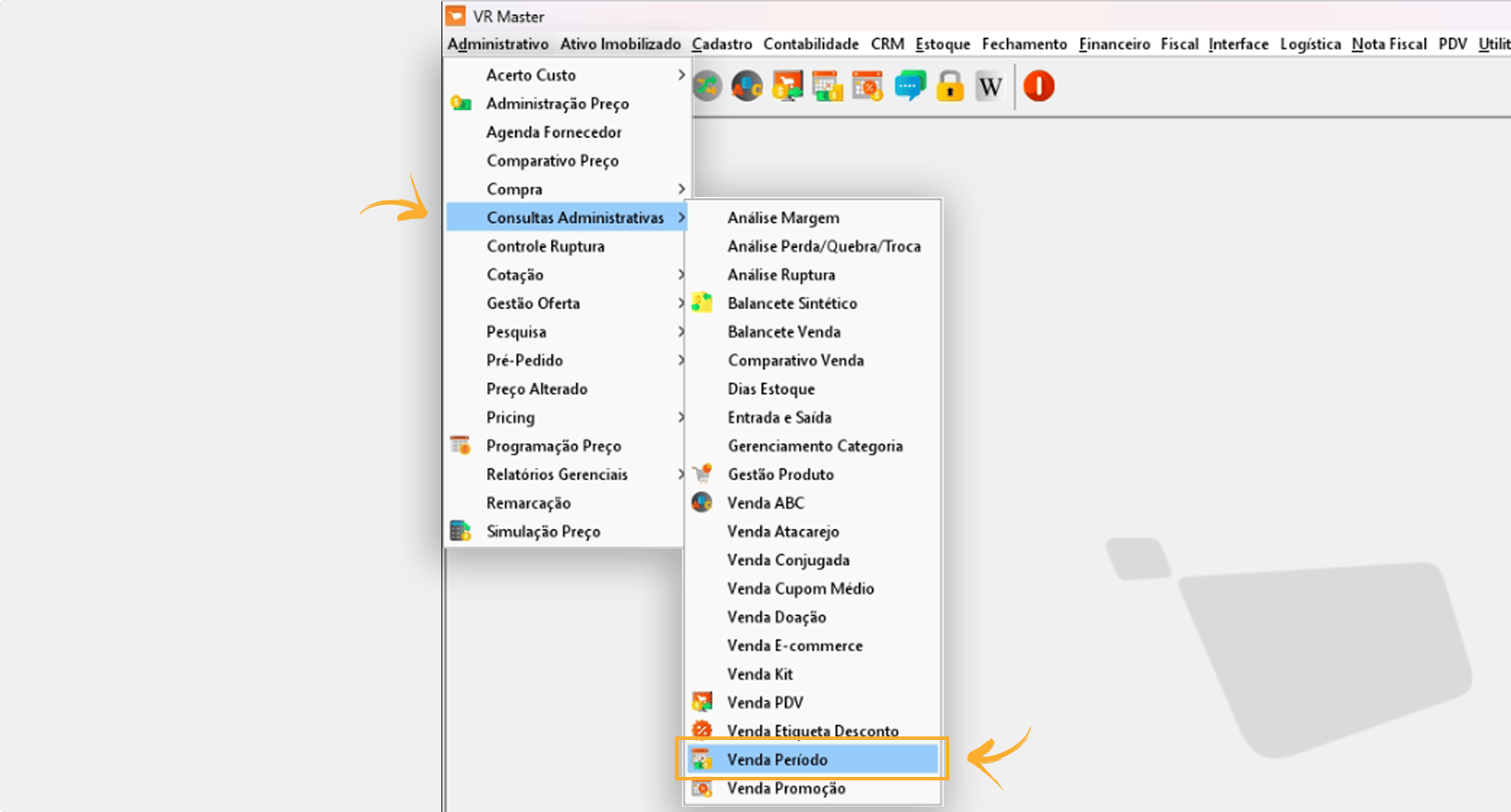
- Access VR Master: Administrative / Administrative Inquiries / Entry and Exit
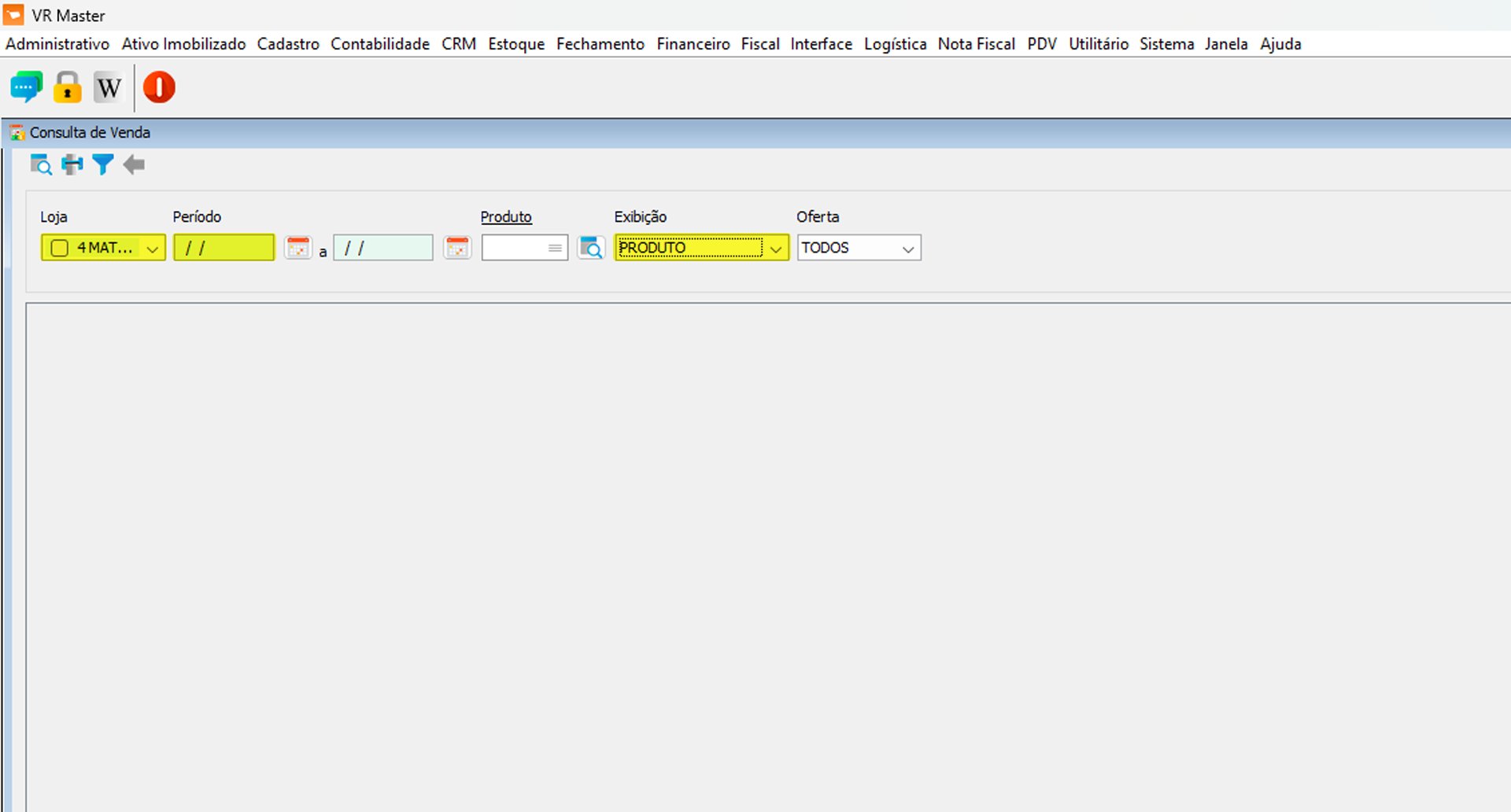
- Complete the fields below correctly:
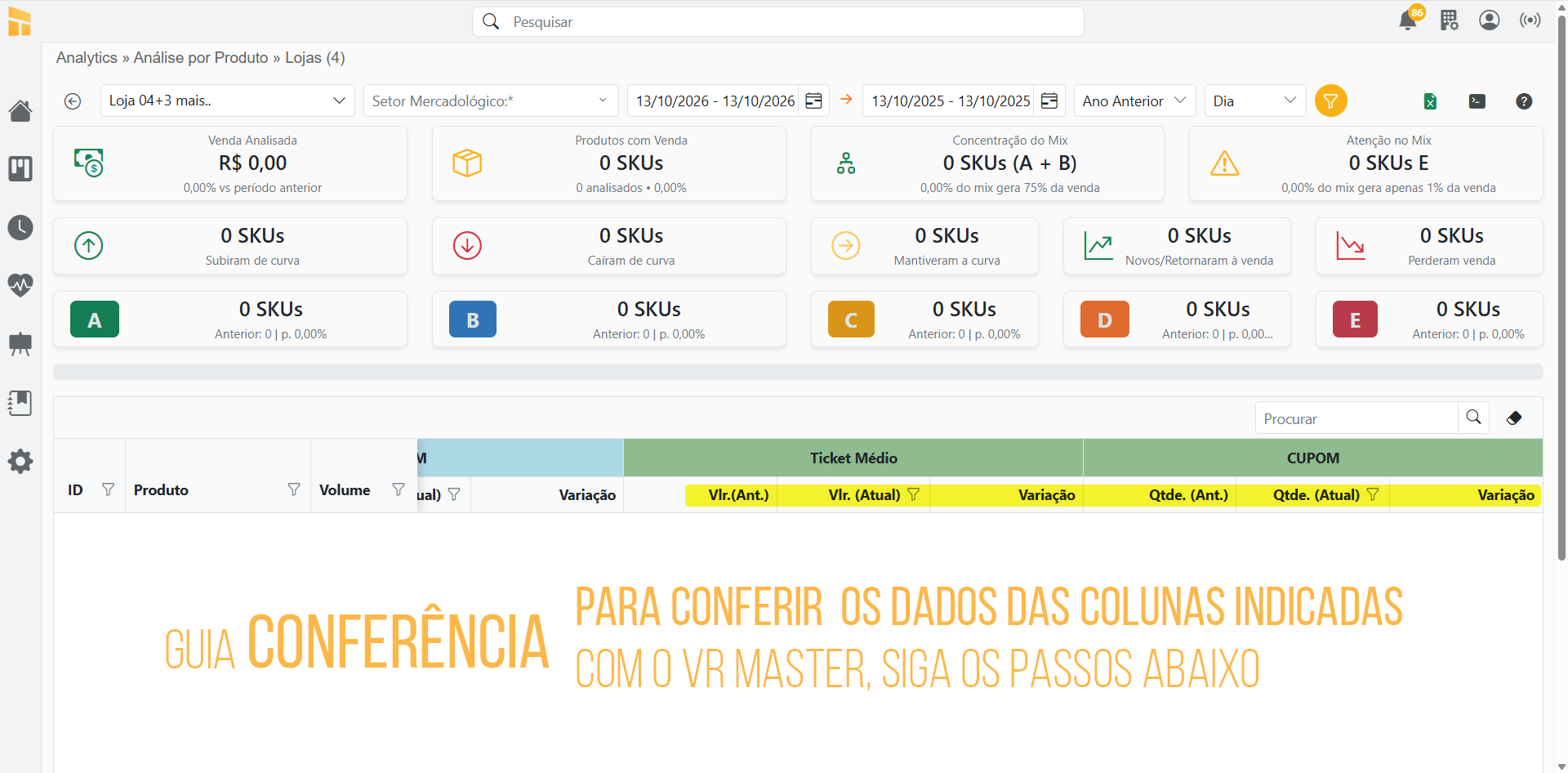
Average Ticket and Receipt
- To verify the data in the Average Ticket and Receipt columns, follow the steps below:
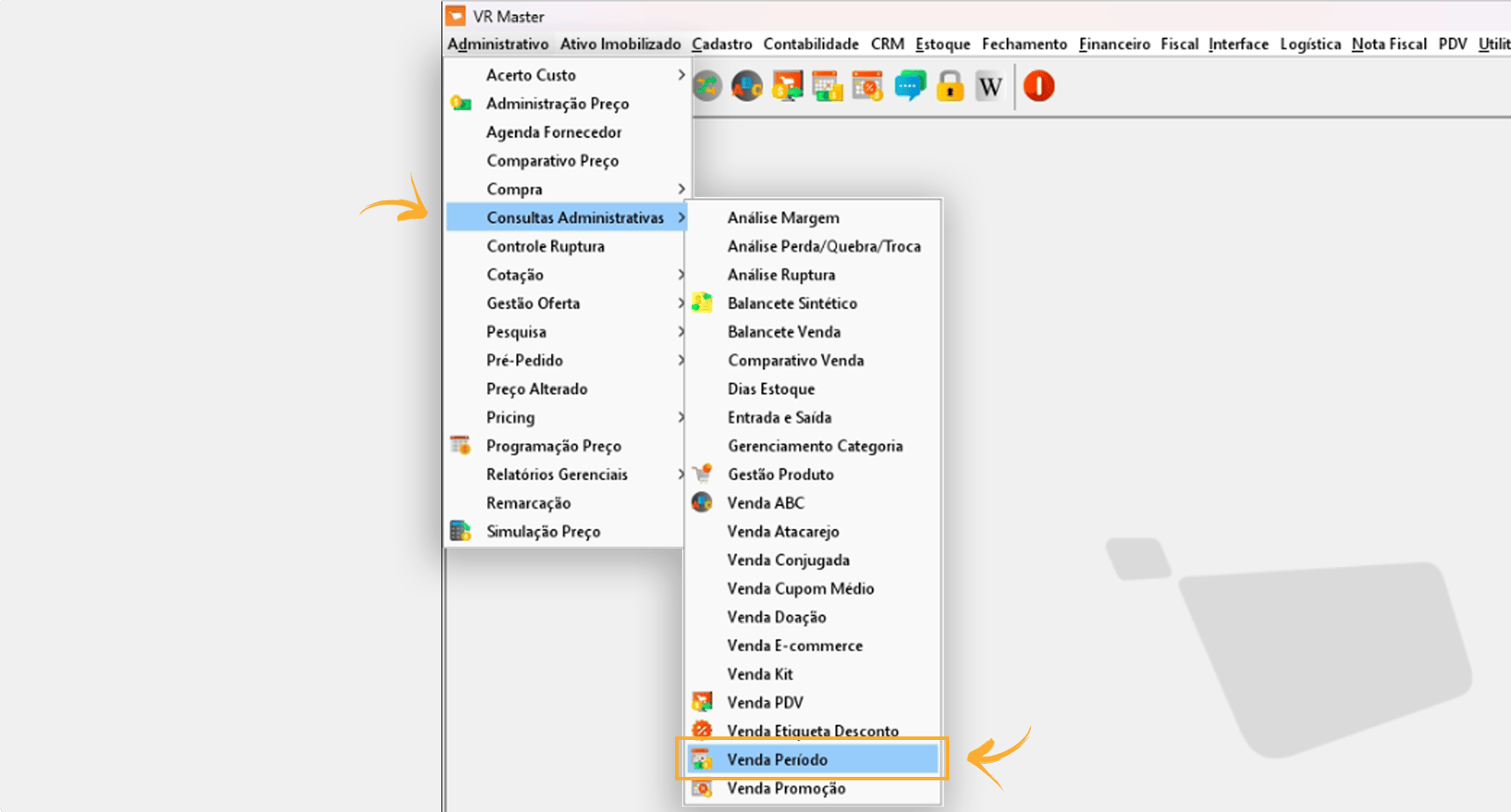
- Access VR Master: Administrative / Administrative Inquiries / POS Sales
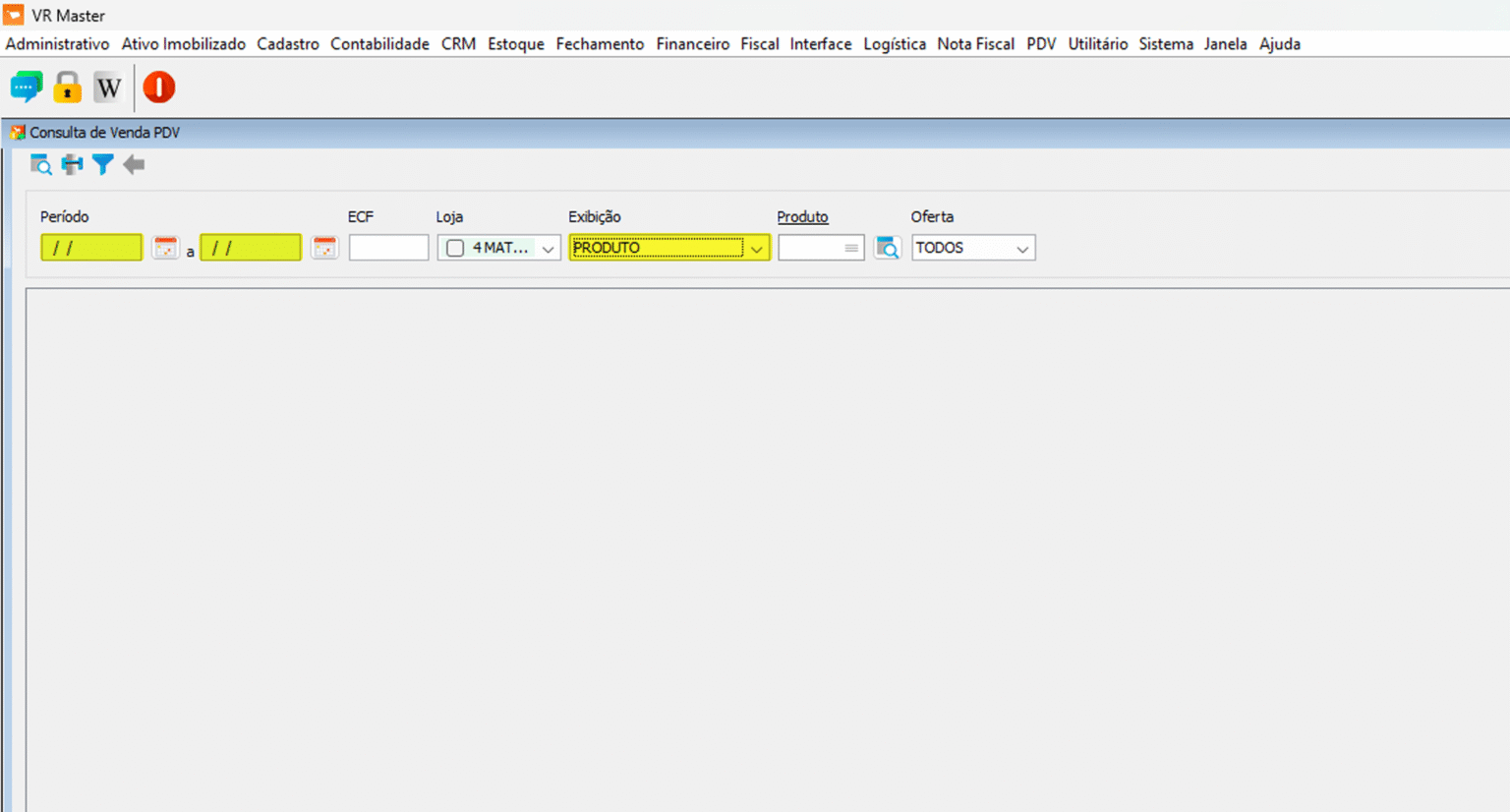
- Complete the fields below correctly:
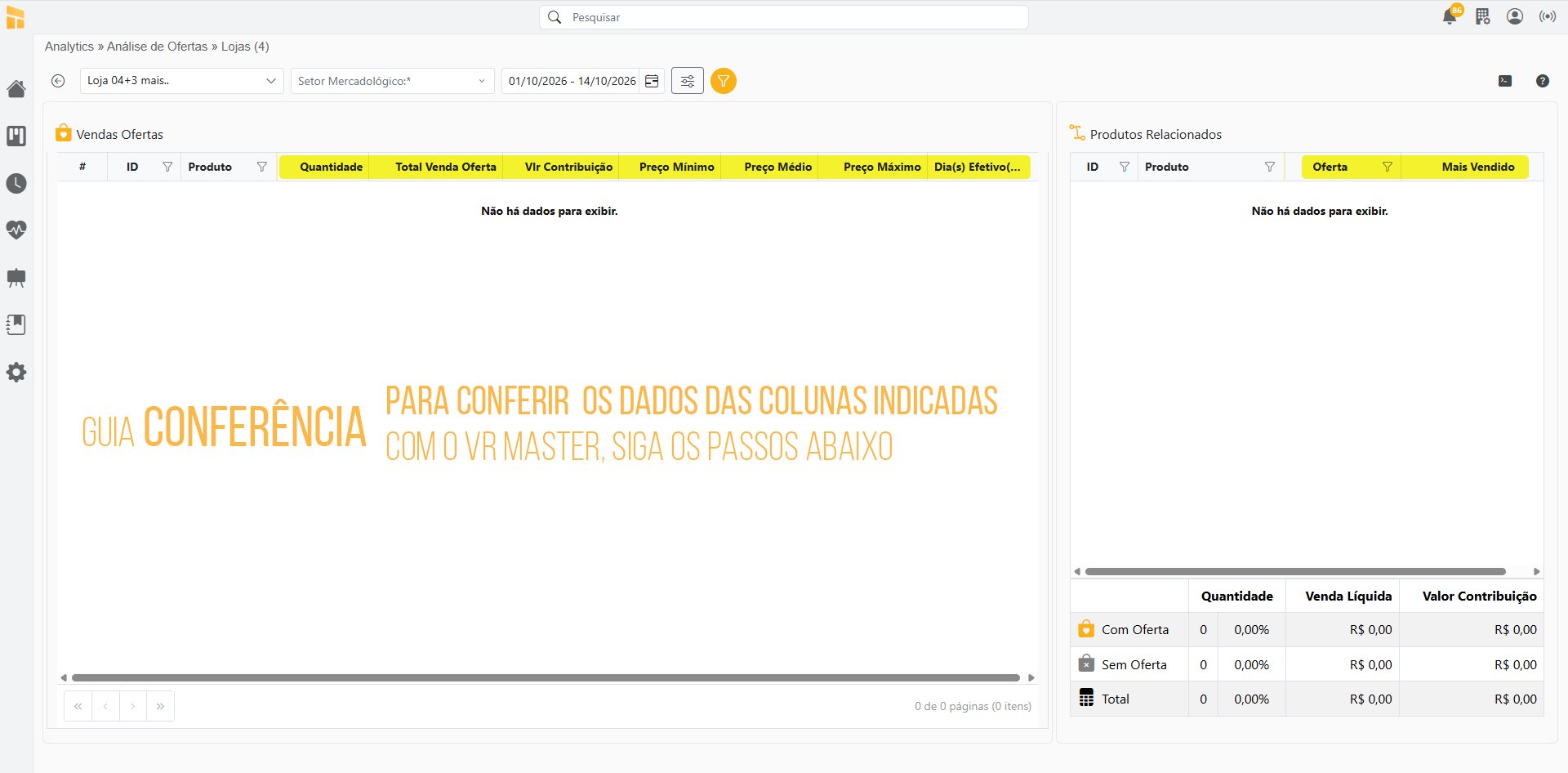
Analytics – Offer Analysis
- To verify the data in the columns highlighted in yellow, follow the steps below:
- Access VR Master: Administrative / Offer Management / Offers
- Complete the fields below correctly:
Analytics – Purchase Analysis
- To verify the data in the columns highlighted in yellow, follow the steps below:
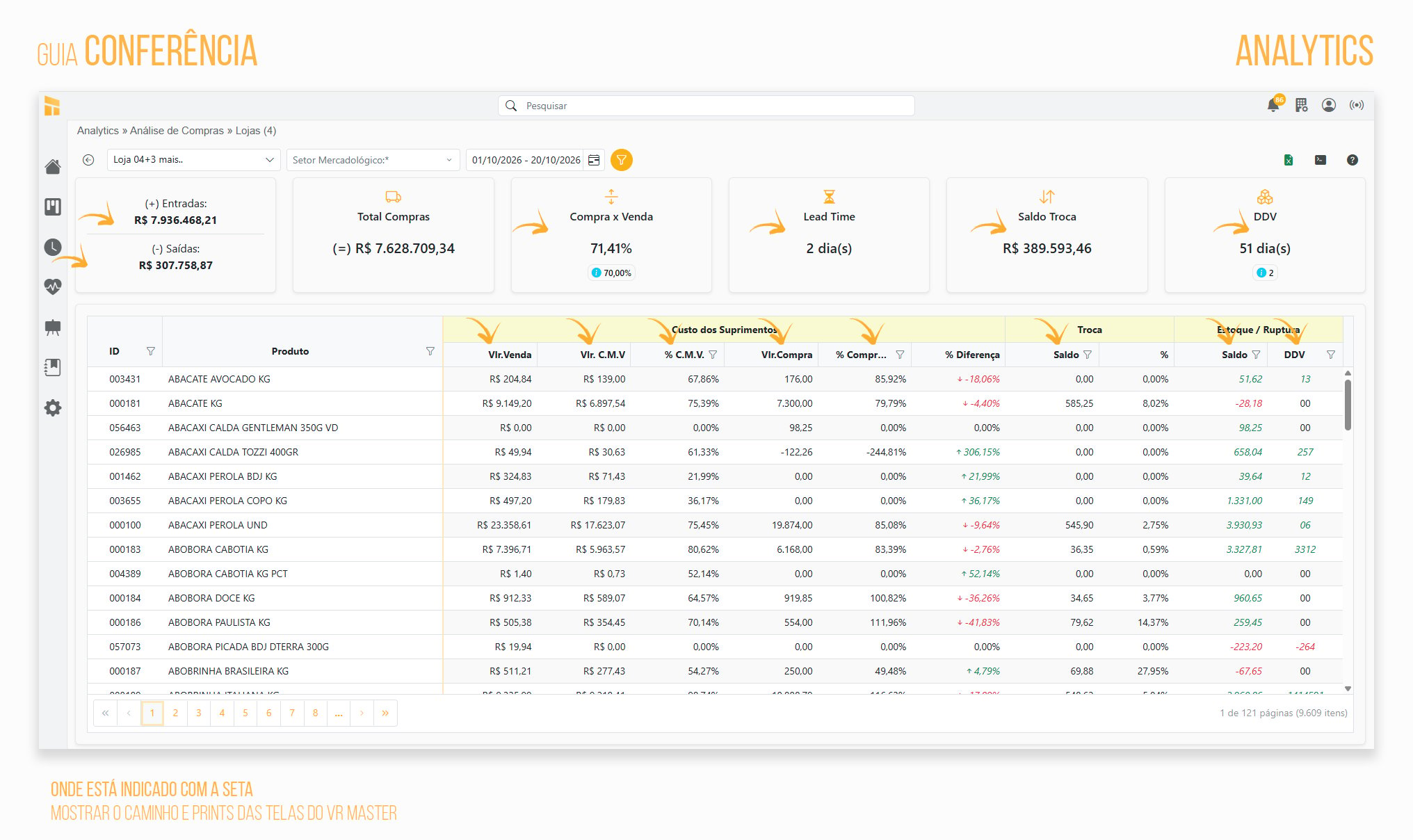
- Access VR Master: Administrative / Administrative Inquiries / Entry and Exit
Exchange Balance
- To verify the Exchange Balance column data, access: Analytics / Purchase Analysis
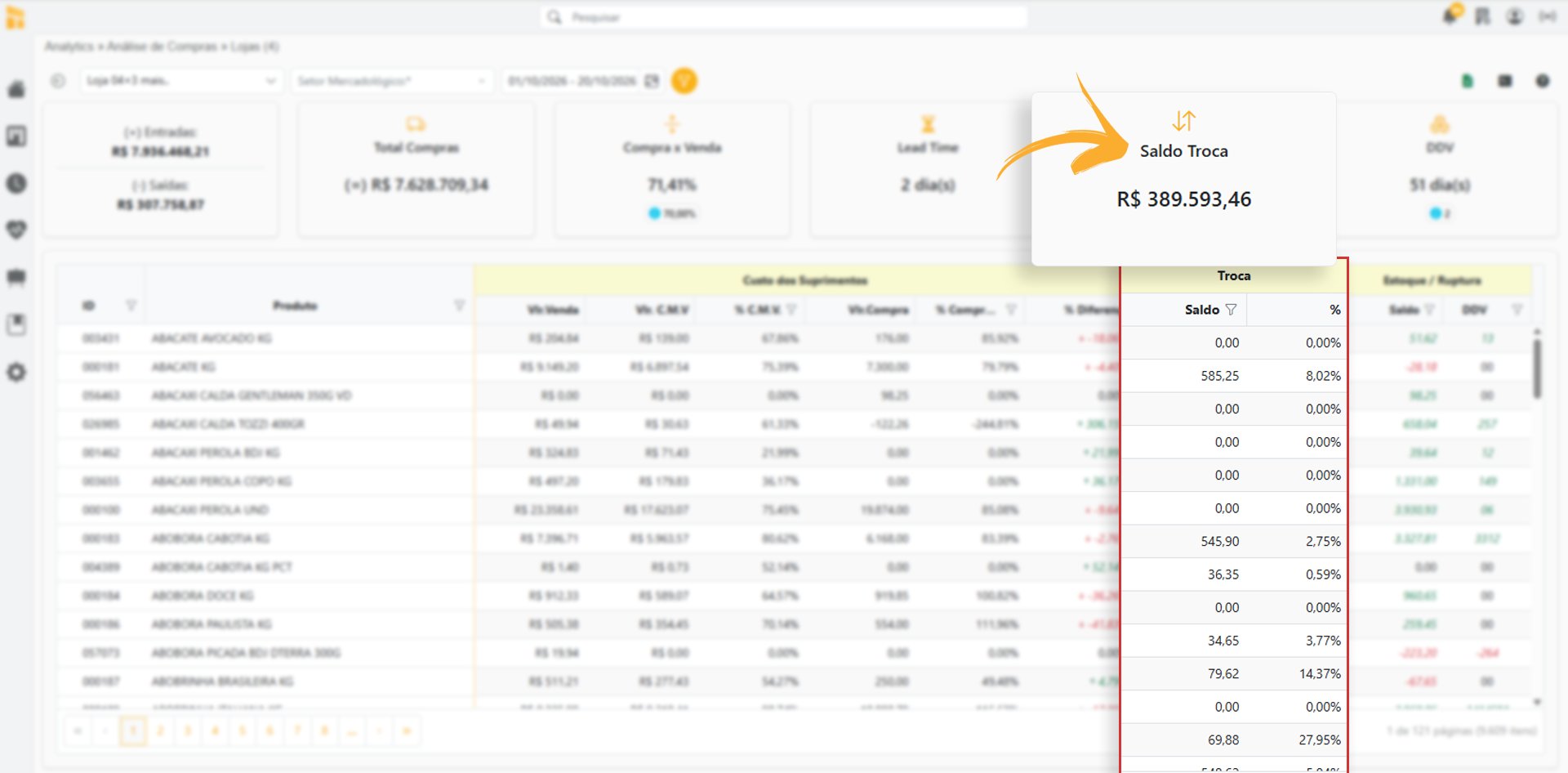
- Follow this procedure to verify the data in VR Master: Inventory / Inventory Monitoring
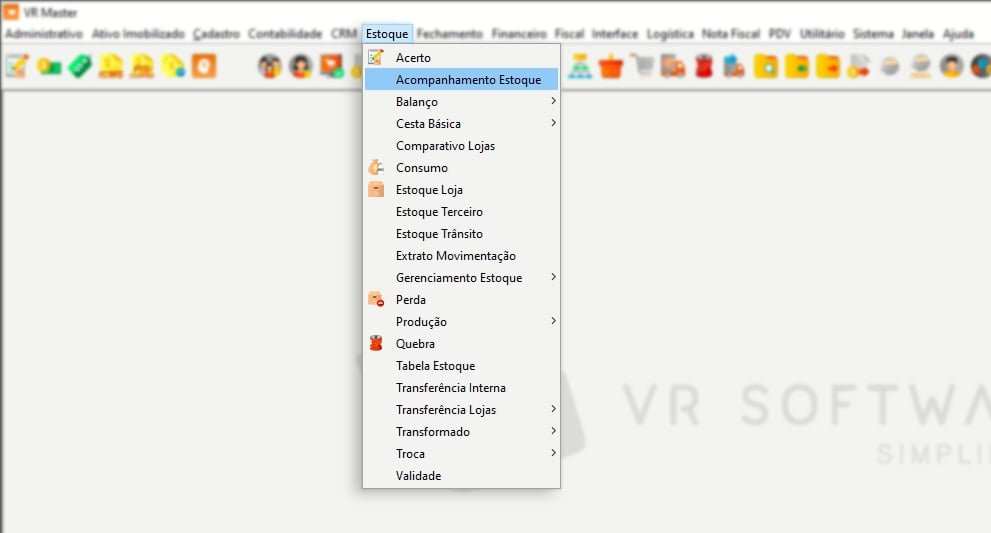
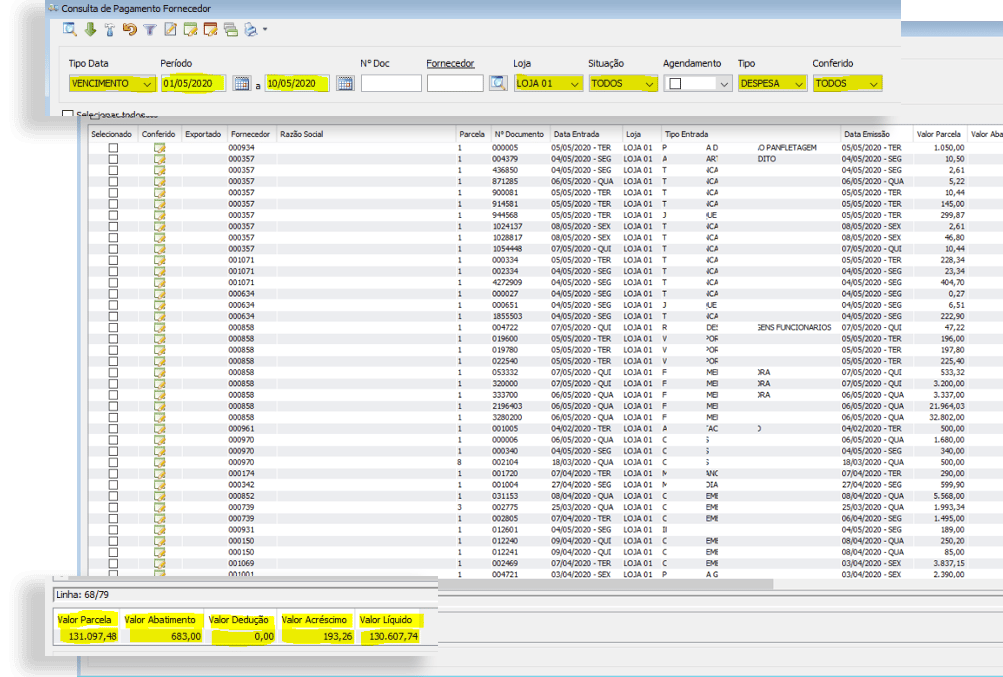
Analytics – Supplier Analysis
- Access the correct VR Master screen to verify the Controller360 data: Financial / Accounts Payable / Supplier
Analytics – Supplier Purchase Orders
Access the correct VR Master screen to verify the Controller360 data: Administrative / Purchase Order InquiryAnalytics – Inventory Loss and Breakage Analysis
Loss
Access the correct VR Master screen to verify the Controller360 data: Inventory / Loss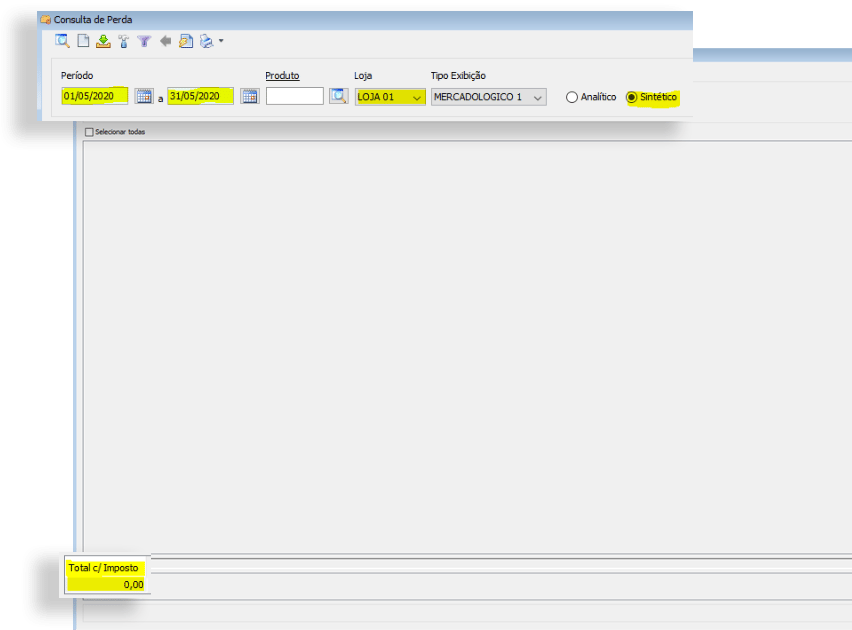
Breakage
Access the correct VR Master screen to verify the Controller360 data: Inventory / Breakage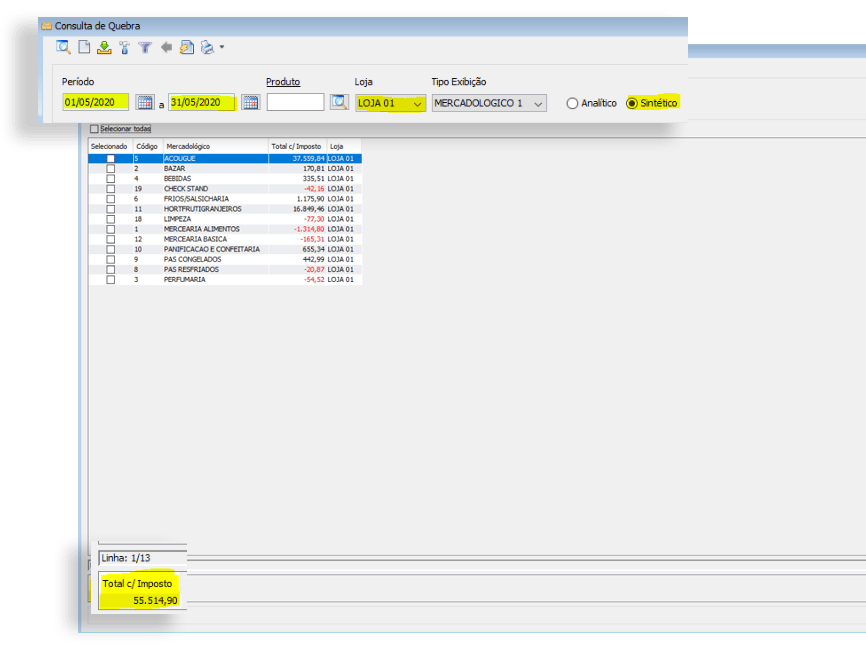
Consumption
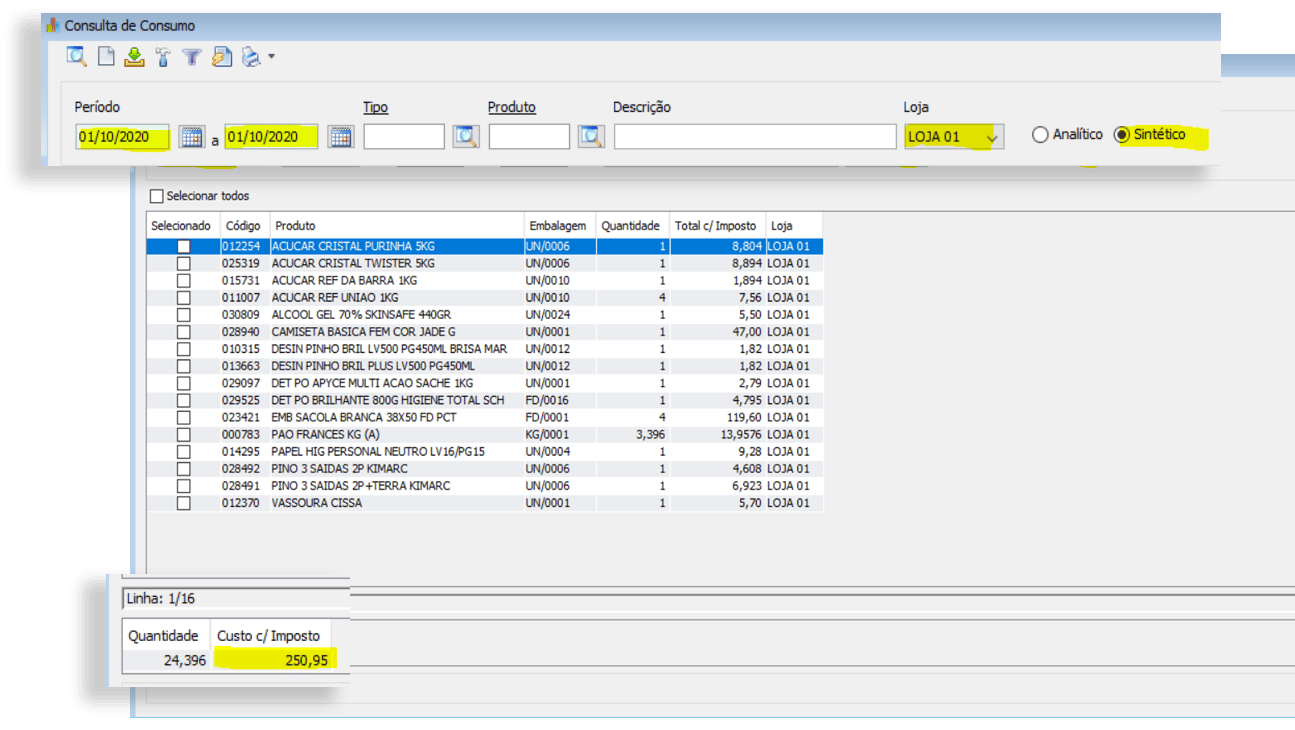
Access the correct VR Master screen to verify the Controller360 data: Inventory / Consumption